
Web admin panel
The web admin panel is APX’s browser-based UI. It runs entirely in your browser, talks to the daemon over its HTTP API, and requires no public server. Any browser on the same machine — or on the same LAN after pairing — can use it.
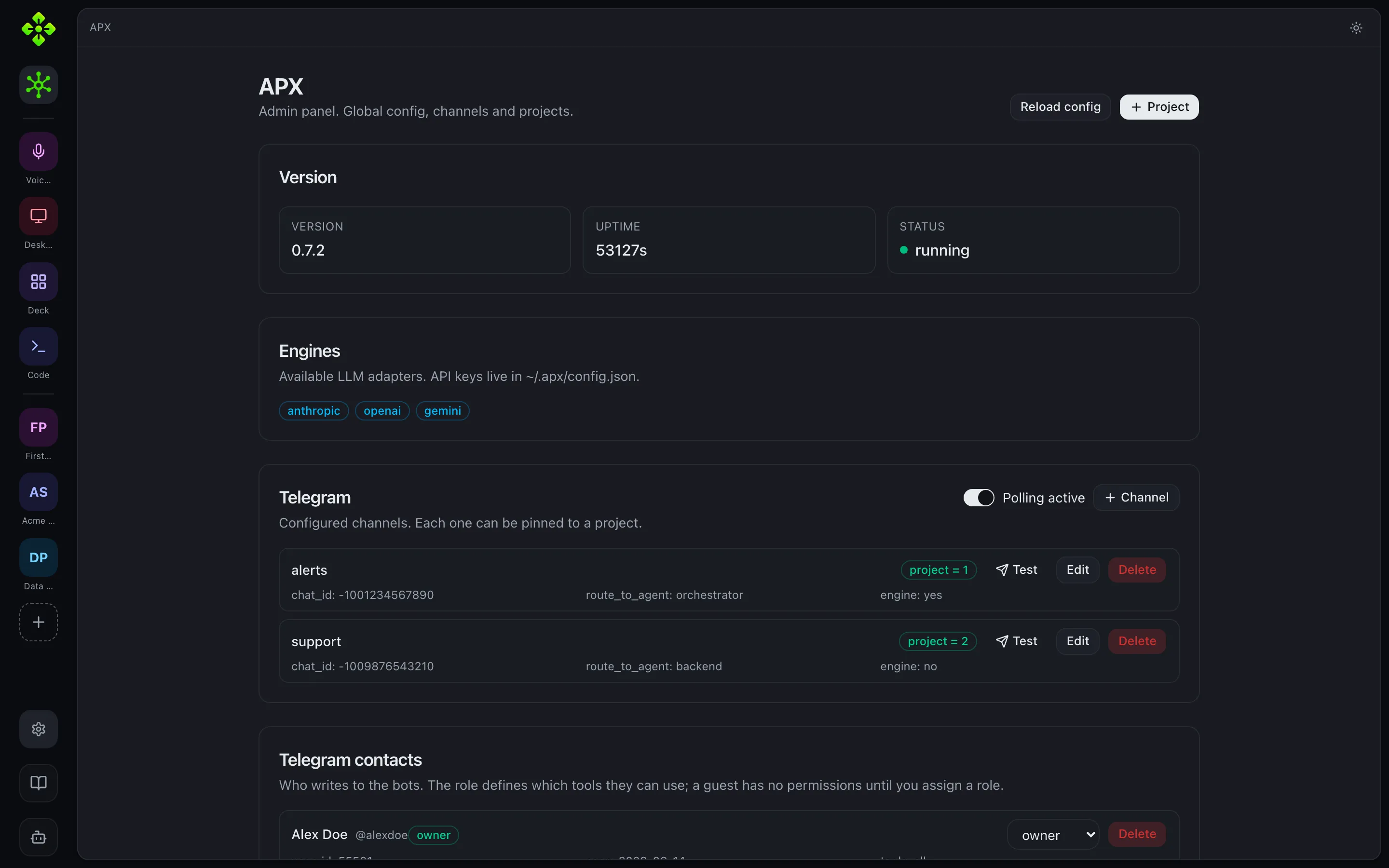
Open on the local machine
Section titled “Open on the local machine”The daemon serves the built panel at http://127.0.0.1:7430/. Start the daemon
and open that URL:
apx status # boots the daemon if it isn't running yet# then open http://127.0.0.1:7430 in your browserOn the first load the panel fetches its auth token automatically from
/api/admin/web-token (loopback-only endpoint). You don’t need to copy a token
manually when opening from the same machine.
Open from another device (LAN pairing)
Section titled “Open from another device (LAN pairing)”To open the panel on your phone or another computer on the same LAN, use
apx pair web. The command prints a QR code and a direct URL:
apx pair web# Prints:# http://192.168.1.42:7430/#token=<token># [QR code for scanning with a phone camera]Scan the QR with your phone camera (no app needed) or share the URL. The
#token=… fragment carries the bearer token — the panel uses it automatically.
$ apx pair web
  APX pairing (web)  ·  expires in 90s

  █▀▀▀▀▀█ ▀▄█▀▄ █▀▀▀▀▀█
  █ ███ █ ▀█▄▀  █ ███ █
  █ ▀▀▀ █ █▄▀█▀ █ ▀▀▀ █
  ▀▀▀▀▀▀▀ █ ▀ █ ▀▀▀▀▀▀▀
  ██▀▄ ▀▀▄▀█▄▀▄█▀ ▄█▀▄█
  ▀ ▀▀▀▀▀ █▄▀ ▄██▀▀▄ ▄▀
  █▀▀▀▀▀█ ▄▀█▄▀▀█▄▀ █▄█
  █ ███ █ ▀█▄ ▀▄█▀▄▀▀▀▀
  █ ▀▀▀ █ ▀▄█▀█ ▄▀▄█▄ ▄
  ▀▀▀▀▀▀▀ ▀▀ ▀▀▀▀ ▀ ▀▀▀

scan with the phone camera — opens the web already linked
link: http://192.168.1.42:7430/#token=8f3a…d10c
code: pr_7QF2K  (or paste it in the web pairing screen)
To see all currently paired clients or revoke one:
apx pair listapx pair revoke <id>Building the web bundle
Section titled “Building the web bundle”The panel is a Vite + React + TypeScript app under src/interfaces/web/. The
built output lands in src/interfaces/web/dist/ and is served by the daemon.
# Build once (from repo root)node scripts/build-web.js
# Or rebuild manuallycd src/interfaces/webpnpm installpnpm build
# Development with hot reload (proxies API calls to :7430)pnpm dev
The build:web npm script and the prepack hook both call
node scripts/build-web.js, so a global npm install -g . always ships a
fresh bundle. Set APX_SKIP_WEB_BUILD=1 to skip it during dev flows that
don’t touch the UI.
Navigation model
Section titled “Navigation model”The panel has two navigation levels:
- Base (
/p/0/…) — the global daemon space: workspaces, models, sessions, logs, and global config. The chat in Base talks to the super-agent. - Project (
/p/:pid/…) — a single project workspace: agents, chat, tasks, routines, MCPs, memories, and config.
A left rail shows all registered projects plus module shortcuts (Voices, Desktop, Deck, Code). Below the rail is a Roby button that opens a floating chat sheet connected to the super-agent.
Two more namespaces sit beside the project ones. The panel’s own modules are
top-level paths — /inbox, /code, /desktop — and /m/… belongs entirely to
the phone surface: /m/chat, /m/tasks, /m/commitments. The phone’s old
address, /mobile, still resolves; it redirects into /m/… so links already out
in the world (printed QR codes, the Android shell) keep working.
Live updates
Section titled “Live updates”Every screen that shows a conversation updates itself. The panel keeps one
WebSocket open to the daemon (/api/events/ws, authenticated with the same
token as the HTTP API), and the daemon reports on it whenever a conversation
moves — whichever surface produced the turn.
So a message that arrives on Telegram appears in the inbox on the laptop and on the phone at the same time, without a reload, and three devices open on the same thread stay in step. The socket carries a signal, never content: it says which thread moved, and each screen re-reads that thread through the API it already uses.
It repairs itself. A phone that suspends the tab, a laptop that sleeps, a tailnet that drops — on coming back the panel reconnects and revalidates once, so nothing is missed while it was away. If the socket cannot be opened at all (a proxy that refuses upgrades), the lists fall back to their 15-second refresh and the panel keeps working, just less immediately.
Running turns and queued messages also survive navigation inside the panel. If you leave a chat and come back, its partial reply and completed tool cards are restored in their original order, then streaming continues. Every chat list uses the same compact status marker beside the agent badge: a spinner while the agent is writing, then a blue dot when the reply finishes outside the open chat. Opening the chat clears the dot. Switching chats clears the old transcript immediately; a request still running for that old chat continues in the daemon, but cannot write into the newly opened one.
The dot is shared, not per device. What has been read lives with the daemon
(~/.apx/read-marks.json), so reading a conversation on the laptop clears it on
the phone within the same second — the other surfaces are told over the same
socket. It used to be each browser’s own memory, which meant an afternoon of
reading on one device left forty blue rows on the other, every one of them
already read. An install that has been running for a while takes its baseline
the first time it is asked: everything said before that moment counts as read,
and only what arrives afterwards raises a dot.
Notifications, and which channels reach you
Section titled “Notifications, and which channels reach you”The panel can tell you when an agent writes and you are not looking: one
notification per thread, through the service worker, tapping it opens that
conversation. Turn it on in Settings → Notifications (or from the phone’s
own preferences sheet). It needs https — apx panel tailscale on — and it needs
the app to be running, backgrounded included; waking a fully closed app is web
push, which APX does not do yet.
What raises one is an agent reply, and only that. Your own message does not, and neither does any of the work in between: a turn can run two dozen tools and each one moves the thread, which is how the same turn used to arrive as a stack of notifications. A streamed answer that lands in pieces rings once and then updates the same banner quietly.
Which channels may ring is answered per device. The phone has Telegram
installed on it, so an APX notification about a Telegram reply is the same news
twice — there it starts off. On the laptop it is the only way to hear about it,
so there everything starts on. Chips under Settings → Notifications switch
each channel for the device you are on; the choice lives in that browser
(localStorage) and never leaves it.
The same idea applies to the lists. The inbox and /m/chat show every
channel a conversation can happen on, and one collapsed picker — “Channels · 6
of 11” — switches each one off and back on for that device, again with Telegram
off by default on the phone. A channel that is off keeps its switch (with its
count), so the way back is where the way out was, and a list emptied by a filter
says which filter emptied it instead of claiming there is nothing there. Both
lists are flat and sorted by recency, so every row wears its channel as a tag.
Which project a conversation comes from
Section titled “Which project a conversation comes from”The inbox spans every project at once, which raises a second question the channel cannot answer: two projects can both have an agent called Zoya, and “Zoya · Web” does not say whose. So provenance is its own badge — the project name, next to the channel tag and never folded into it — on the list row and in the header of the conversation it opens, on the desktop and on the phone alike.
Only agents from another project are marked. The default workspace is where the super-agent lives and where every conversation without a project of its own lands, so badging it would label most of the list with the one place that goes without saying.
Beside the channel picker there is a Projects picker of the same shape, with a count per project, so you can read one project’s conversations on their own. Like the channel one it is a per-device choice kept in that browser.
Inside a project’s own Chat tab (/p/:pid/chat) neither the badge nor the
filter appears: the answer is the screen you are standing on.
Project workspace
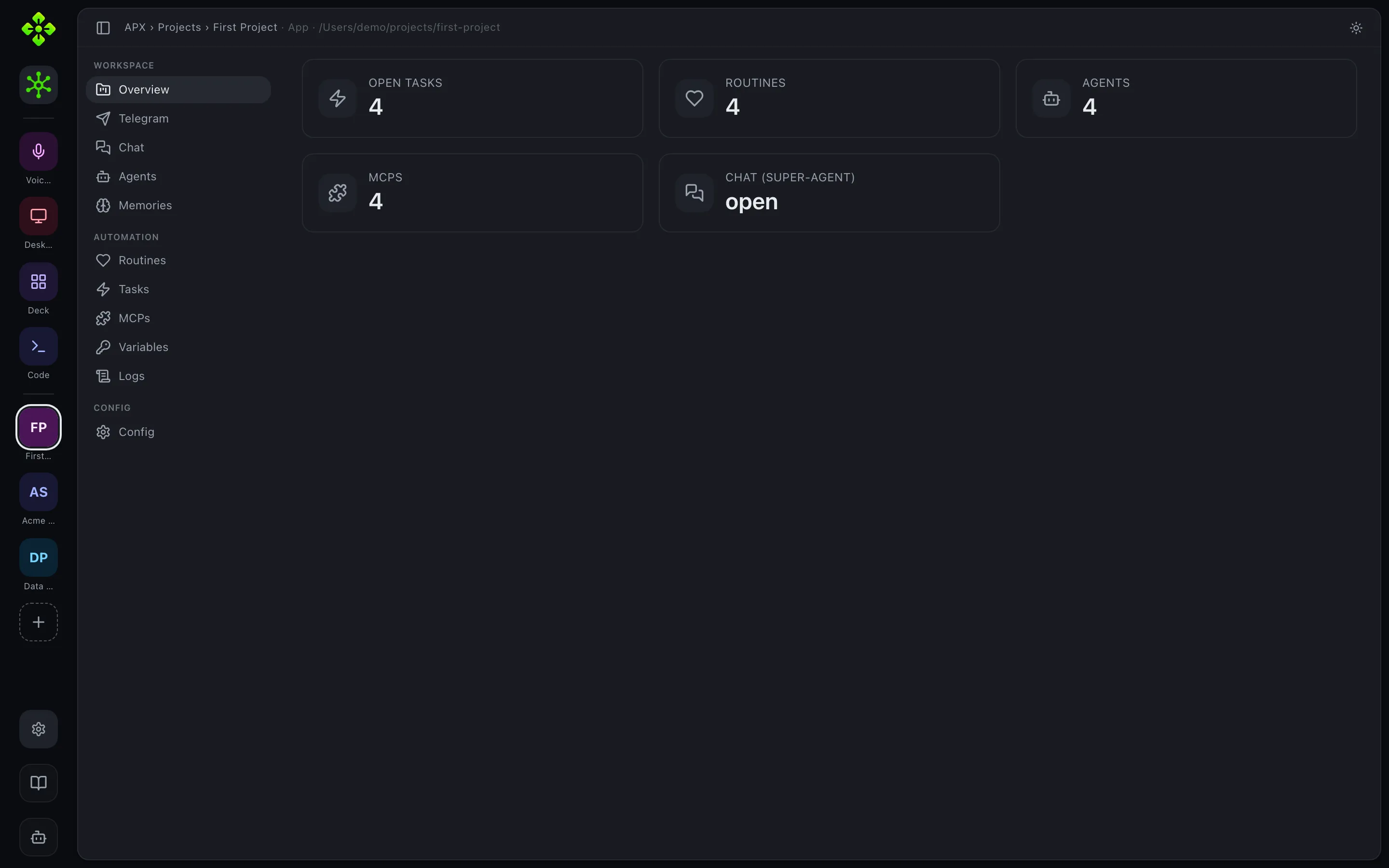
Section titled “Project workspace”Opening a project lands on its Overview — a “mission control” floor with live stat cards (agents, open tasks, active routines, artifacts), a task-workflow strip broken down by status, the agent roster (orchestrators vs. specialists), and the most recent open tasks. Each tab below maps to a daemon API namespace.
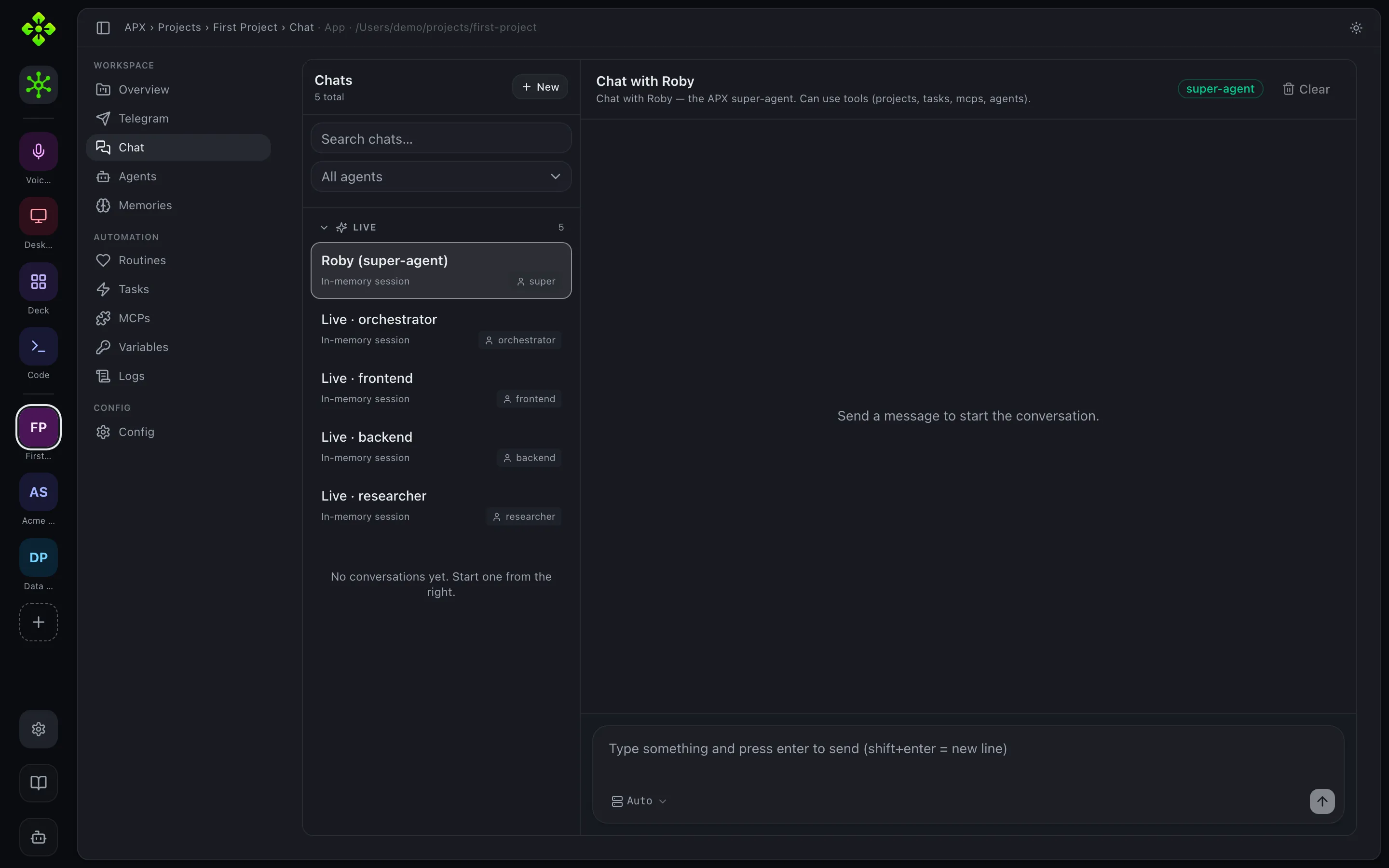
apx web, then open any project (its landing tab) The Chat tab talks to the super-agent (Roby) and to each project agent. The sidebar is channel-first, grouped as Web, Telegram, Desktop, Voice, Agent ↔ Agent, Schedule, Other — in that order. Besides your own web conversations, it also surfaces the super-agent’s day-threads from every other channel (Telegram, Desktop, Deck), so a conversation that happened over Telegram is visible from the web — and can be carried on there, in a session of its own.
The ”+ New” button opens an agent picker (super-agent or any project agent) and starts a fresh session that only materializes under the Web group once you send the first message. Each open conversation has a “New session” action (resets in place) and a “Delete” action (behind a confirmation dialog) that permanently removes the conversation file or the channel thread.
Under the agent’s name, the thread’s title is a switcher: it lists the other sessions of the conversation you are reading — the same channel, and on a channel that carries several people (WhatsApp) the same person, one row per day. Not every thread APX has: opening one contact’s WhatsApp offers their days, not the Telegram day or somebody else’s conversation. A person who has written from two numbers is still one person there, because the roster says so. An agent-to- agent pair and a group room are one conversation each, so neither gets a switcher at all.
A turn that takes several steps does not print as a running log. Every tool the agent ran collapses into one N actions row — open while it works, closed once it is done, one click for the arguments and results, and any failure named in the row itself. What stays in the open is the closing message: the answer the turn was for. Reopening the conversation later shows the same thing: the steps are recorded with the turn, not just streamed and forgotten. Progress prose stays visible too, but is not replayed into the next model prompt; only the final answer becomes conversation history.
Inviting someone turns the chat into a room
Section titled “Inviting someone turns the chat into a room”A conversation is never left behind to start another one. Adding an agent to a 1:1 converts that chat: the transcript moves onto a group room, the agent that walks in can read everything said before it arrived, and the 1:1 is archived with a pointer to where it continues.
An agent-to-agent pair is a room too — two agents talking — so it is drawn like one, with each speaker named above their bubble instead of tagged under it. It has no seat for you until you want one: the moment you write in a pair it converts as well, seating whichever of the two are agents of this project (the super-agent’s seat becomes yours), and your line is the first thing said in the new room.
A pair that is working says so
Section titled “A pair that is working says so”An agent-to-agent turn is a full tool loop that can run for minutes. However it
was started — over HTTP, or by one agent calling send_to_agent / call_agent,
including work left running in the background — the pair shows the same live
narration as any other chat: it says somebody is answering before the first
token, the tools appear as they run, and Stop reaches the work. Cancelling a
background job stops its peer for the same reason.
A chat you start inside a project is listed in that project. The Base workspace still shows every thread from every channel; a project shows the ones opened from it, plus channel threads (Telegram, Desktop) that belong to no project in particular.
Forwarding a message to another session
Section titled “Forwarding a message to another session”Any message in any conversation — yours or an agent’s — has a Forward action next to Copy. It asks two things: who should see it, and where in their history it should land. The most recent session of whoever you pick comes preselected, so continuing a conversation you were already having is one click; New session is always the first option for the other case. Whatever you type goes under the quote, and may be left empty: “read this” is a complete message, and the agent answers the quote.
The list is not limited to this project. An install is one set of agents as far
as you are concerned, so the picker reaches across every registered project,
grouped under each project’s name, with a search that matches a person’s name,
their slug, or the project they are in (GET /api/agents backs it).
Forwarding into another project navigates there and continues in that project’s
chat — the quote records which project it came FROM, so the card’s link back
still opens the right conversation.
On the other side the message arrives as a card that says where it came from, who said it and when, with a link back to that session — so the forward reads as a citation rather than as pasted text with no author. The agent reads the same three facts: the quote travels in the prompt, marked as somebody else’s words.
Some conversations cannot receive a forward, and are left out of the list rather
than offered and then refused: Telegram and WhatsApp threads (the message is on
somebody’s phone; a turn written here goes out on web instead), agent-to-agent
transcripts, group rooms, and any super-agent thread but today’s on this
surface — the super-agent has no conversation file, so its turns are written
with the clock, and a message dropped into yesterday would be shown in one
thread and recorded in another.
Replying inside a Telegram or WhatsApp thread
Section titled “Replying inside a Telegram or WhatsApp thread”Those threads are readable here and cannot be written back into: the message was delivered on somebody else’s platform, and APX cannot take it back or add to it. The composer says so above the field, and then does the honest thing — what you write continues in a new session with the super-agent, with the thread’s last message quoted at the head of yours, and the panel moves there as it sends. Before, the reply appeared to land in the Telegram thread and was gone on the next reload.
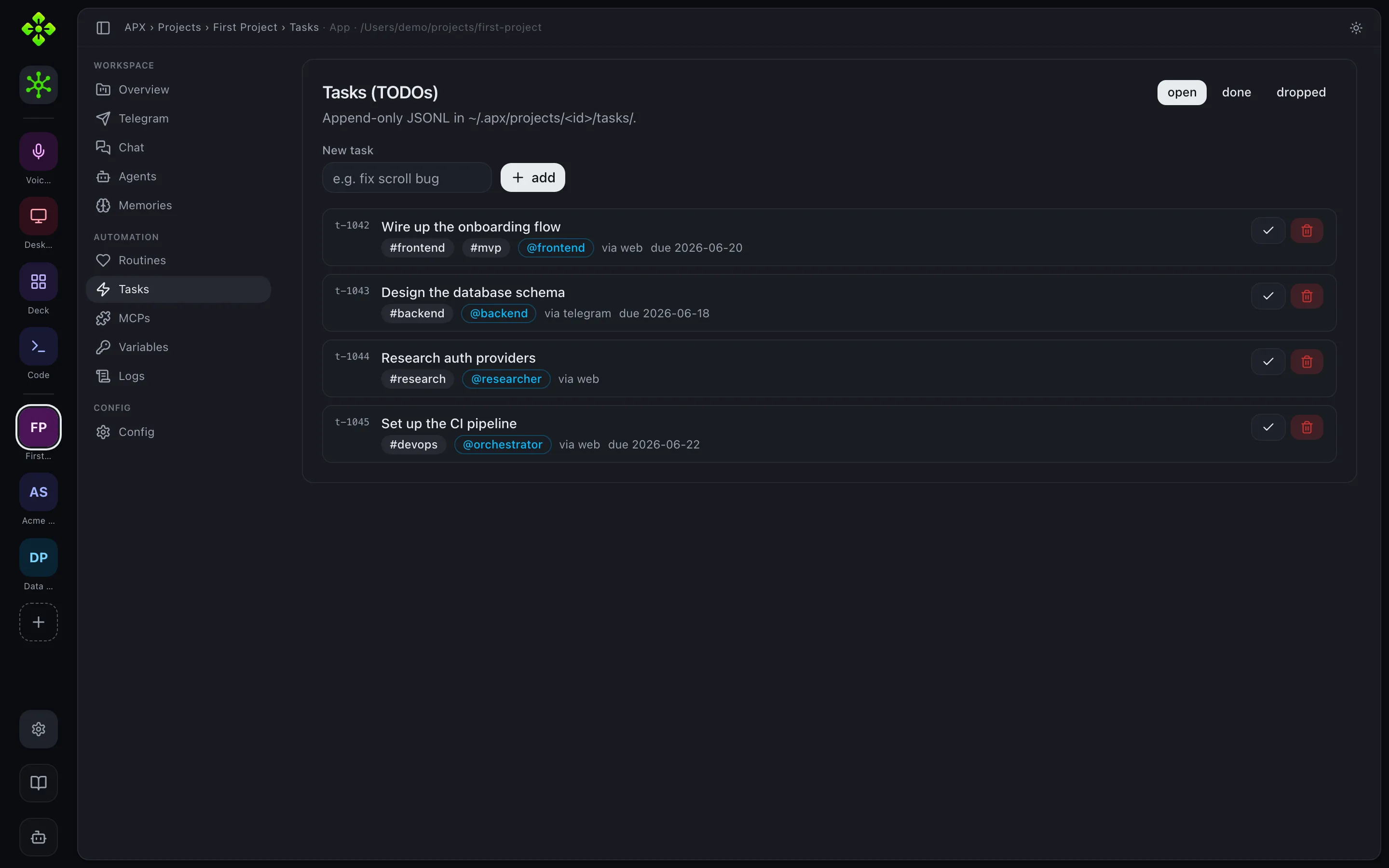
The Tasks tab is the project’s backlog. Besides the classic id/title/tags/due
date/assigned-agent fields, tasks now carry a workflow status — pending,
running, in_review, or blocked while open, and done/dropped once closed
— shown with a status icon and color. Opening a task shows a detail panel
with an editable status and body, and a “View thread” link when the task is
linked to a chat thread. The list is server-paginated (see below) and can be
filtered by state (open / done / dropped).
Routines
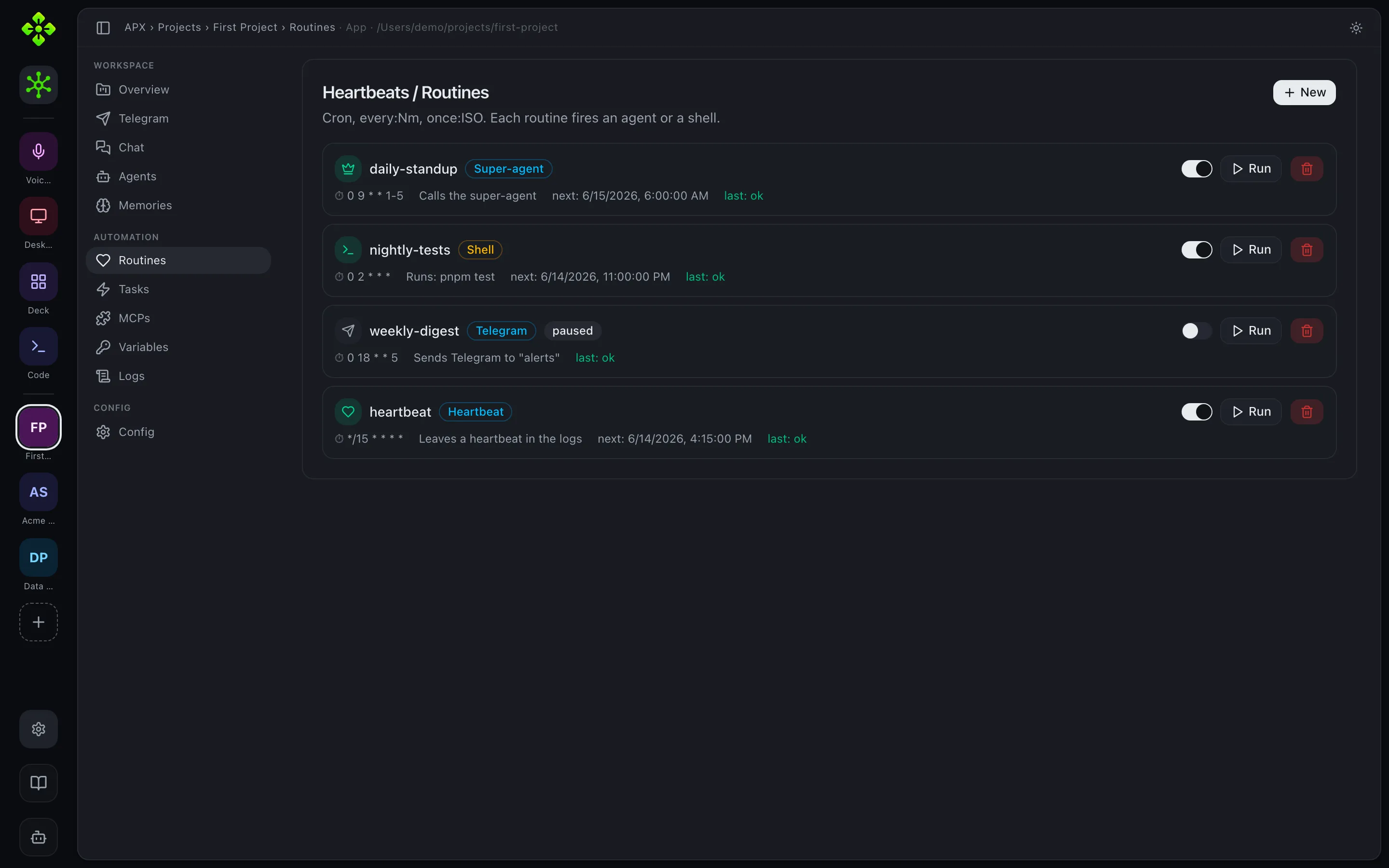
Section titled “Routines”The Routines tab schedules recurring work — a super-agent prompt, a shell command, a Telegram message, or a heartbeat — on a cron expression.
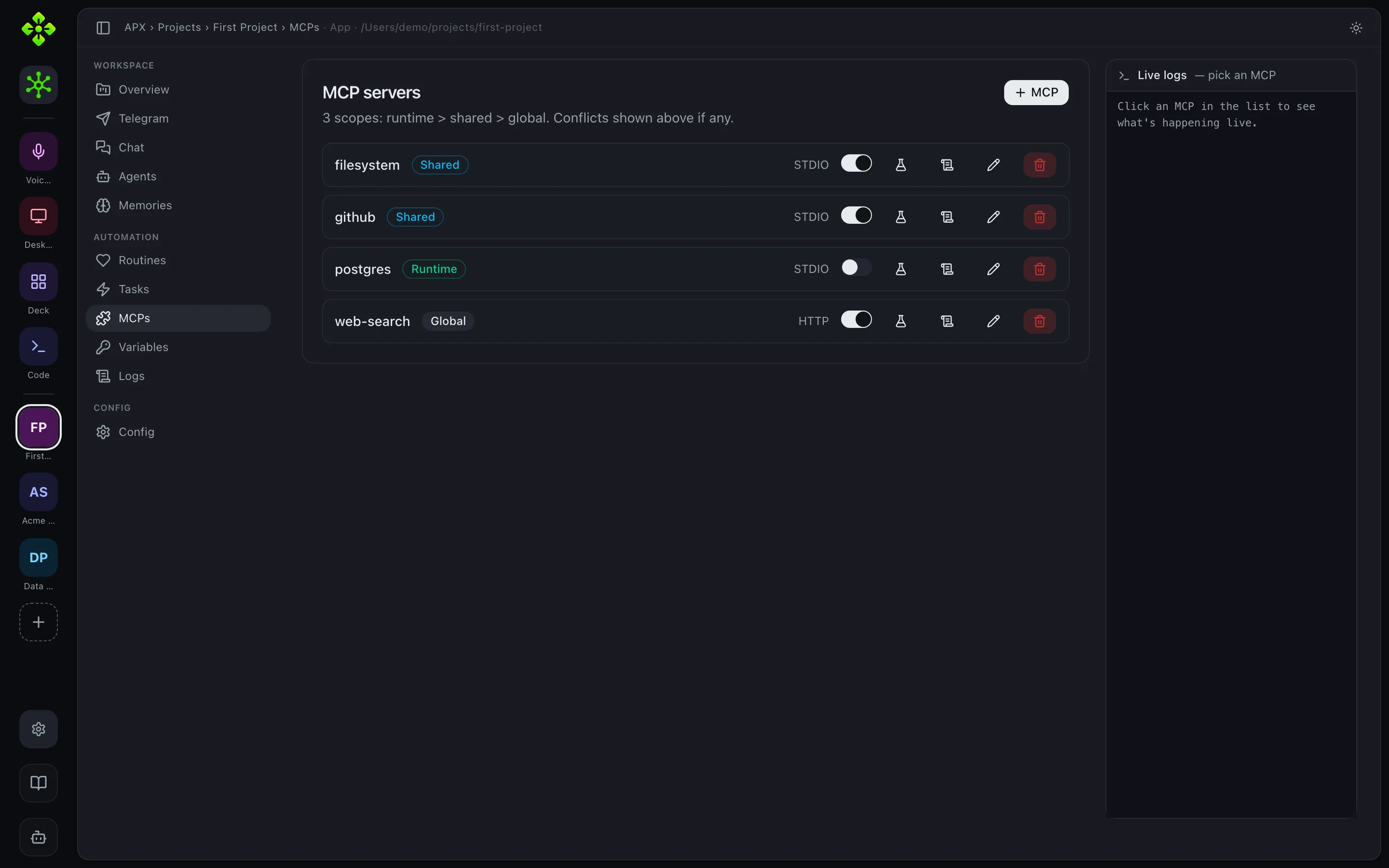
The MCPs tab lists the Model Context Protocol servers available to the project across all three scopes (shared, runtime, global), with a live log pane. Header/config values in the MCP editor support the variable token picker — see Variables below.
Memories
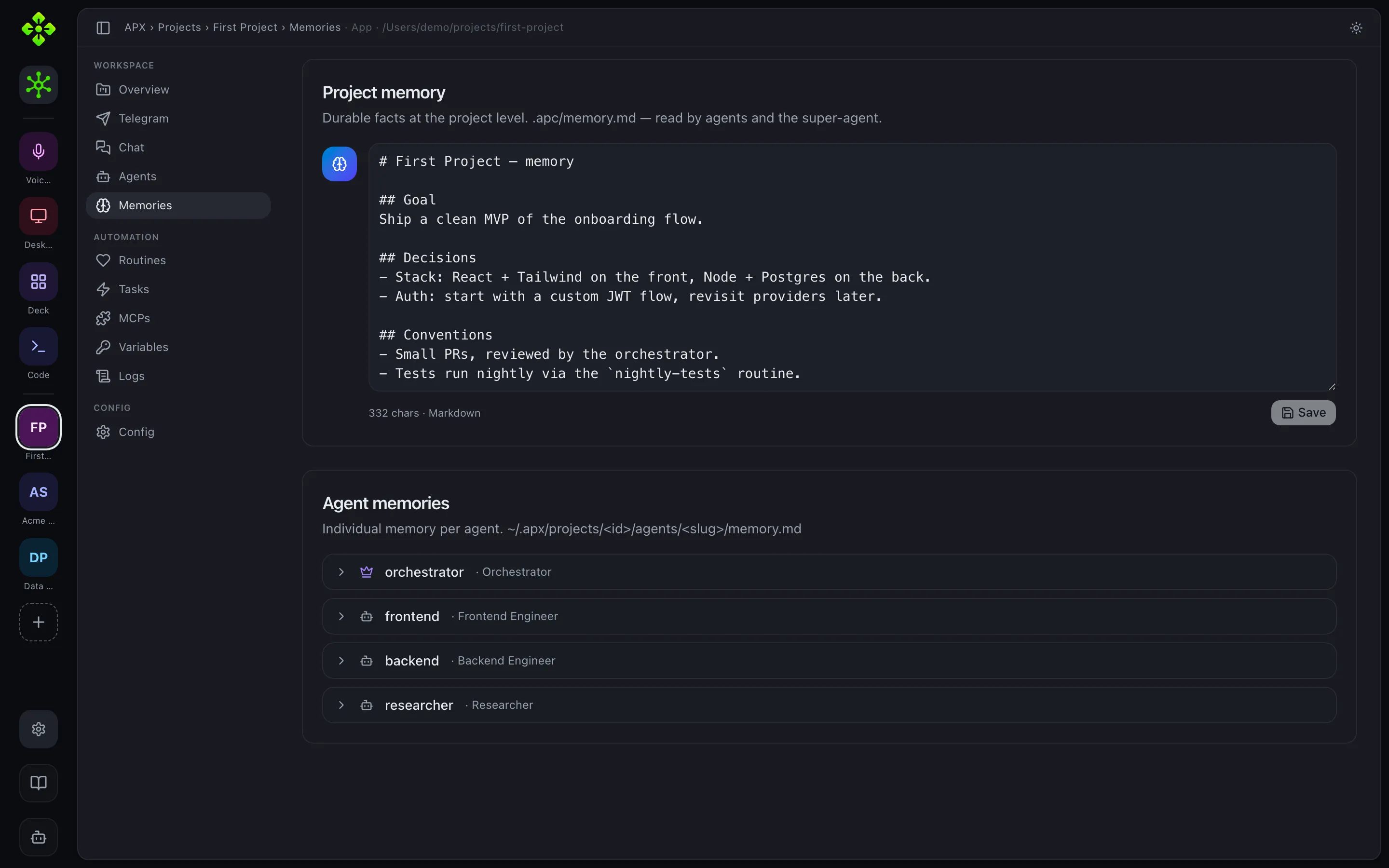
Section titled “Memories”The Memories tab shows the long-lived context the agents read, one file per
row. A project has two. Internal memory
(~/.apx/projects/<id>/memory.md) comes first and is what opens: the
super-agent’s remember tool writes it and git never sees it, so a fact picked
up mid-conversation cannot put a pasted credential in your history. Project
memory (.apc/memory.md) is the curated one that travels with the repo.
Promoting a line from internal to committed is a manual edit here. Below them sits
each agent’s own memory. The super-agent’s notebook (~/.apx/memory.md) is
global rather than per-project, so it is listed only in Base.
Skills
Section titled “Skills”The Skills tab embeds the same skills manager used in Settings (see Skills), locked to this project’s scope — enable, disable, add, and inspect skills without leaving the project.
Structure Company projects
Section titled “Structure ”For projects with kind: "company", a Structure tab appears to manage the
org model behind agent assignment: Areas (e.g. “Engineering”, “Sales”) and
Roles within or outside an area. Areas and roles can be created, edited, and
deleted here, and are backed by .apc/organization.json. The same quick-create
dialogs are reachable from the agent editor’s Area/Role pickers.
apx web, then open a company project → Structure Docs and Files
Section titled “Docs and Files”Two tabs browse the project’s files with the same viewer component:
- Docs — editable. Rooted at the project’s configured docs folder
(
docs.root, defaultdocs/). Supports creating, editing (a dependency-free markdown split editor with live preview), and deleting files. - Files — read-only. Browses the whole project tree. Type-aware: Markdown renders, code shows with line numbers, images preview inline.
apx web, then open a project → Docs → create or open a file Artifacts
Section titled “Artifacts”The Artifacts tab lists the artifacts stored under <project>/artifacts/ —
the same list used by the Code module’s side panel, now reachable from the
project’s own navigation. Run and Edit hand off to the
Code module so you can pass arguments (e.g. a URL) in the terminal or
edit the file directly, instead of running headlessly in place.
Config
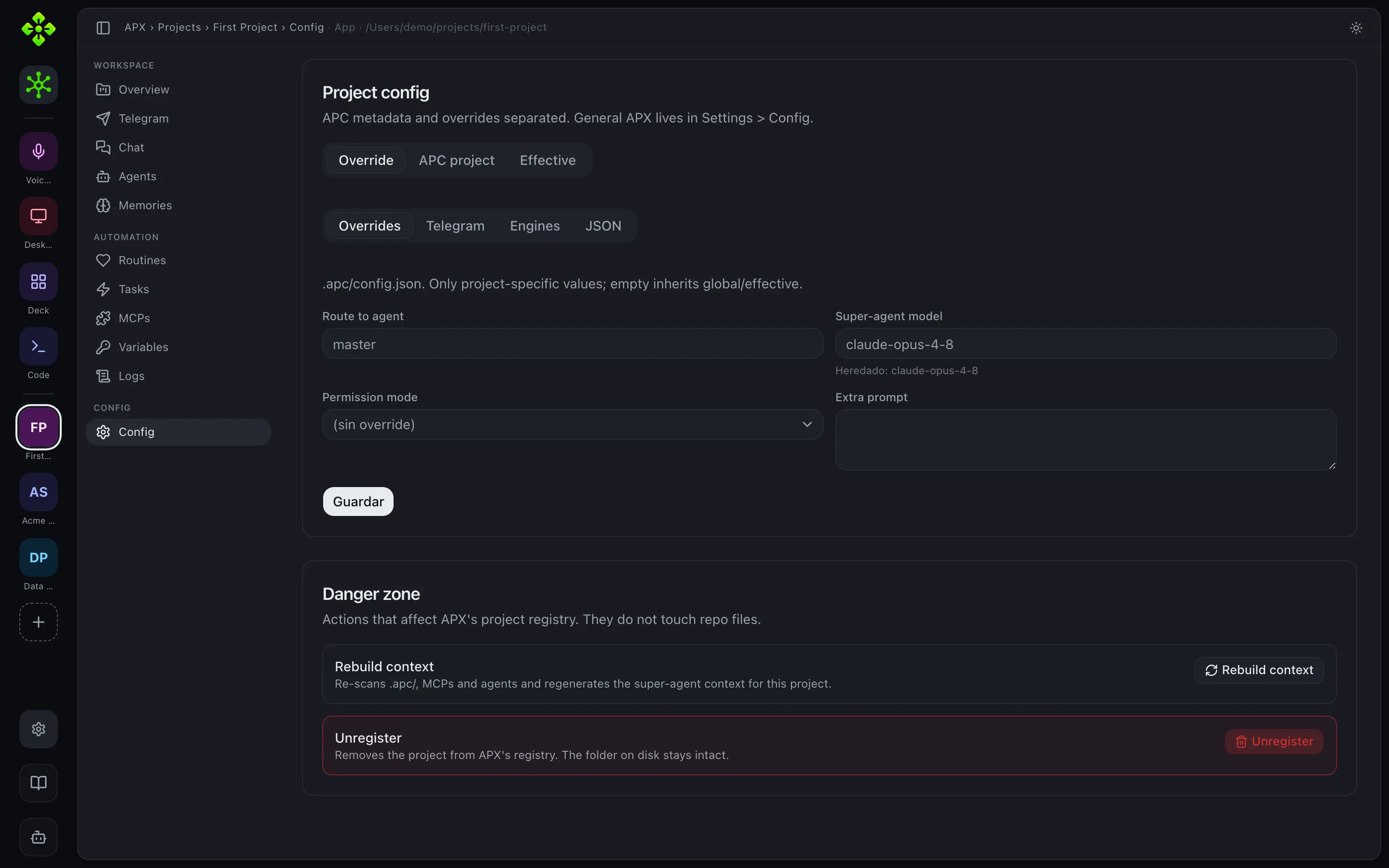
Section titled “Config”The Config tab shows the effective project configuration merged from the
project’s .apc/ files and the global defaults.
Variables
Section titled “Variables”The Variables tab (vars) manages named, masked secret/config values at
project or global scope (e.g. MY_API_KEY). Values are hidden by default with a
per-row and a global reveal toggle. Anywhere a value can reference a variable —
for example an MCP server’s headers — a token picker (the ”+” button next to
the field) lets you search and insert ${var.NAME}, rendered inline as a $NAME
badge so the reference reads as part of the line instead of a raw template
string.
apx web, then open a project → Variables, and MCPs → header field Rail modules
Section titled “Rail modules”Projects
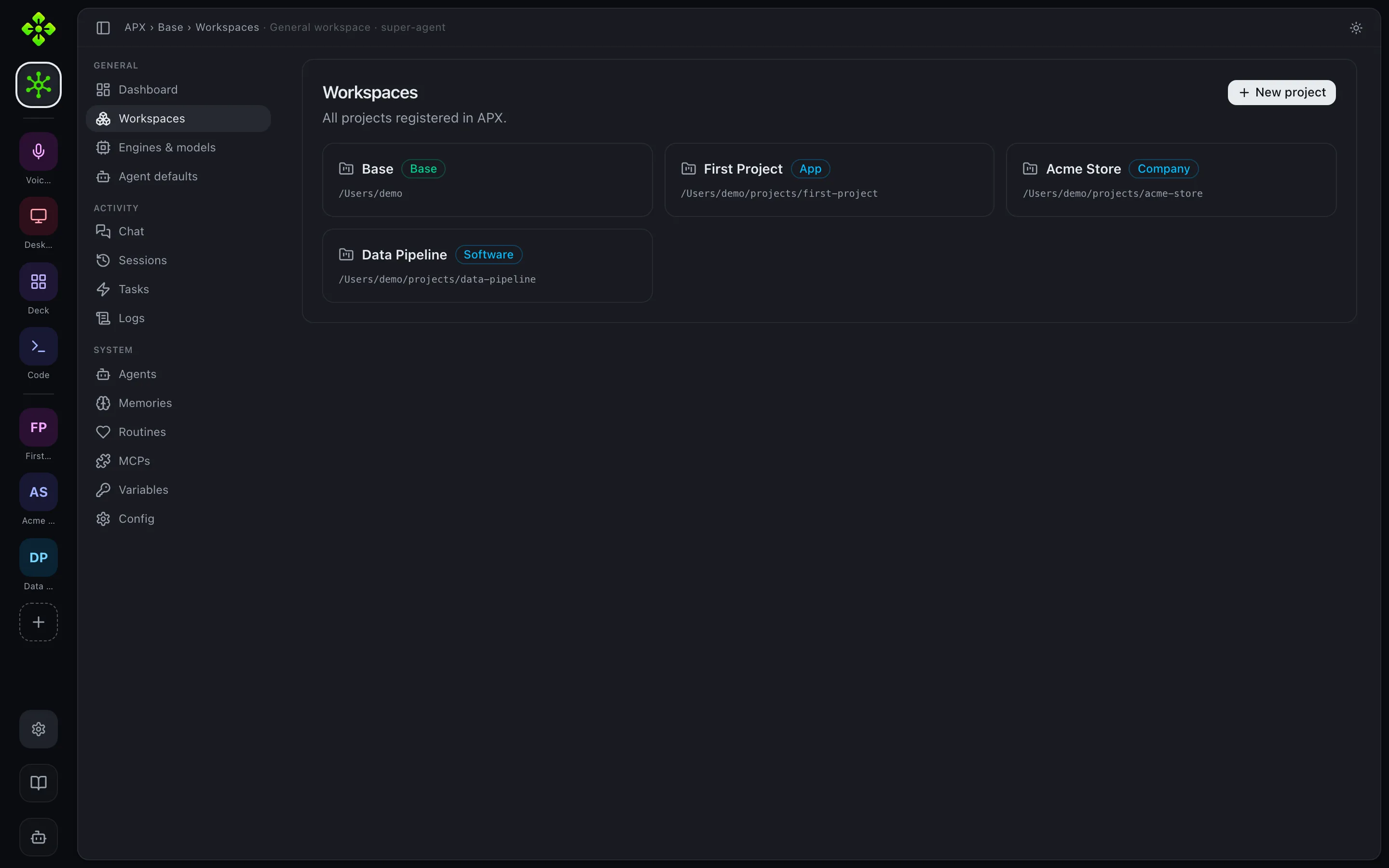
Section titled “Projects”The Projects tab (Base → Workspaces) lists all registered projects as cards.
Click a card to enter that project. The “New project” button opens an inline
dialog (?action=add-project).
Agents
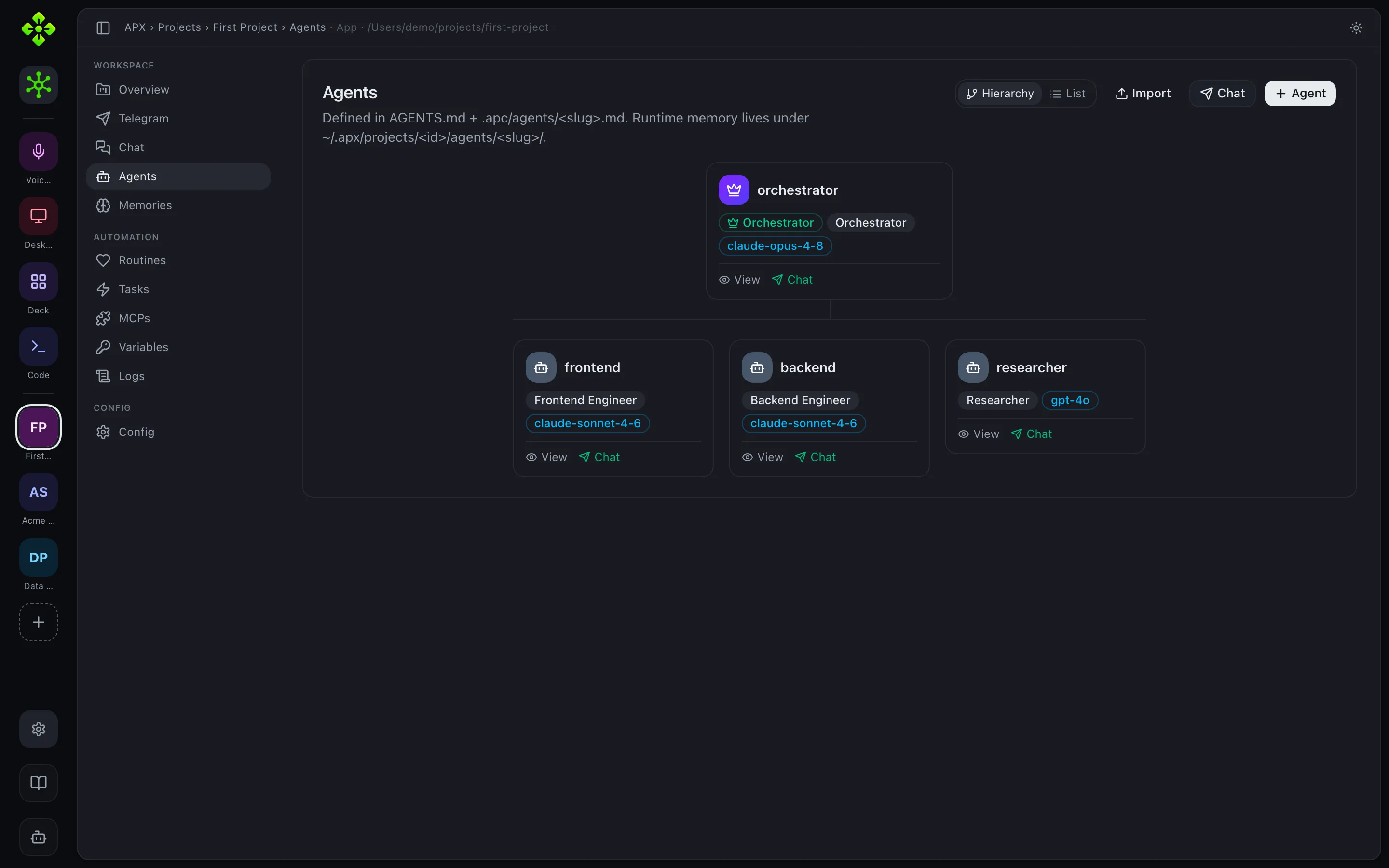
Section titled “Agents”Each project has an Agents tab. You can create, edit, and delete agents; view
and edit each agent’s memory.md; and assign skills. In the Base space the
Agents tab shows the super-agent configuration (read-only summary).
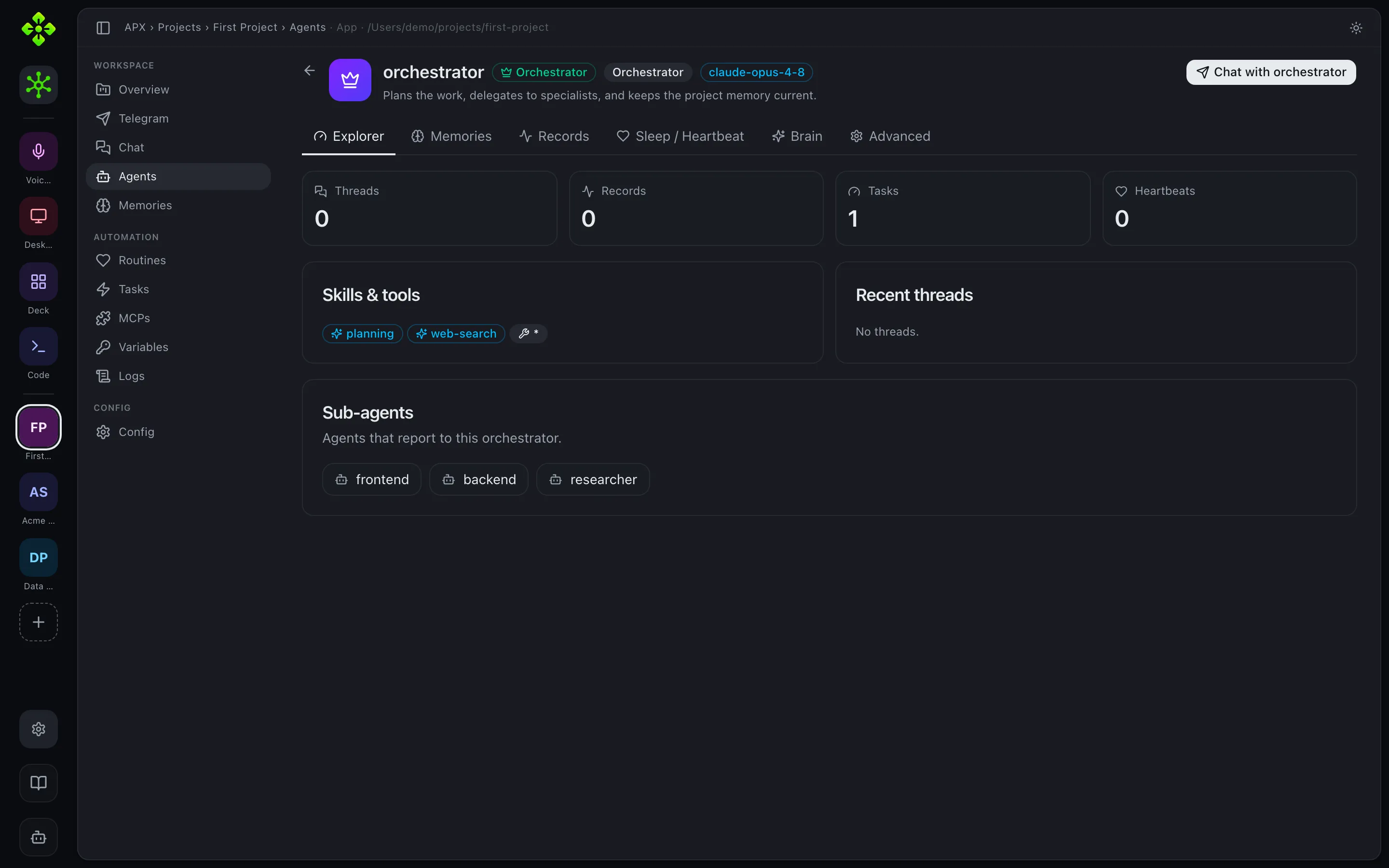
Open an agent to inspect its memory, skills, tools, sub-agents, and brain graph.
The editor also sets an emoji (shown next to the agent everywhere in the UI,
including the Overview roster), an autonomy level — a three-way toggle for
the same permission modes as the CLI/config (total, automatico, permiso,
labeled Total / Auto / Permission) — and, for company-kind projects, an
Area and Role pulled from Structure, with
quick-create buttons next to each picker.
Sessions
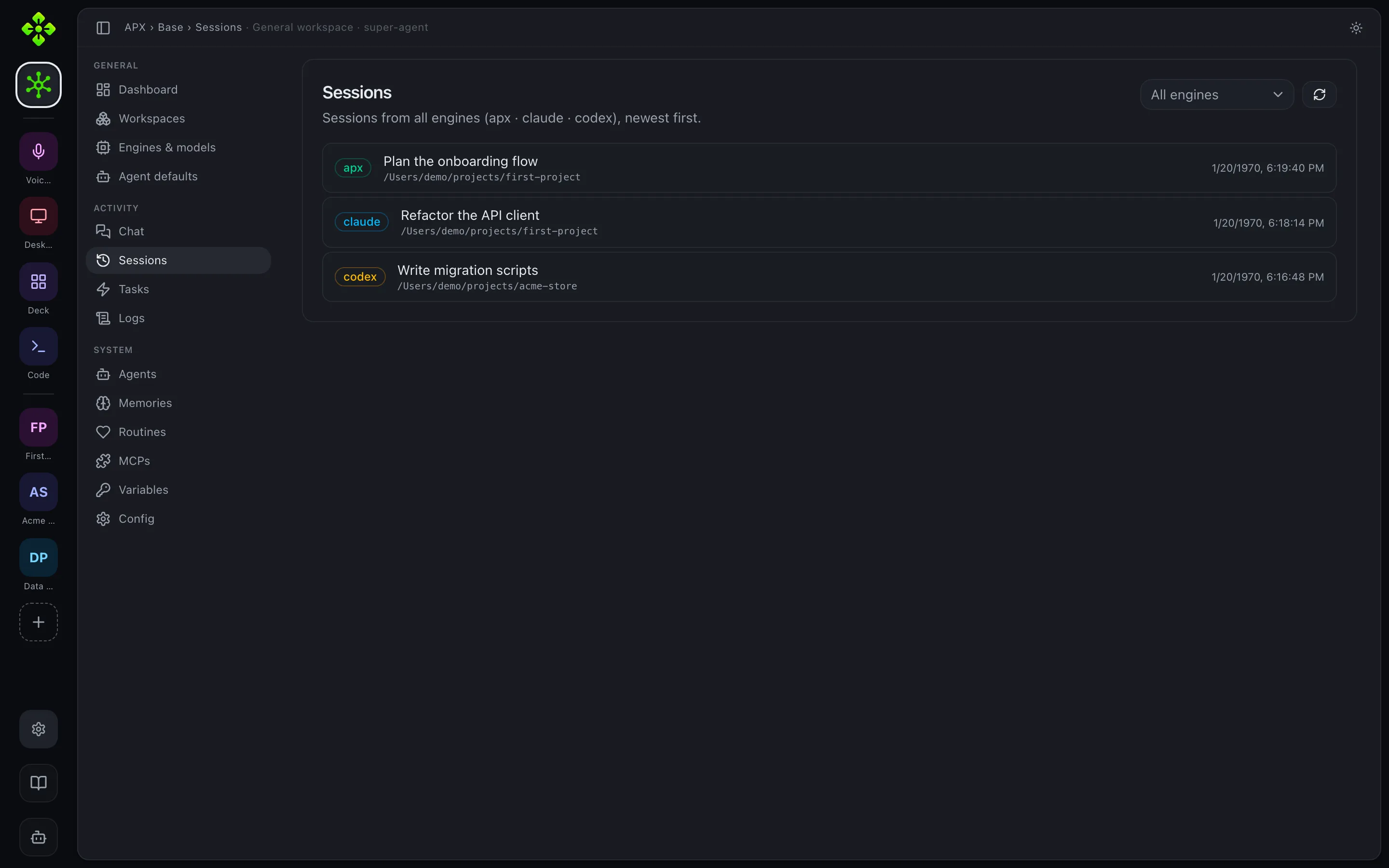
Section titled “Sessions”The Base Sessions tab (/p/0/sessions) lists every recorded session across
engines. A search box (title match by default, with a “Deep” toggle to scan
transcript content) reuses the same matching logic as apx session find, plus an
engine filter and a Clear button. Each row exposes four actions: copy the
apx session resume <id> --continue command, ask the assistant to continue that
session from a quick-chat bubble, open the session’s working folder, and copy its
path.
Voices
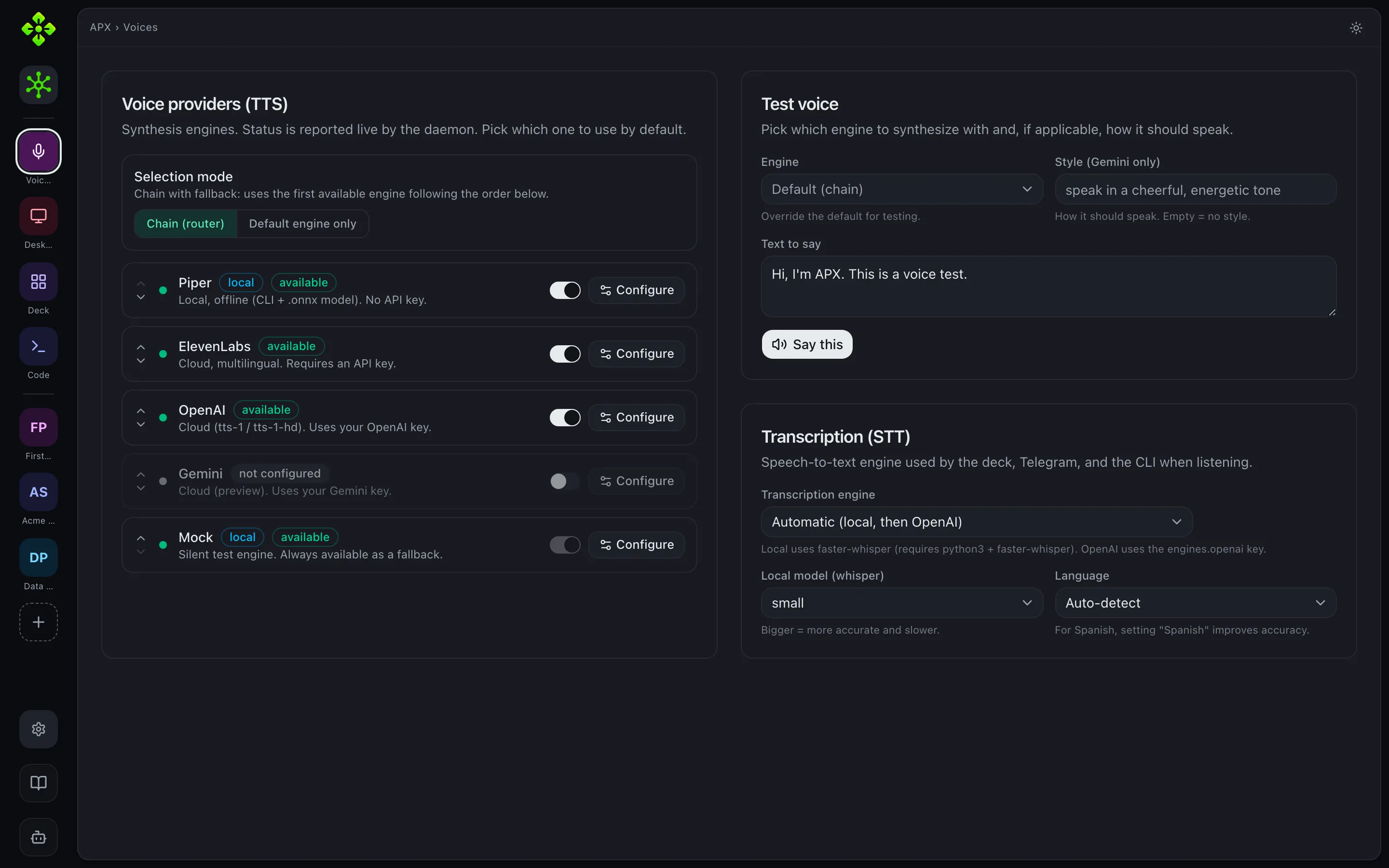
Section titled “Voices”The Voices module (/m/voice) configures TTS and STT globally. It shows the
live status of every configured TTS engine (Piper, ElevenLabs, OpenAI, Gemini,
mock), lets you pick a default or chain-with-fallback mode, reorder the chain,
configure per-engine credentials, and run a live test playback. The STT section
configures the Whisper model and language for mic input.
See Voice for the full CLI reference.
Desktop
Section titled “Desktop”The Desktop module (/desktop) shows whether the floating Electron window is
running (connected WebSocket clients), lets you edit the global shortcut, and
toggle whether the daemon responds to desktop messages. You cannot start or stop
the Electron process from the web panel — use apx desktop start / stop.
See Desktop for the full CLI reference.
Deck Preview
Section titled “Deck ”The Deck module (/m/deck) will surface the GET /api/deck/manifest payload: daemon
health, active project, registered plugins, and the widget/desktop grid, and let
you enable or disable individual widgets from this view.
See Deck for the pairing CLI reference.
The Code module (/code) is the admin surface for the APX coding assistant.
It opens on a code session: a persistent transcript with its own git
baseline, plan/build mode, and optional project agent.
It opens on every project’s sessions, newest first — the project picker at the top of the rail narrows the list rather than defining it. That matters because a session belongs to the project its working directory resolved to, so a run started elsewhere would otherwise be invisible here. Each row names its project and, when one is set, its agent.
New session asks the two questions that are decisions: which project it runs in (files, terminal and diff are scoped to it) and which agent answers in it — the super-agent, or any agent of that project. Both are visible afterwards in the Context panel, where the agent can still be changed for that session.
The terminal shares the same sessions:
apx exec --code "refactor the auth middleware"runs one turn in a fresh session titled from your prompt, prints the reply on
stdout, and prints the session id on stderr so you can open it in the panel.
Pass --session <id> to continue an existing one. Run from a folder that is not
a registered project, the session works in that folder.
In build mode the assistant reads the project’s AGENTS.md, keeps a checklist
for multi-step work, edits with patches (apply_patch) or exact replacements,
runs the project’s own tests or checks before calling the change done, and ends
with the diff. It starts with the coding tools only; anything else (browser,
calendar, messaging) it activates on demand. Each new turn in a session knows
which files the previous turns read and changed.
Config
Section titled “Config”Global config lives under Settings (/settings/*), grouped into sections.
Sub-sections:
| Path | Section | What it edits |
|---|---|---|
/settings/identity | Account | Assistant name, persona, timezone |
/settings/super-agent | Agents | Name, avatar, personality and extra prompt; own model, permission mode, guards (risk grading, loop detection, spend breaker) and step limits per channel |
/settings/engines | Agents | Model providers (add, edit, toggle) |
/settings/memory | Agents | Memory (RAG) — embeddings + retrieval config |
/settings/skills | Agents | Skills manager + RAG (Skill Inspector) — see Skills |
/settings/telegram | Channels | Telegram bot token and channels |
/settings/devices | Channels | Paired devices list |
/settings/voice | Modules | TTS/STT — same as the Voices rail module |
/settings/desktop | Modules | Desktop window settings |
/settings/deck | Modules | Deck companion settings |
/settings/web | Modules | Web — this panel’s own theme, language, and (via Identity) timezone |
/settings/advanced | Advanced | Raw ~/.apx/config.json editor |
The old /settings/appearance route still works — it now opens /settings/web.
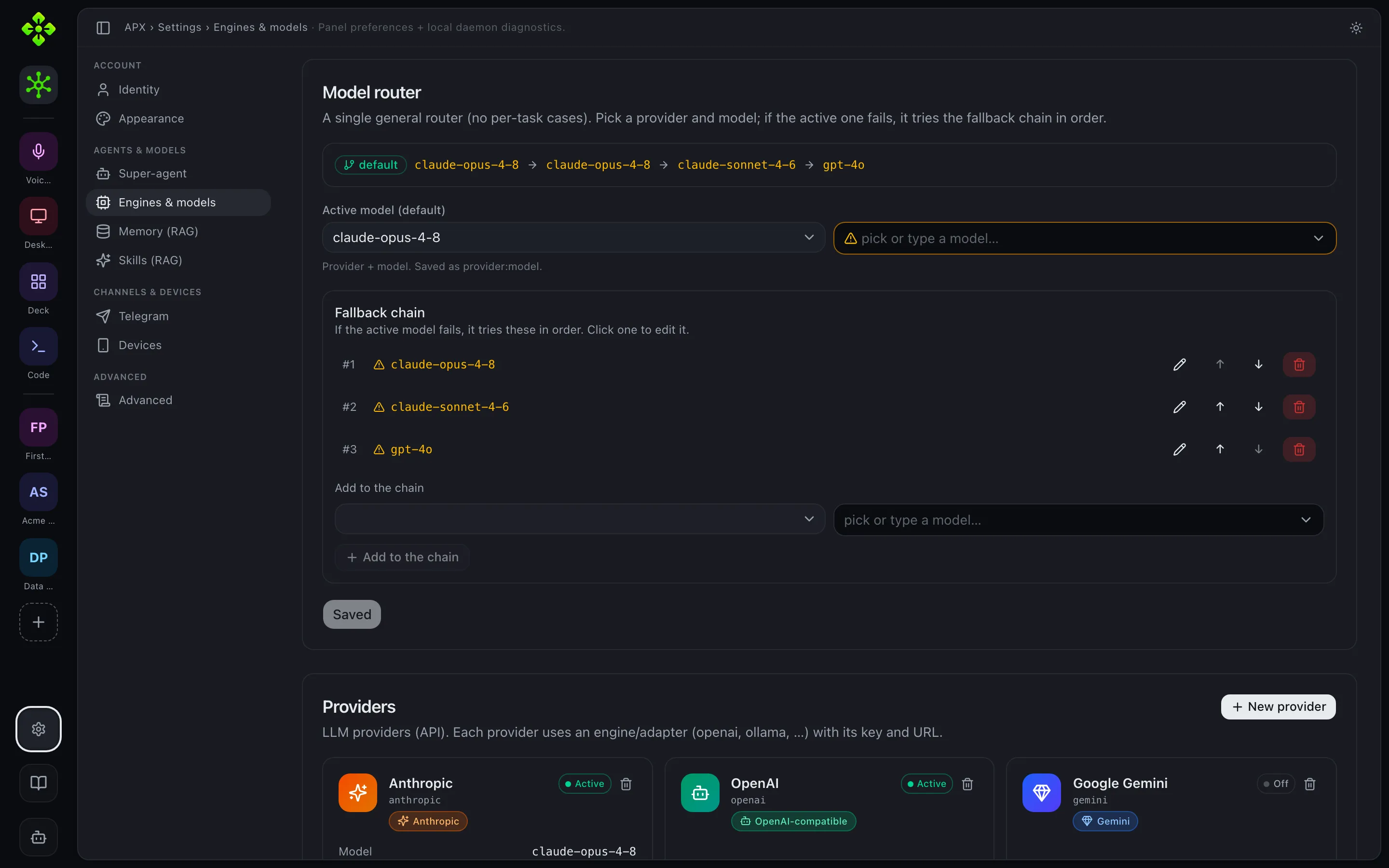
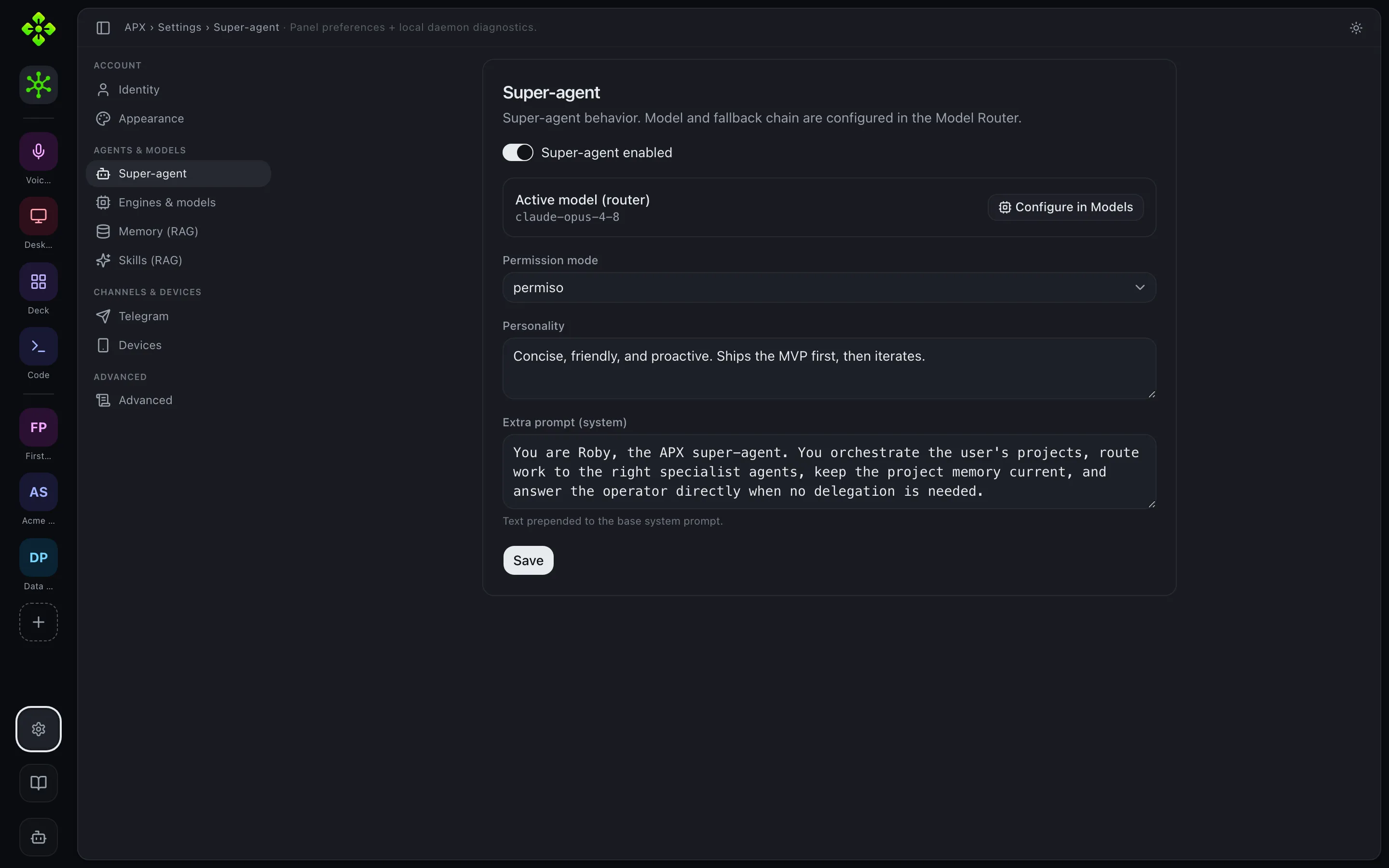
The Super-agent panel sets Roby’s permission mode, personality, and system prompt; the active model and fallback chain are configured in the model router.
The Web panel controls the panel’s own UX rather than the agent’s identity: pick Light, Dark, or System (follows the OS color scheme) for theme, and switch the UI language — the page reloads once so every rendered string picks up the new locale.
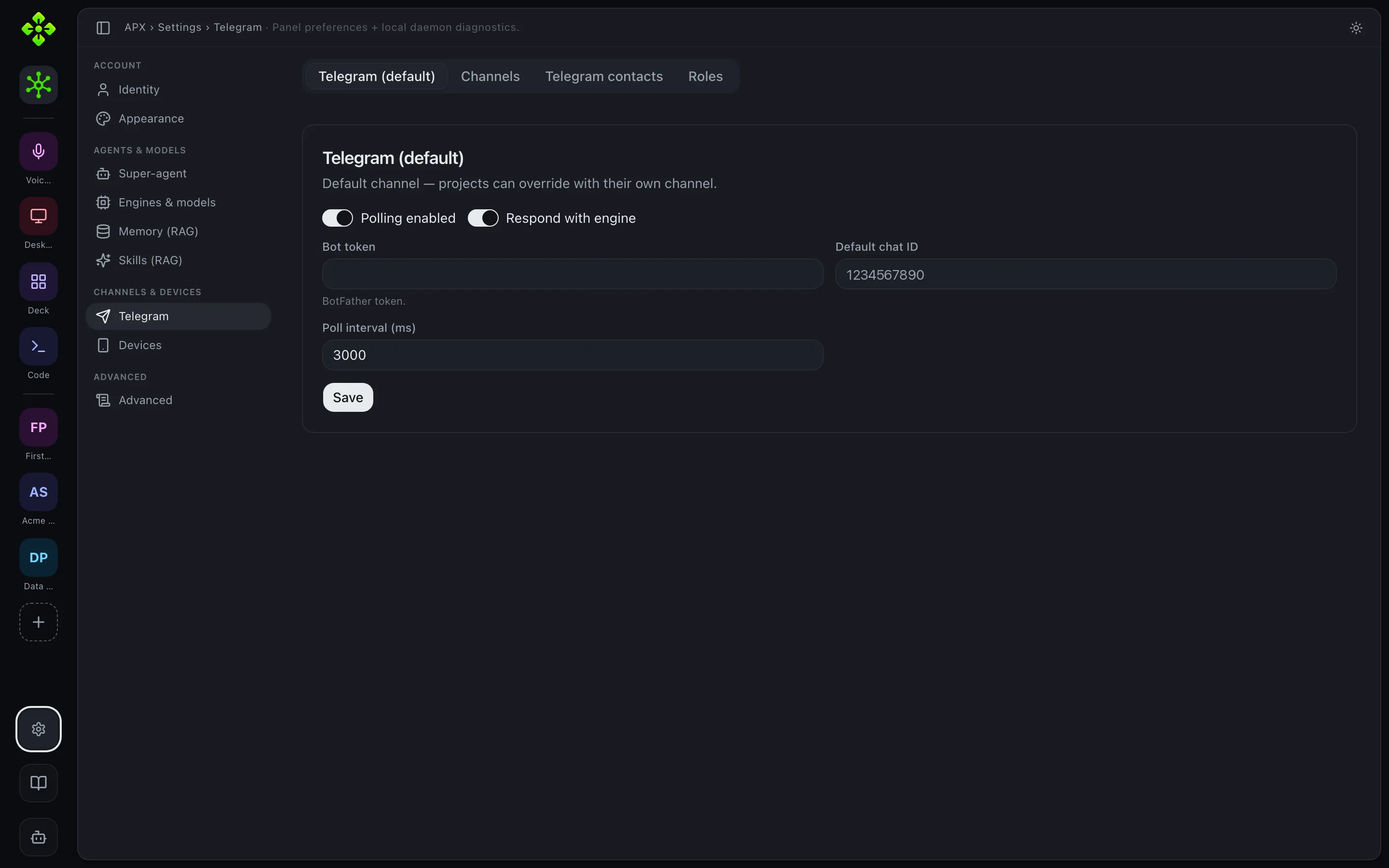
apx web, then Settings → Modules → Web The Telegram panel manages the bot’s channels, contacts, and per-role tool permissions.
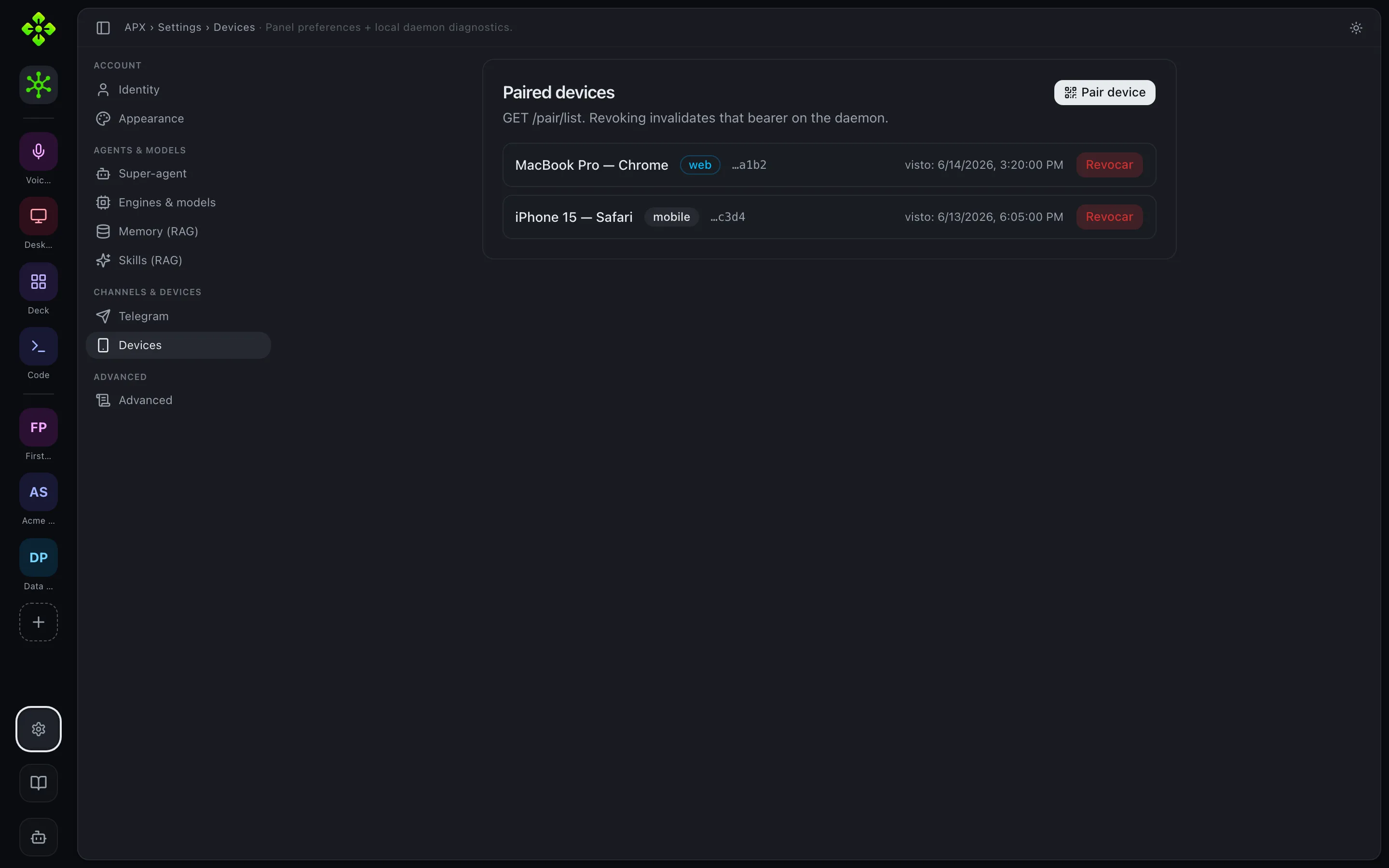
The Devices panel lists every paired browser or phone and lets you revoke a token.
List views: pagination and full-height layout
Section titled “List views: pagination and full-height layout”The Sessions, global Tasks, and per-project Tasks lists use real server-side
pagination: the daemon pages by ?limit & ?offset and returns the total row
count in an X-Total-Count header, so the panel only fetches the current page
and shows a true range (“1–20 of 485”) and page count instead of being capped at
a fixed fetch size. Page size is selectable (10/20/50/100, default 20). These
list tabs also use a full-height layout: the list scrolls internally while the
pager stays pinned at the bottom, so the whole view fits one screen.
Architecture
Section titled “Architecture”The panel is a thin client: it has no local state beyond the current session. Every read is a GET against the daemon’s HTTP API; every write is a PATCH or POST. The daemon is the single source of truth.
Browser → GET/POST → http://127.0.0.1:7430/<route> ↓ APX daemon (host/daemon/) ↓ core/ (logic, memory, agents…)The web bundle is served by src/host/daemon/api/web.js. API routes always
take priority over the SPA catch-all, so a request to /api/projects/1/agents hits
the real endpoint, not index.html.