
Telegram
Telegram is the quickest channel to set up: a bot of your own, a token, and a code to prove the chat is yours. Your messages land in Home, you see the bot typing while it works, and you can send voice notes, photos and files.
Create the bot
Section titled “Create the bot”-
In Telegram, open @BotFather, send
/newbotand follow the steps: a display name, then a username ending inbot. -
BotFather answers with the bot’s token. It looks like
123456789:AA…. Keep it private: whoever has it controls the bot.
Connect it to APX
Section titled “Connect it to APX”-
Open Settings › Channels. If another channel is already there, use Add channel and pick Telegram.
-
Paste the token in Bot token and choose Who answers (your secretary by default).
-
Press Connect bot. The status turns to Connected.
The token is read from APX_CHANNEL_TOKEN, never from the command line, so it stays out of your shell history:
read -rs APX_CHANNEL_TOKEN && export APX_CHANNEL_TOKEN # paste the token, then Enterapx channels add telegram acme-bot --agent novaunset APX_CHANNEL_TOKENacme-bot is the channel’s id (lowercase letters, digits and -); --agent takes an agent’s id (apx agents lists
them).
The token is stored in your secret store (the Keychain on macOS). The panel only ever shows its start and end; use Change token to replace it.
Pair yourself
Section titled “Pair yourself”The bot doesn’t know you yet: to it, you’re a stranger like anyone else. Link your own account once:
-
Write anything to your bot from your own Telegram. It answers with a 6-digit code.
-
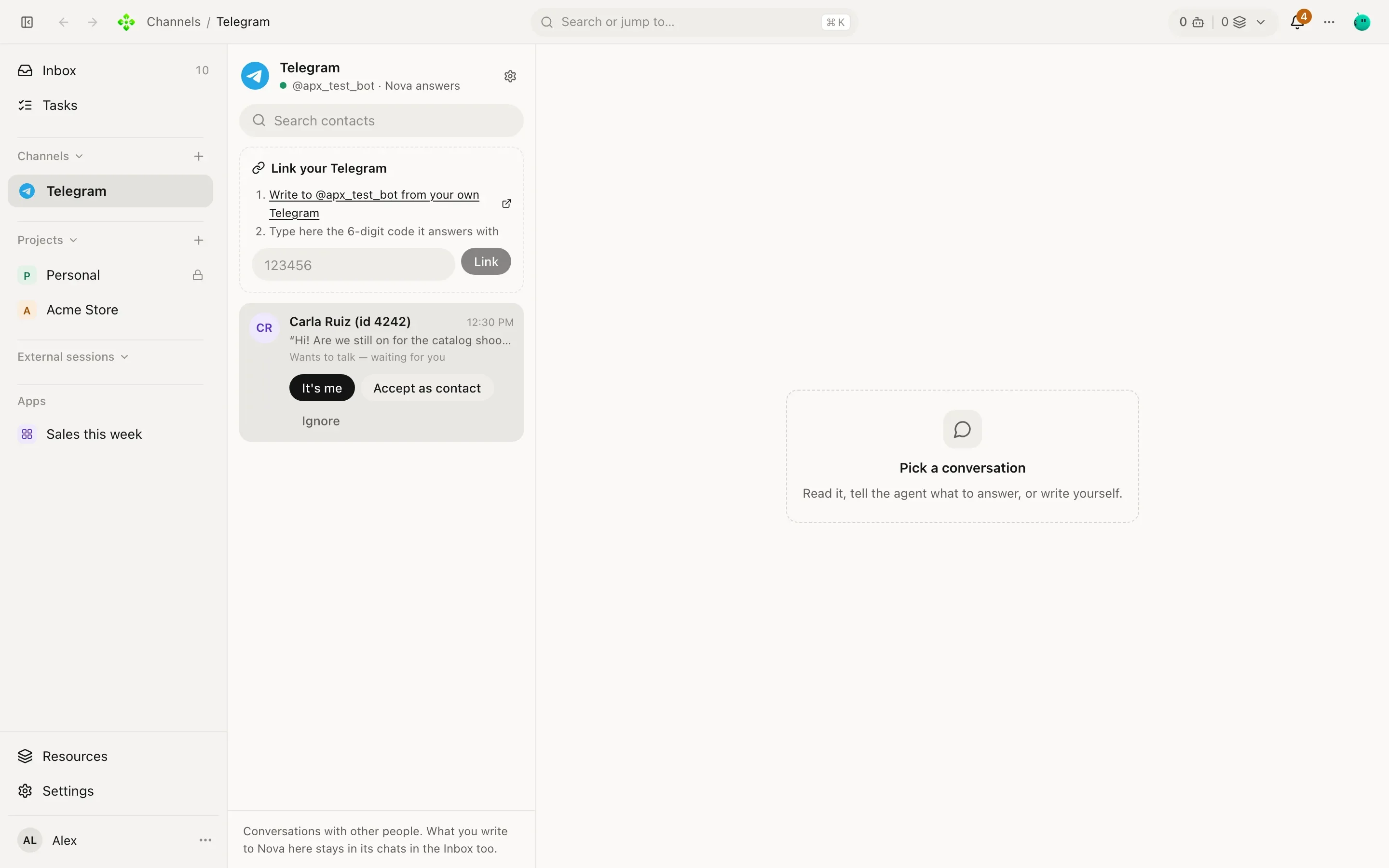
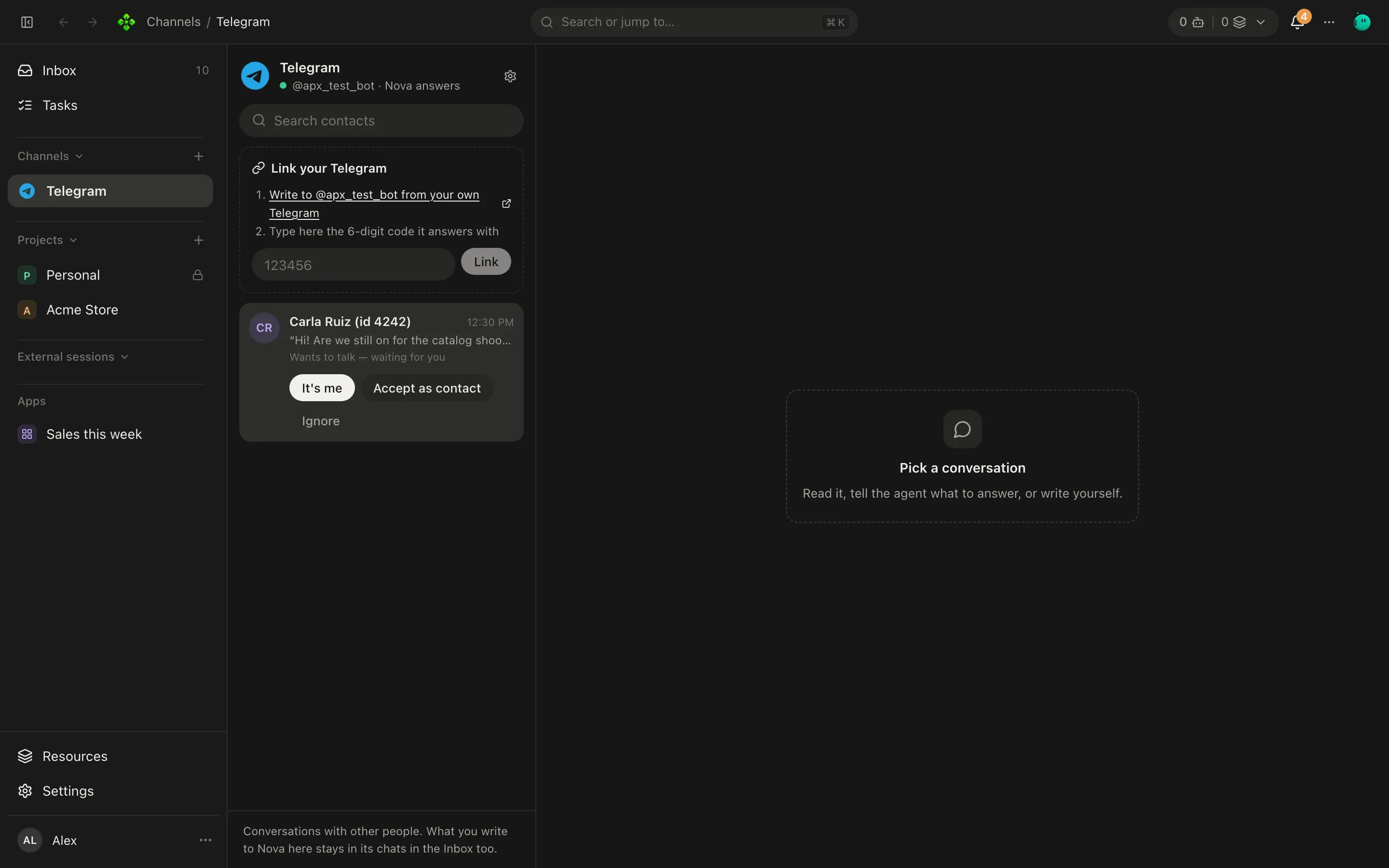
In Settings › Channels, under Your account, type the code in This is my Telegram and press Link. (The channel’s screen in the sidebar offers the same, as Link your Telegram.)
From the terminal it’s apx pairing me <code>. Only type a code your own bot sent you, never one someone else hands
you.
From then on, what you write to the bot is you: it goes to Home (or to a chat of its own, if you set Your messages to Own chat), with all your agent’s tools and memory.
While it works
Section titled “While it works”While the agent works you see “typing…”, and the answer arrives as a normal message when it’s done; long answers are split into several messages. Your chat stays free the whole time: write again and, by default, your message joins the work in progress (see While the agent is working).
Questions the agent asks you (approvals, choices) come with buttons, so you can approve a step from your phone.
Other people
Section titled “Other people”Anyone else who finds your bot is a stranger. By default (Send a code) they get a code and wait until you approve
it: from the request under Waiting for your approval, from your notice, by telling your agent, or with
apx pairing ok <code>. You can switch to Ask me, Answer or Ignore; see
Who gets an answer.
Approved people are contacts: their chats are sealed (no tools, none of your memory). They show under People on Telegram, where you can block or forget them.
One bot per project
Section titled “One bot per project”The panel sets up one Telegram bot. If you want a separate bot for a project, add it from the terminal with its own id and token, and point it at that project’s agent:
read -rs APX_CHANNEL_TOKEN && export APX_CHANNEL_TOKENapx channels add telegram northwind-bot --agent <project-agent-id>unset APX_CHANNEL_TOKENThen write to the new bot and link yourself with apx pairing me <code>: Settings › Channels shows the first bot
of each kind.
❯ apx channels
telegram       telegram  running   @acme_store_bot    agent nova
northwind-bot  telegram  running   @northwind_bot     agent lucia
To remove a bot: Remove this bot in its settings, or apx channels rm <id>. Its token goes with it.