
Browser
Agents browse the web in a real browser built into the desktop app. You watch every page live in the chat’s Browser side panel, and you can take the wheel at any moment.
Watching an agent browse
Section titled “Watching an agent browse”When an agent opens a page, the chat shows a browser card and the Browser side panel follows the tab live: “Vera is browsing · supplier.example.com”. From the panel you can open the tab in a separate window or in your own browser.
You: Vera, compare the shipping prices on our two carriers’ sites for a 2 kg box to Córdoba.
Vera: Opening both rate calculators… The first is 4.20 cheaper, but the second delivers a day earlier.
Taking control
Section titled “Taking control”Press Take control on a tab and it is yours: click, type, scroll. The agent waits. Give back returns it.
The agent can also ask you to take over. When a site wants a login, a password, a 2FA code or a captcha, the agent hands the tab to you (“Vera needs you to take over”) and waits up to 5 minutes while you finish. Then it carries on from the page you left it on.
Profiles
Section titled “Profiles”Each agent browses with one of three profiles, set per agent in Settings › Agents (or the agent’s own panel):
| Profile | Cookies and logins |
|---|---|
| Shared | One profile shared by every agent that uses it. Log in once, all of them benefit. The default. |
| Isolated | A profile of that agent’s own; nothing leaks between agents. |
| Incognito | Nothing is kept. Logins cannot be imported into it. |
Importing your logins
Section titled “Importing your logins”If you are already signed in to a site in your own browser, there is no need to log in again in APX’s. Settings › Browser copies your sessions into the browser’s shared profile: pick a source browser (Chrome, Brave, Arc, Edge, Zen or Firefox), filter the domains and import only the ones you need. Your browser may ask for permission; the values never leave your machine.
Agents can ask for this too. When a site wants a login, an agent can ask to use your session for that one domain. That asks your OK every time (only total autonomy skips it), and agents try it before a hand-off.
Without the desktop app
Section titled “Without the desktop app”When no desktop app lends a browser (a server, or a Mac with the app closed), the core starts its own headless
Chrome, Chromium or Edge, without a window, on its first browser call. It browses the same way, but nobody can take
over there and your own logins are not used. APX_HEADLESS=off turns it off; APX_CHROME points it to a specific
browser.
From the terminal
Section titled “From the terminal”apx browser drives the same browser from your shell, handy for scripts and for checking what an agent sees.
❯ apx --help
apx browser tabs
apx browser open <url> [--profile shared|incognito|agent:<id>] [--by <agent>]
apx browser nav <tab> <url>
apx browser snapshot <tab>
apx browser click <tab> <ref>
apx browser type <tab> <ref> <text> [--submit]
apx browser shot <tab> <file.jpg>
apx browser close <tab>
apx browser control <tab> user|idle|done
apx browser cookies                          List browsers whose sessions can be imported
apx browser cookies <source> [filter]        Domains with cookies (counts only)
apx browser import <source> <domain,…> [--profile shared|agent:<id>]
snapshot lists the page’s elements with refs that click and type take. control sets who holds the tab.
cookies shows only counts, never values.
Outside apps such as Claude Code can use this browser too, through apx mcp. See
Outside clients.
Computer use on macOS
Section titled “Computer use on macOS”Beyond the browser, agents can use your Mac’s apps: look at the window in front, click, type and press keys. It is off by default.
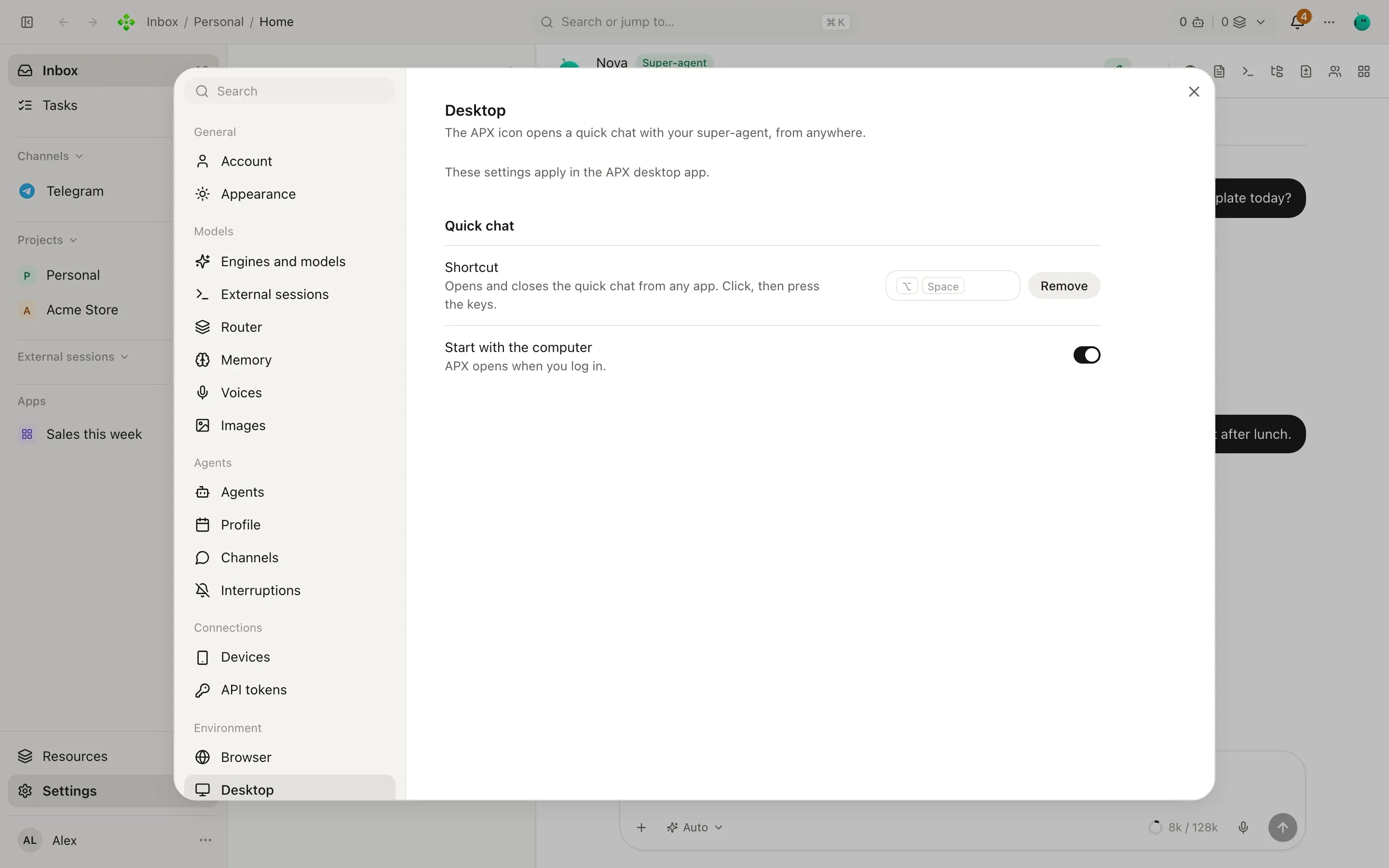
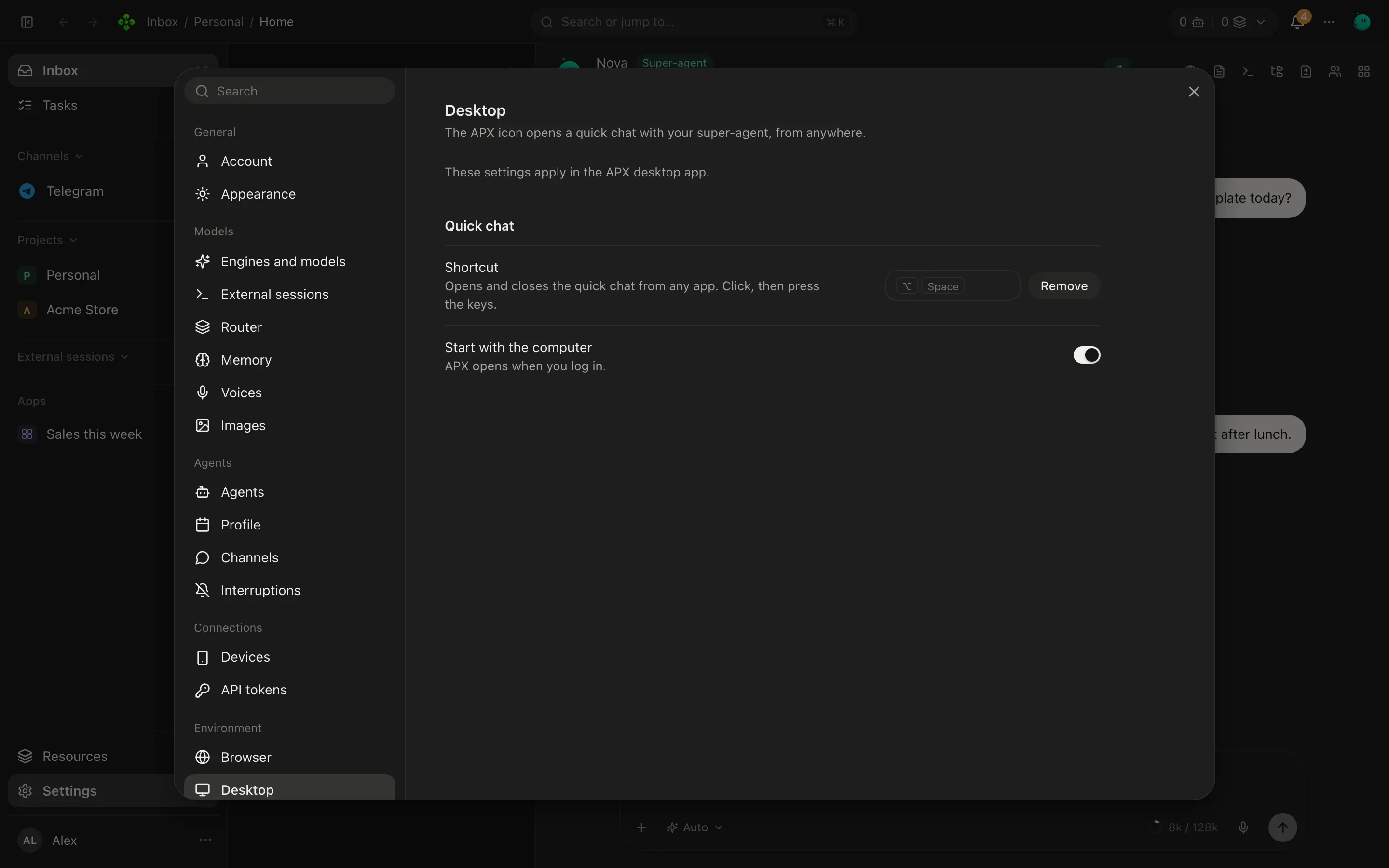
- Open Settings › Desktop and turn on Let agents use this computer.
- Grant macOS Screen Recording (to see the window an agent works on) and Accessibility (to read a window’s buttons and fields, click and type). Open System Settings takes you there.
- Ask in a chat: “Tomás, open the label printer app and print today’s 12 shipping labels.”
While an agent uses the computer, the chat shows What the agent sees, a live view of the screen.
- Looking at the screen asks your OK, and so does every click, key and typed text. Under total autonomy none of them ask.
- Every 60 actions in one turn it stops and asks whether to go on, in every autonomy.
- It refuses password fields, and refuses a click where another app’s window covers the point.
- A real click waits until your mouse is at rest, so it does not fight you for the pointer.