
Code
APX is not only for office work. An agent can work inside a project’s folder: read the code, edit files, run tests and commands, and show you every change as a diff. You can do it in two ways: a code thread with one of your agents, or a session with Claude Code or Codex themselves, right inside APX.
Code threads
Section titled “Code threads”A code thread is a chat whose agent works in a folder of a project. Its header shows the folder and the write policy, so you always know where it is working and how freely.
In the Inbox, New chat › New code session with and pick an agent. The option shows when the project’s folder is on this machine.
From inside the project’s folder (or with --cwd):
❯ apx chat "Add a free-shipping banner over 50 to the cart page" --code --write ask
code thread th_8c41d07e2b9a5f13 · web/cart · write: ask
The folder must be inside a registered project (apx projects register <folder>). Without --agent, Home does
the work.
The write policy
Section titled “The write policy”| Policy | What it means |
|---|---|
Asks before changes (ask) | The default. Edits and commands go through the usual approvals of the agent’s autonomy. Codex cannot ask mid-turn, so under this policy it only reads. |
Edits freely (auto) | Claude Code and Codex sessions edit files inside the folder without asking (never git’s config, .apc/ or AGENTS.md). Commands still follow the agent’s autonomy. |
Read-only (read-only) | Only reads. Anything that would need your OK is refused. |
Working in the folder from any chat
Section titled “Working in the folder from any chat”You don’t need a new thread for a quick fix. In a project chat with an agent, open the chat’s menu (More) › Project folder and pick a policy; Does not work in the folder turns it back off. Tomás can be planning the launch with you one minute and fixing the cart page the next, in the same chat.
The panels you’ll use
Section titled “The panels you’ll use”Open the side panel from the chat header. Three views matter most when code is involved:
| Panel | What you get |
|---|---|
| Terminal | Every command the agent ran, with what it printed, foreground or background. Open a terminal gives you your own shell in the same folder. |
| Files | The chat’s folder (Chat folder) and its scratch files (Temporary). Open a file to read it; Markdown reads as a page. |
| Changes | The edits the agent recorded, for the Last turn or All turns, and the Current folder’s git diff, file by file. |
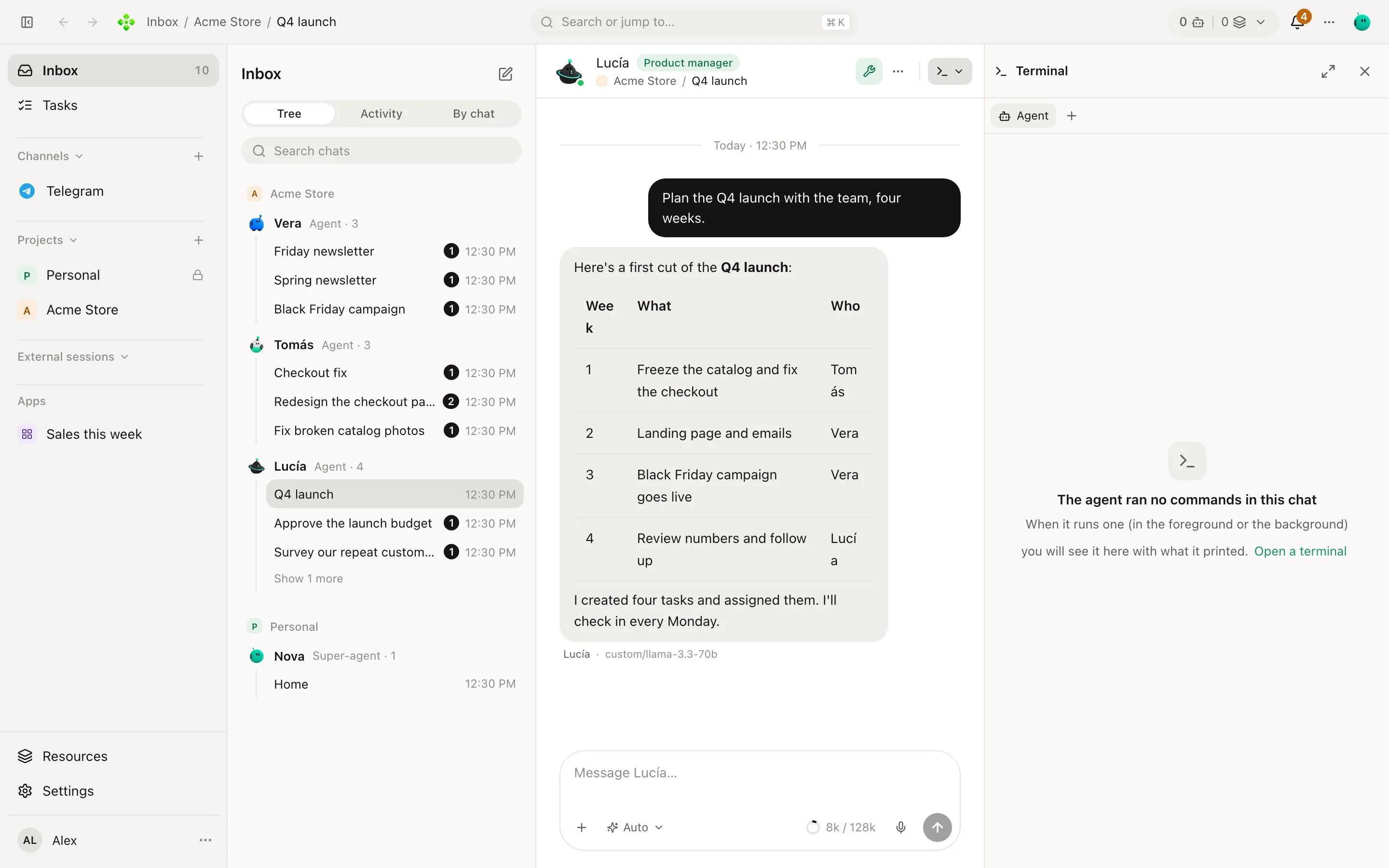
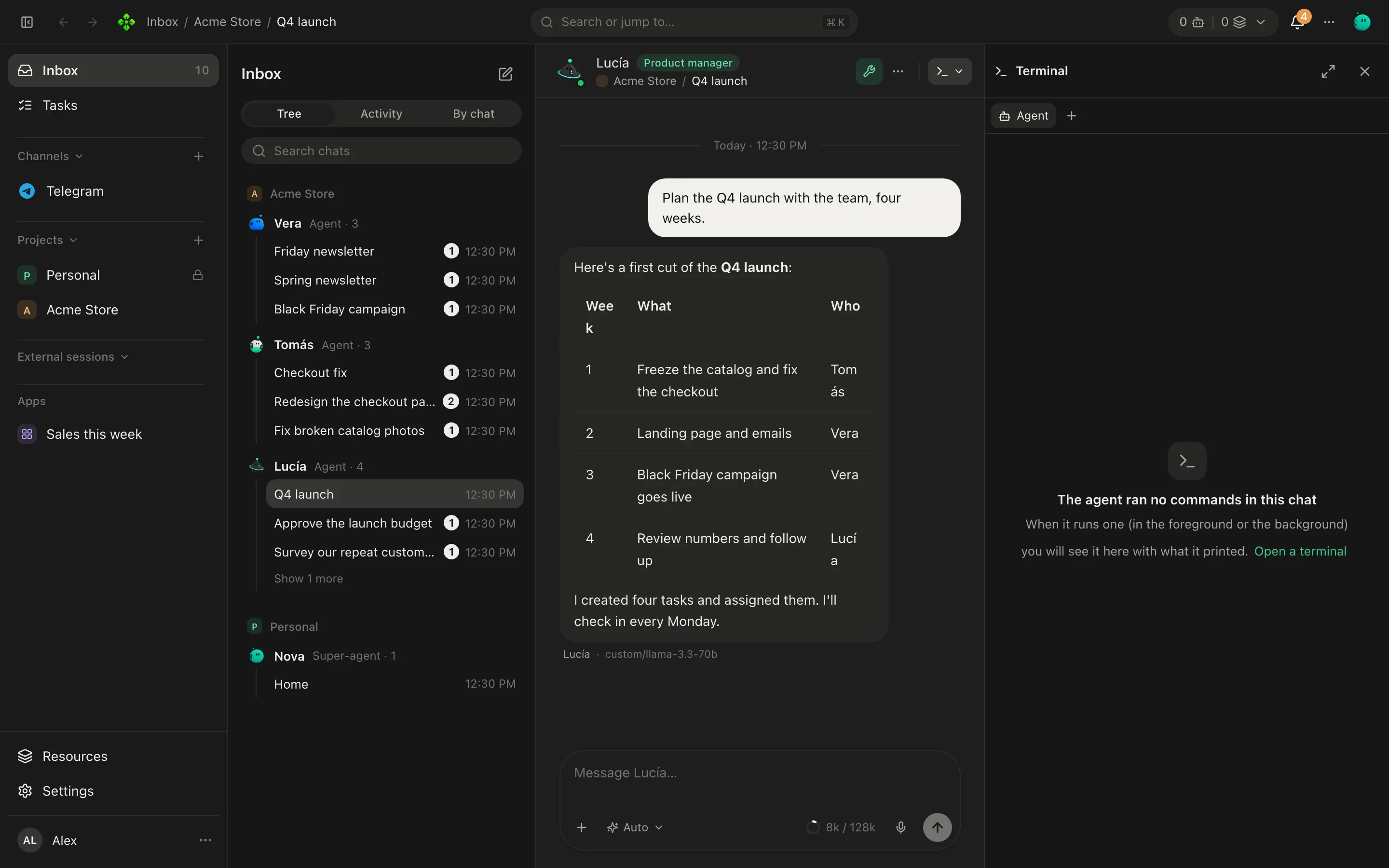
When the agent needs you to run something itself (a command with sudo, say), it writes it as a shell block with
Run in a terminal. It runs on a real terminal in the side panel, so you can type the password there, and the agent
hears how it ended.
Git: the project’s Files tab
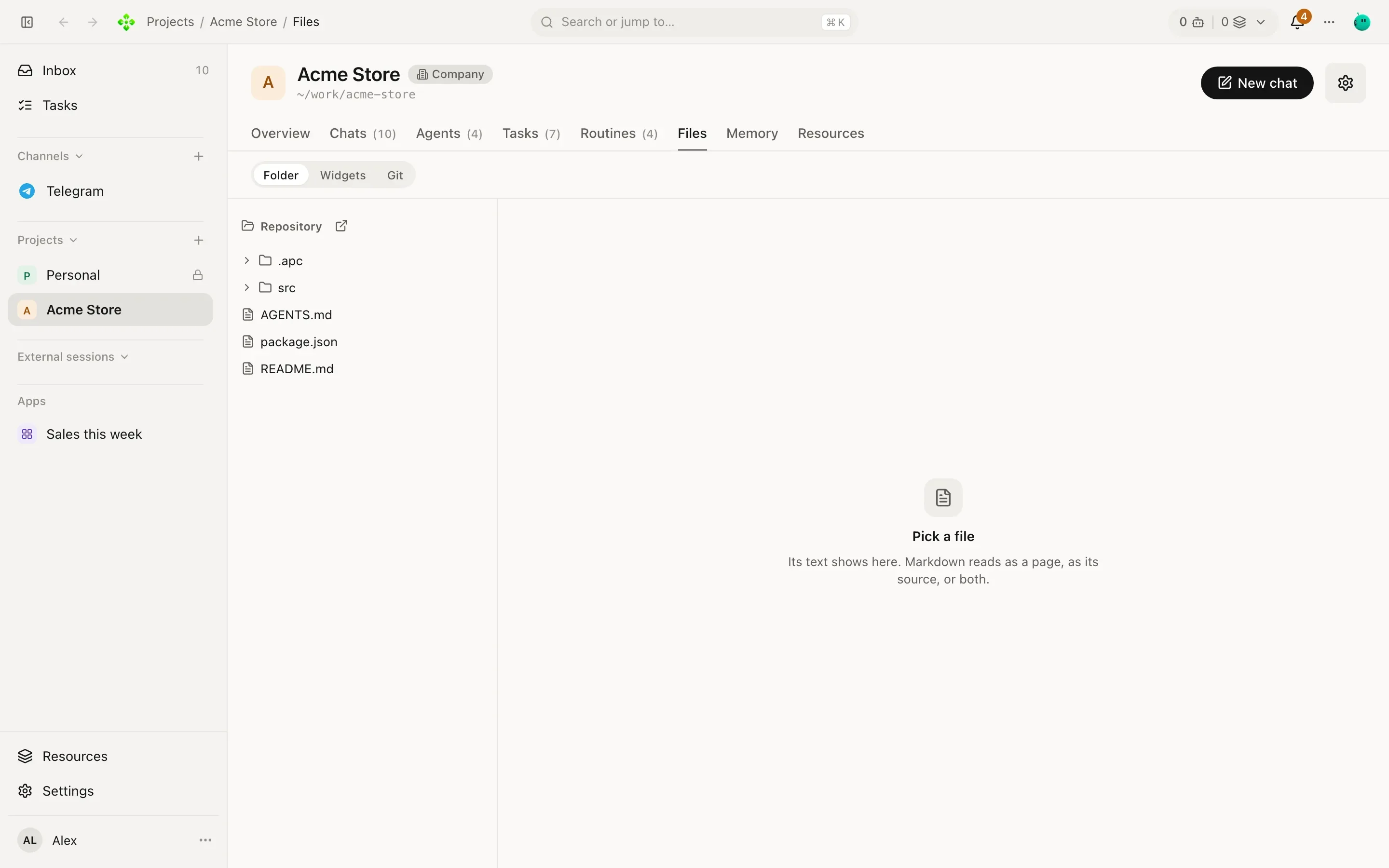
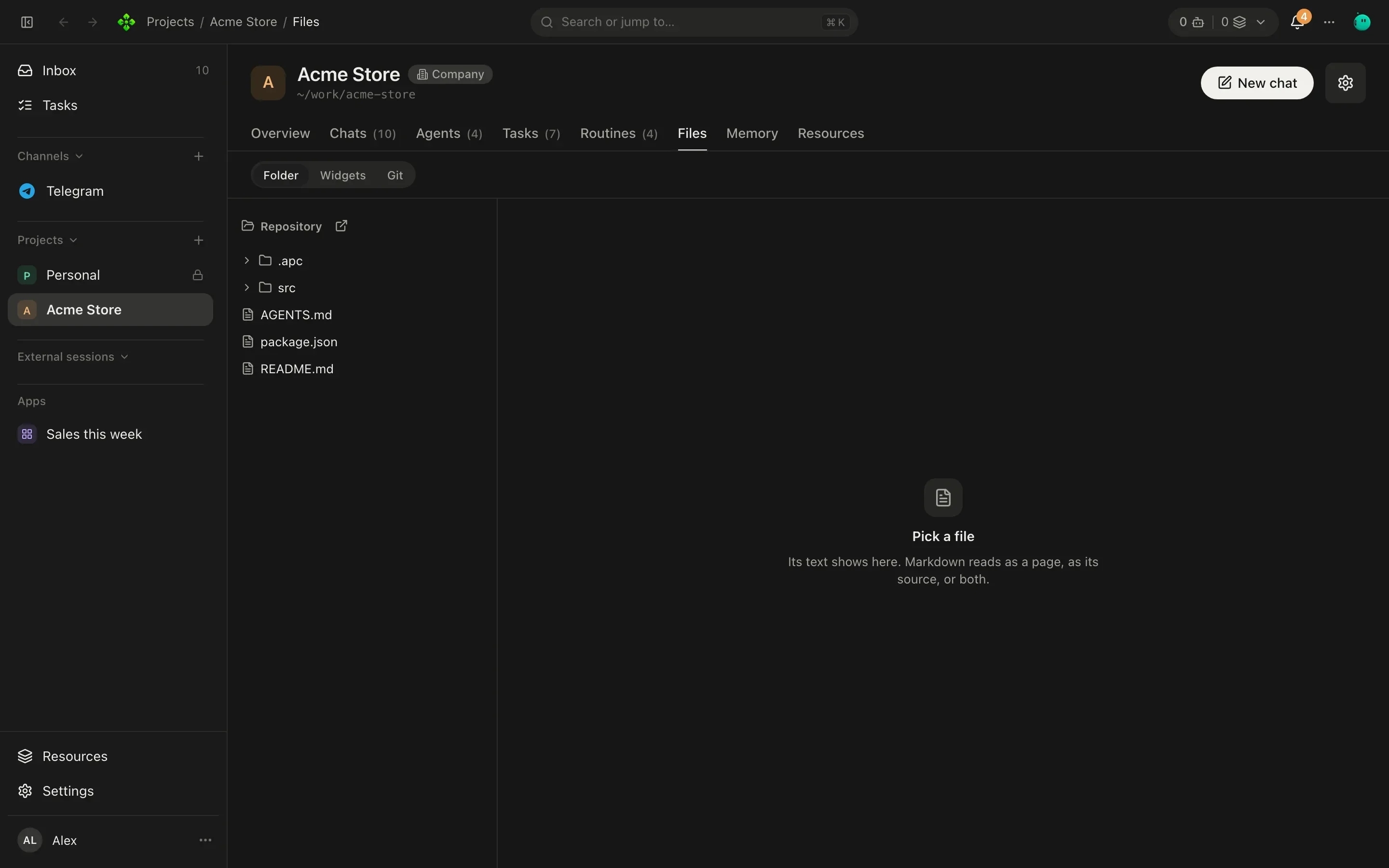
Section titled “Git: the project’s Files tab”For commits, go to the project’s Files tab › Git (Source control). There you can stage and unstage files, Commit (or Write the message with AI), pull, push, fetch, stash, undo the last commit, switch branches and read the history.
Claude Code and Codex sessions
Section titled “Claude Code and Codex sessions”If you use Claude Code or Codex, APX can host their sessions. You talk to the engine itself, with your own login and plan, and APX gives it its chat, panels, approvals and history.
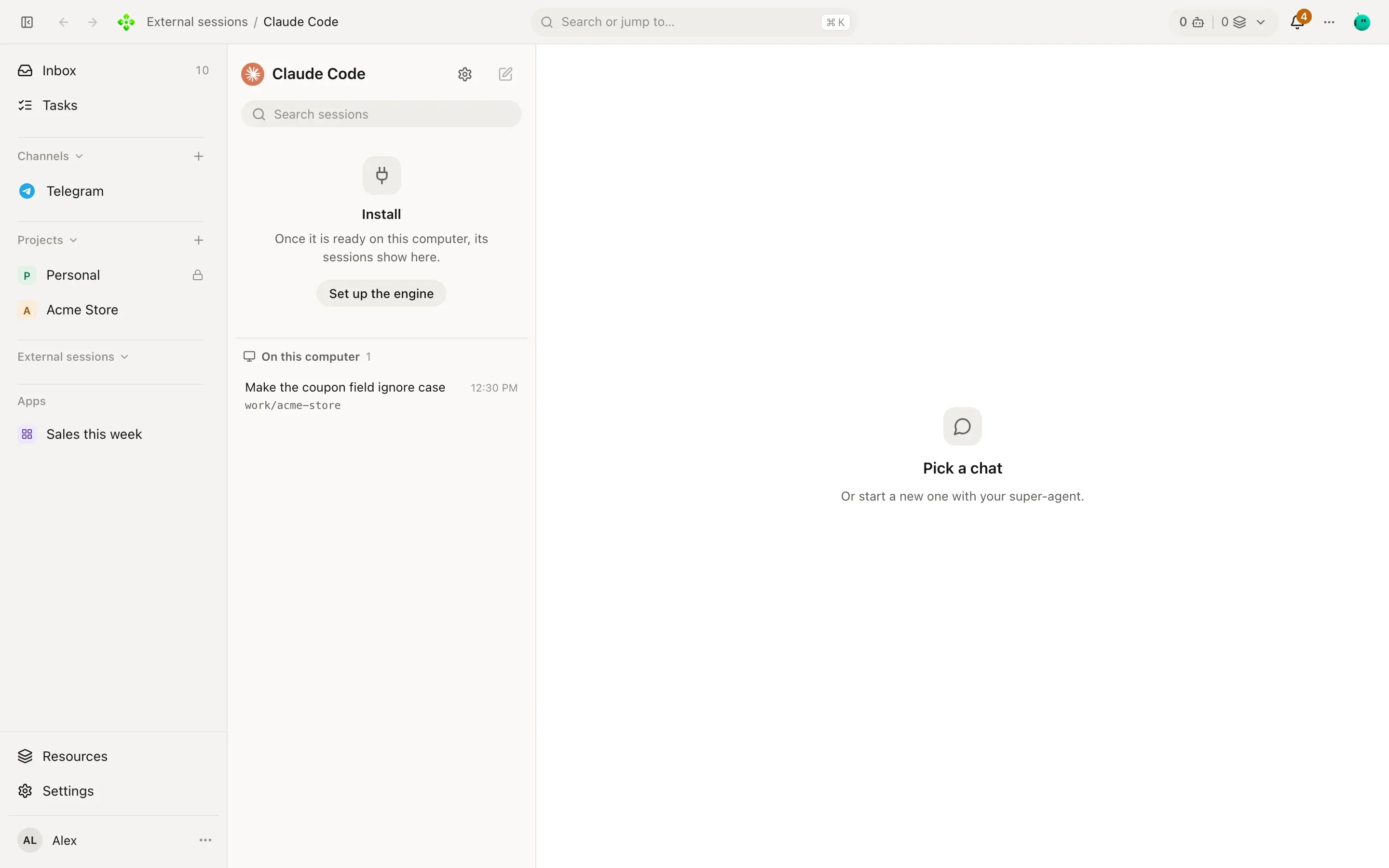
External sessions in the sidebar lists each coding CLI installed on this computer. Pick one:
- Make sure it is signed in. Settings › External sessions shows each CLI’s state (for Claude Code, open it in a
terminal and sign in; for Codex, run
codex login). - New session asks for a project with a folder: the session works there.
- Write as you would in the CLI. Its tool calls, edits and commands show in the chat and the side panels like any other.
Resuming your own sessions
Section titled “Resuming your own sessions”Below the sessions started in APX, On this computer lists the Claude Code and Codex sessions you already have on
this machine (from ~/.claude and ~/.codex), with their folder. Click one to go on with it here: the engine
picks up its own session, history included, and from then on it lives in APX too.
Other coding CLIs that speak the Agent Client Protocol (OpenCode, Qwen Code, Gemini CLI and others) show up in External sessions as well. That support is partial.