
Chat
Everything in APX starts with a conversation. You write to an agent, it works (reads, browses, runs commands, delegates), and you watch each step happen in the same place. This page covers the panel’s chat: the Inbox, the composer, the commands you can type, and the side panel that shows what the agent is doing.
The Inbox
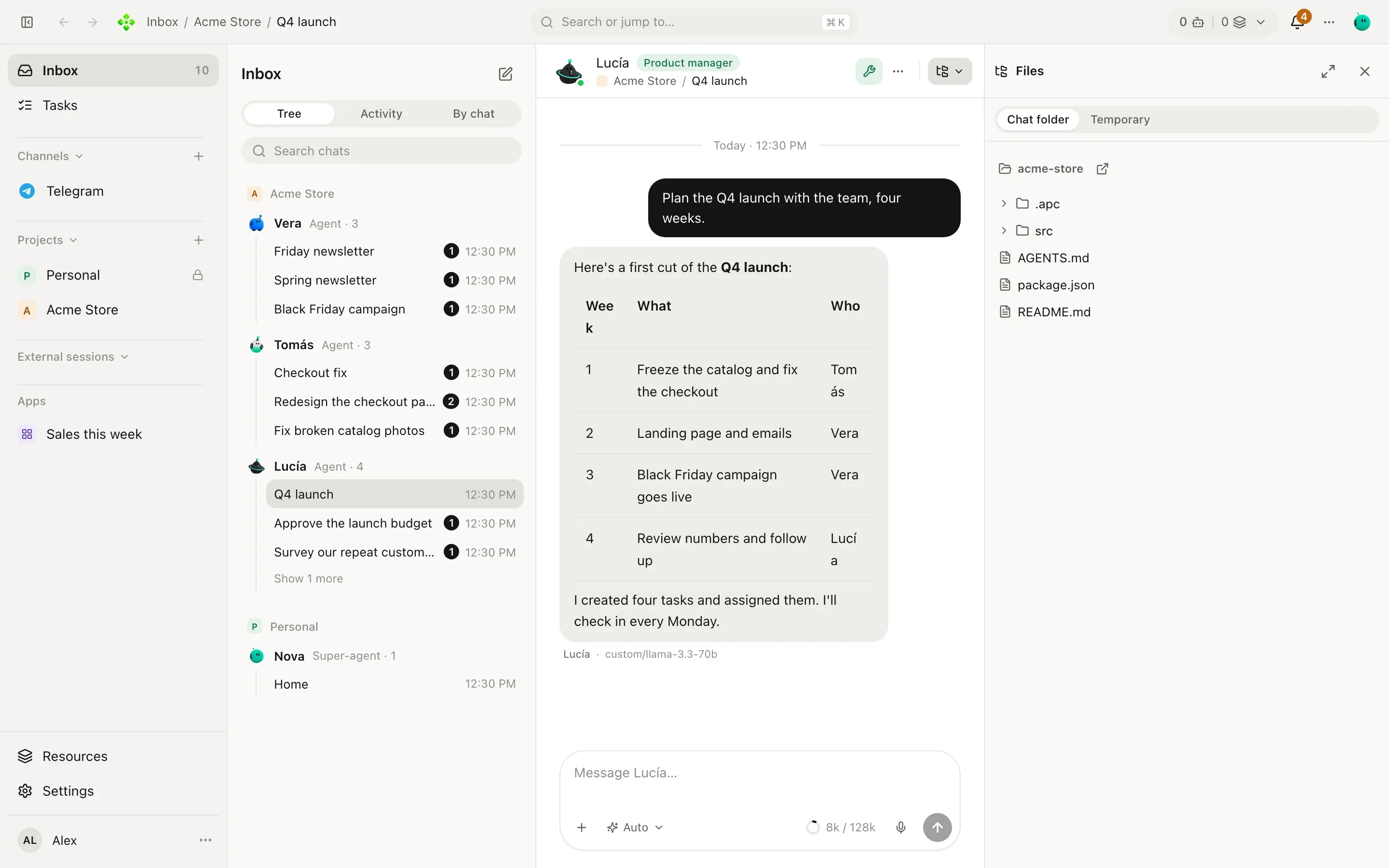
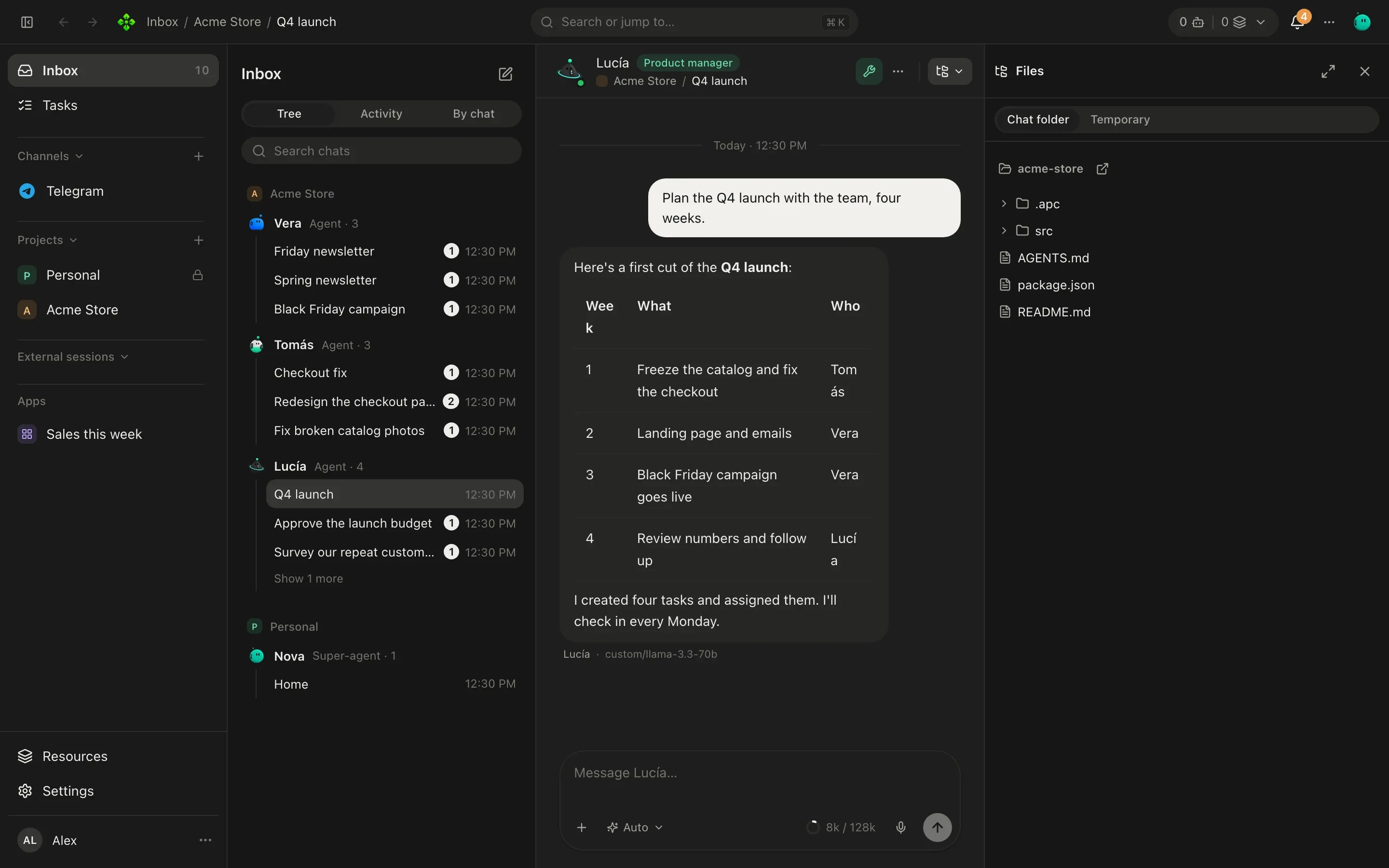
Section titled “The Inbox”Inbox in the sidebar lists every chat you have: Home’s, each agent’s, group chats, code sessions and the chats that tasks and routines open. Pick how to see them with the switch at the top:
| View | What it shows |
|---|---|
| Tree | Chats grouped by project, then by agent, so you see who you talked to in Acme Store at a glance. |
| Activity | Chats by time: In progress, Today, Yesterday, This week, Earlier. |
| By chat | One flat list, newest first. |
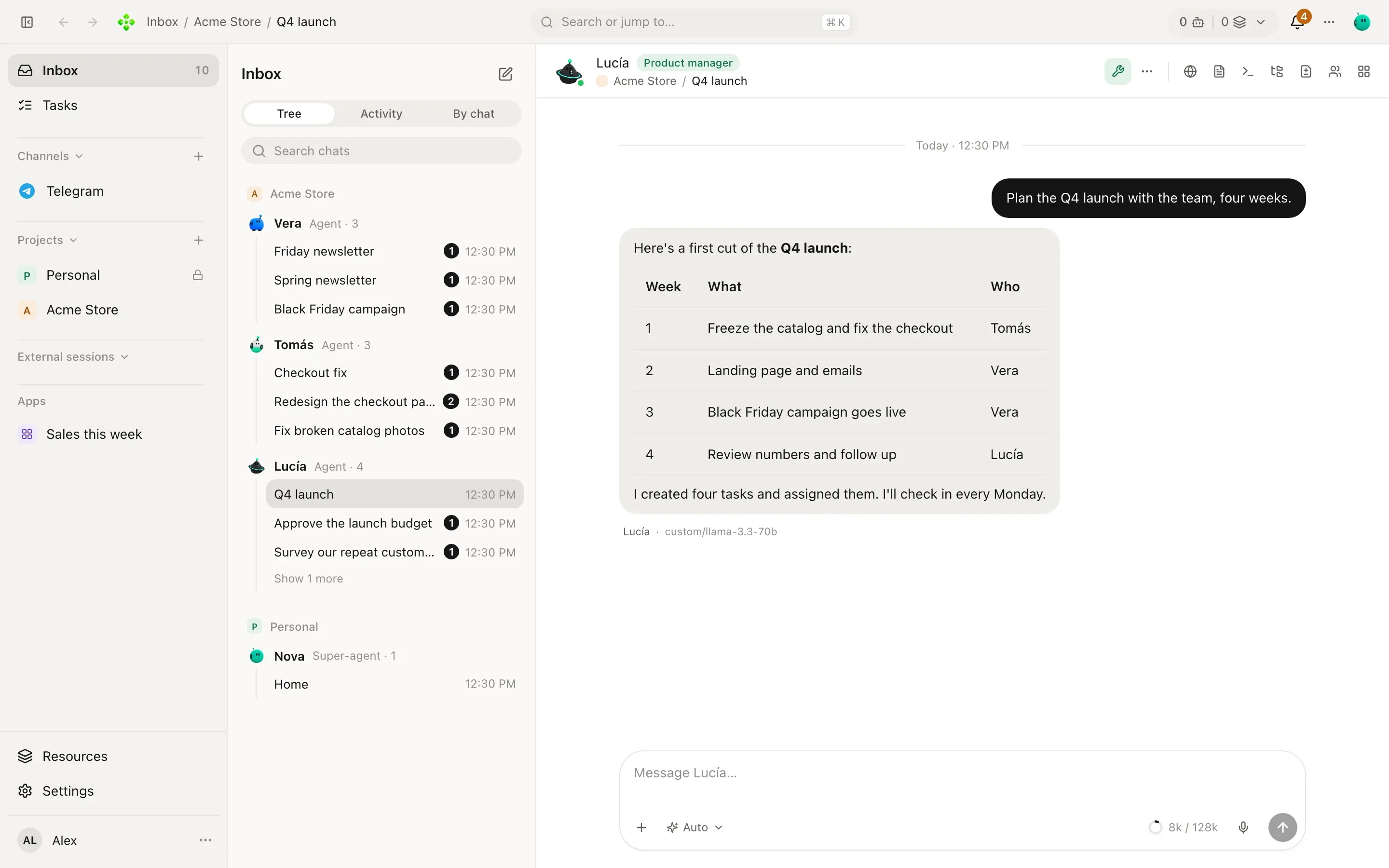
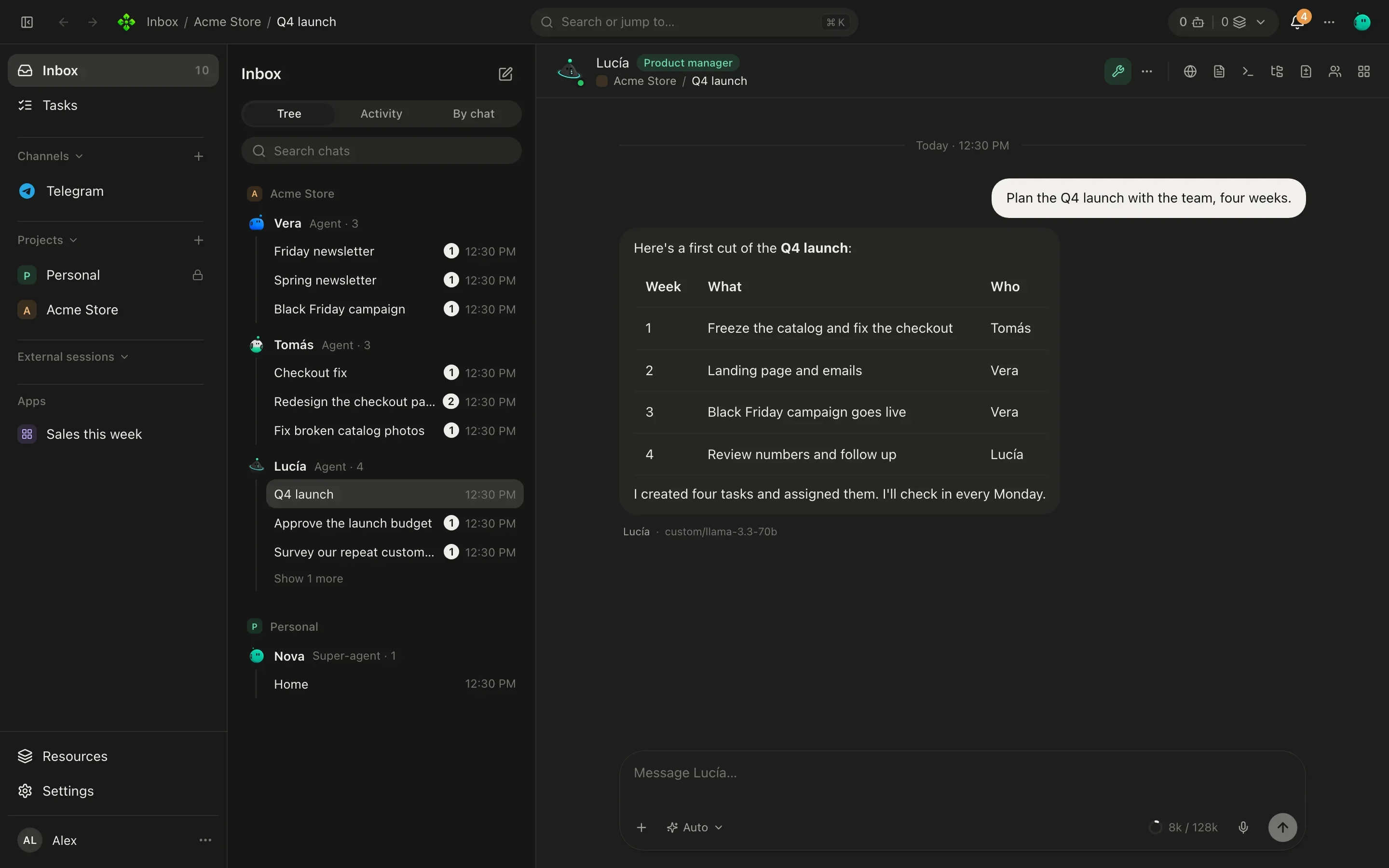
Search chats filters the list as you type, and New chat opens a chat with any agent of the current project (or Home). A chat’s menu lets you pin it to the top, rename it, mark it read, archive it or delete it. Home’s main chat cannot be archived or deleted: it is the one conversation you always have.
Talking to an agent
Section titled “Talking to an agent”Open a chat and write. The agent’s face and name sit in the header; click them (View its name) to open the agent side panel with its role, model and memory.
While it works you see each step as it happens: tools it used, pages it opened, agents it asked. Show tools in the header toggles those steps if you only want the answers. When an agent needs your OK (to run a command, send a message, use your login on a site) the chat shows the question with Approve once, Approve for this session or Always allow for this agent.
A quick example. Lucía is Acme Store’s PM:
You: Lucía, what’s blocking the spring launch?
Lucía: Two things: the product photos (Vera’s task, due Thursday) and the shipping rates page, which Tomás hasn’t started. Want me to ask Tomás for a date?
From the terminal, the same conversation is one command away:
❯ apx chat "What's blocking the spring launch?" --agent <lucia-id>
# without --agent it goes to Home, your secretary
The composer
Section titled “The composer”The box at the bottom (“Message Lucía…”) is where you write. A few things it does:
- Attachments. Drag and drop files or images onto the chat, or use Attach › File / Image.
- Model picker. Each chat follows its agent’s model by default. Pick another one for this chat only, or Auto to let the router choose; Back to the agent’s undoes it. The chip next to it shows how much context is used and opens the Usage panel.
- Voice dictation. Dictate turns speech into text. Install a local transcription model (whisper.cpp) in Settings › Voices to keep it on your machine.
- Keys. Enter sends (if the agent is working, it stops and answers this instead). Ctrl/⌘+Enter queues the message for when it ends. Shift+Enter adds a line.
Slash commands
Section titled “Slash commands”Type / in the composer to open the menu of commands and skills.
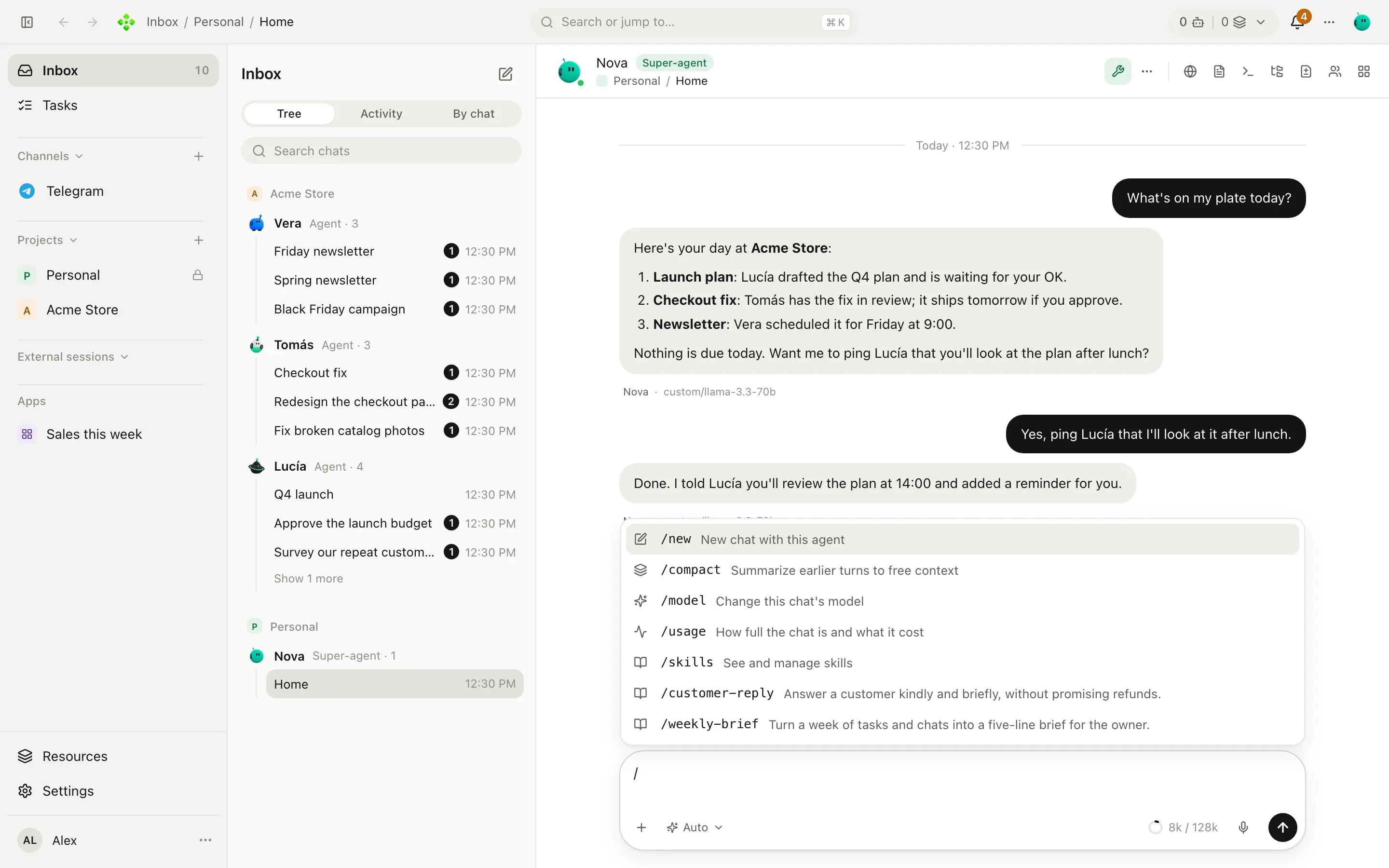
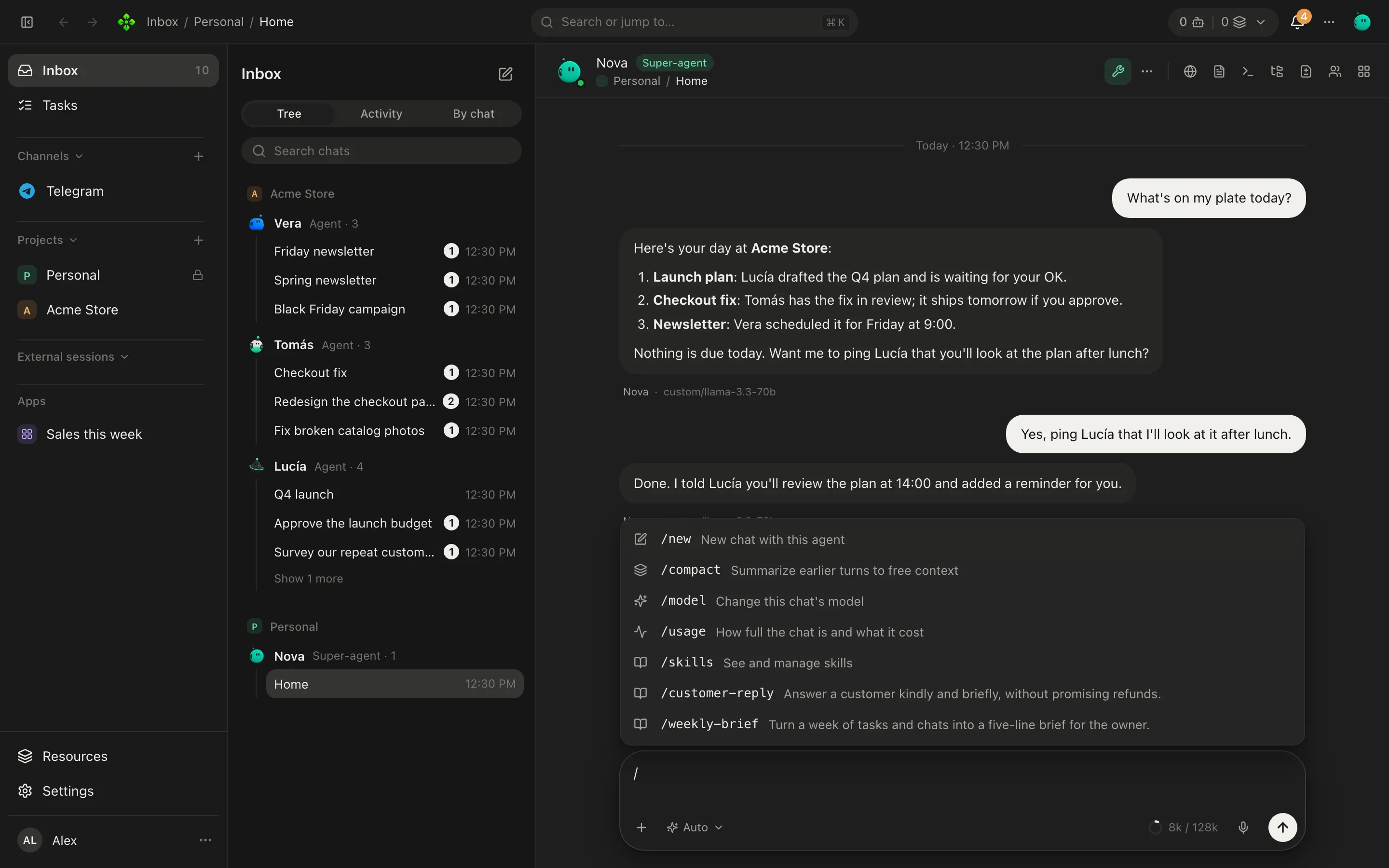
| Command | What it does |
|---|---|
/new | New chat with this agent. |
/compact | Summarize earlier turns to free context. |
/model | Change this chat’s model. |
/effort | How hard the model thinks (reasoning effort). |
/stop | Stop the agent. |
/usage | How full the chat is and what it cost. |
/skills | See and manage skills. |
/<skill> | Load that skill whole for this message, e.g. /release-notes. |
Skills are explained in Skills; models and effort in Models.
Edit, ask again, fork
Section titled “Edit, ask again, fork”Every message has its own actions when you hover it:
- Edit message on one of yours rewrites it and sends it again. What came after is removed (the agent forgets it), and APX asks before doing it.
- Ask again on an agent’s answer runs that turn again.
- Fork into a new chat copies the conversation up to that message into a new chat, so you can try another direction without losing this one.
- Copy, Quote, Reply and Read aloud (with a voice set up in Settings › Voices) are there too.
The side panel
Section titled “The side panel”The switcher at the right of the chat header opens a side panel. Each view shows a different side of the chat’s work:
| Panel | What you see |
|---|---|
| Browser | The page your agent drives, live. You can take control. See Browser. |
| Documents | Reports, plans and reference documents the agent opened for you. |
| Terminal | The commands the agent ran (with what they printed) and your own shell in the chat’s folder. |
| Files | The folder this chat works in, plus its temporary files. |
| Changes | Edits the agent recorded, by last turn or all turns, and the current folder’s diff, file by file. |
| Chat processes | This chat’s subagents and commands: active and finished. |
| Widget | What the agent built for you in this chat. See Board and widgets. |
| Usage | Tokens, runs and cost of this chat, and whether they were included in a plan or paid per token. |
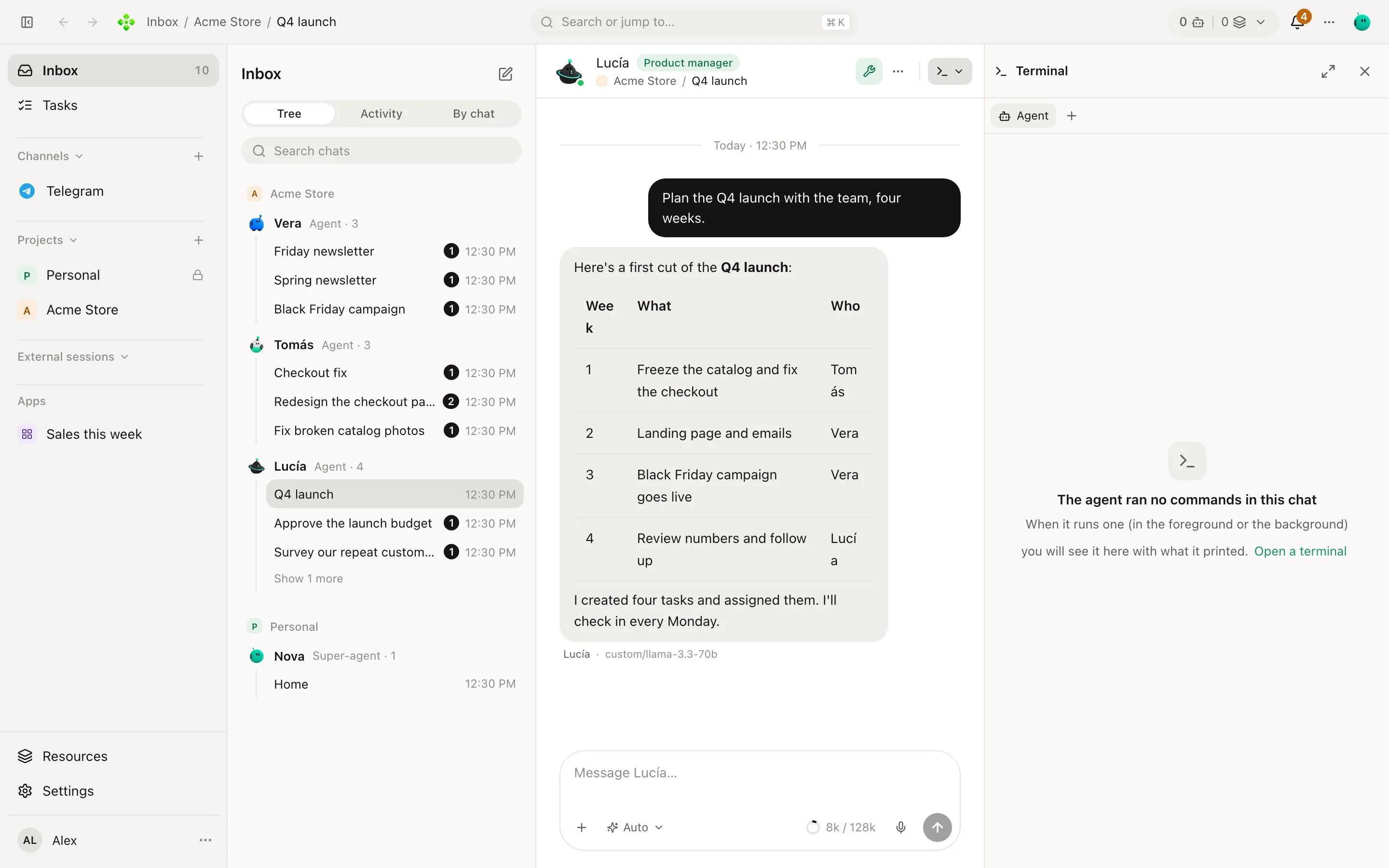
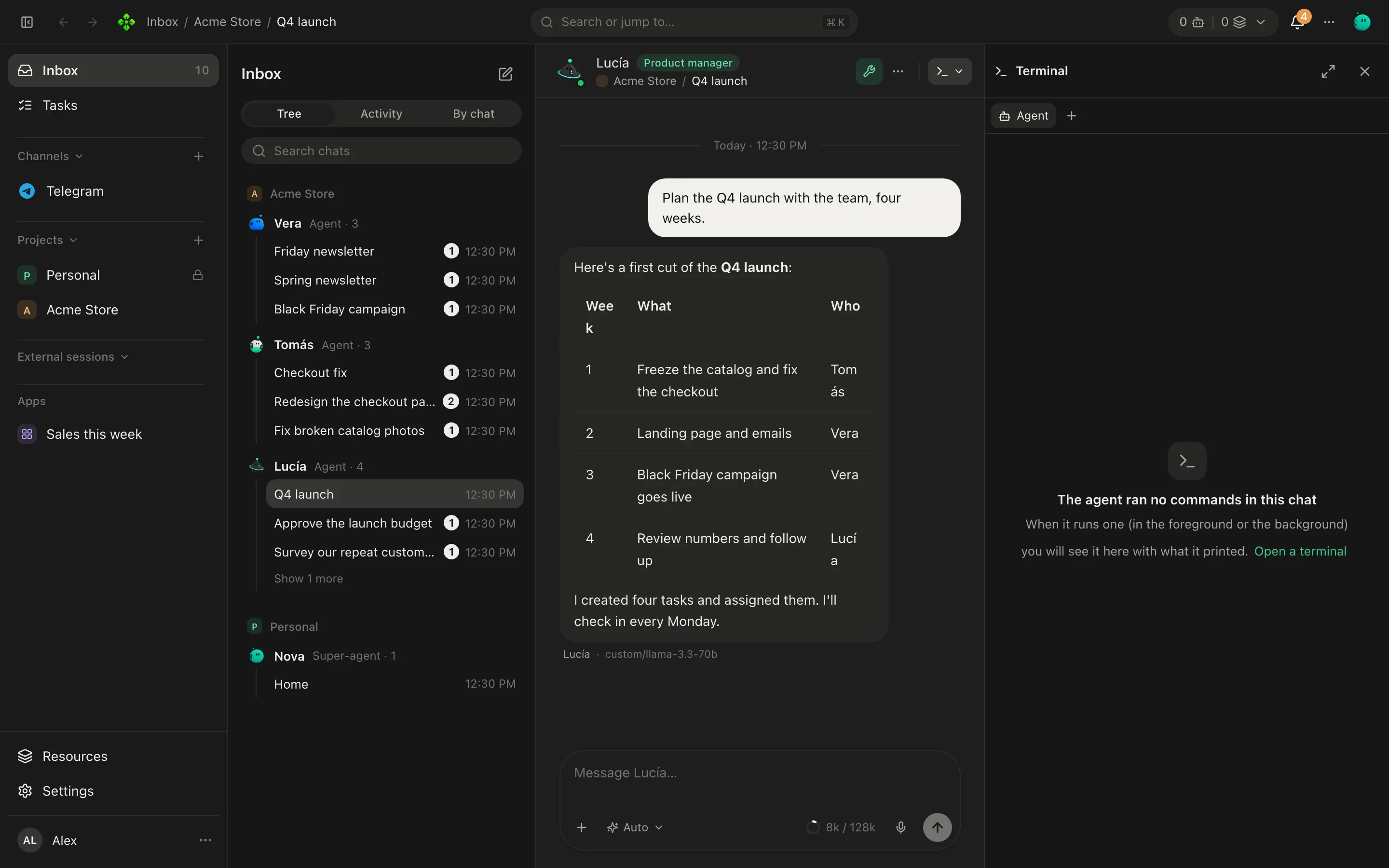
When an agent writes a shell block in its answer (say, a command that needs sudo), the block gets Run in a
terminal. It opens in the Terminal panel on a real terminal, so you can type a password there; when it ends, the
agent that wrote it is told how it went.
Search everything with ⌘K
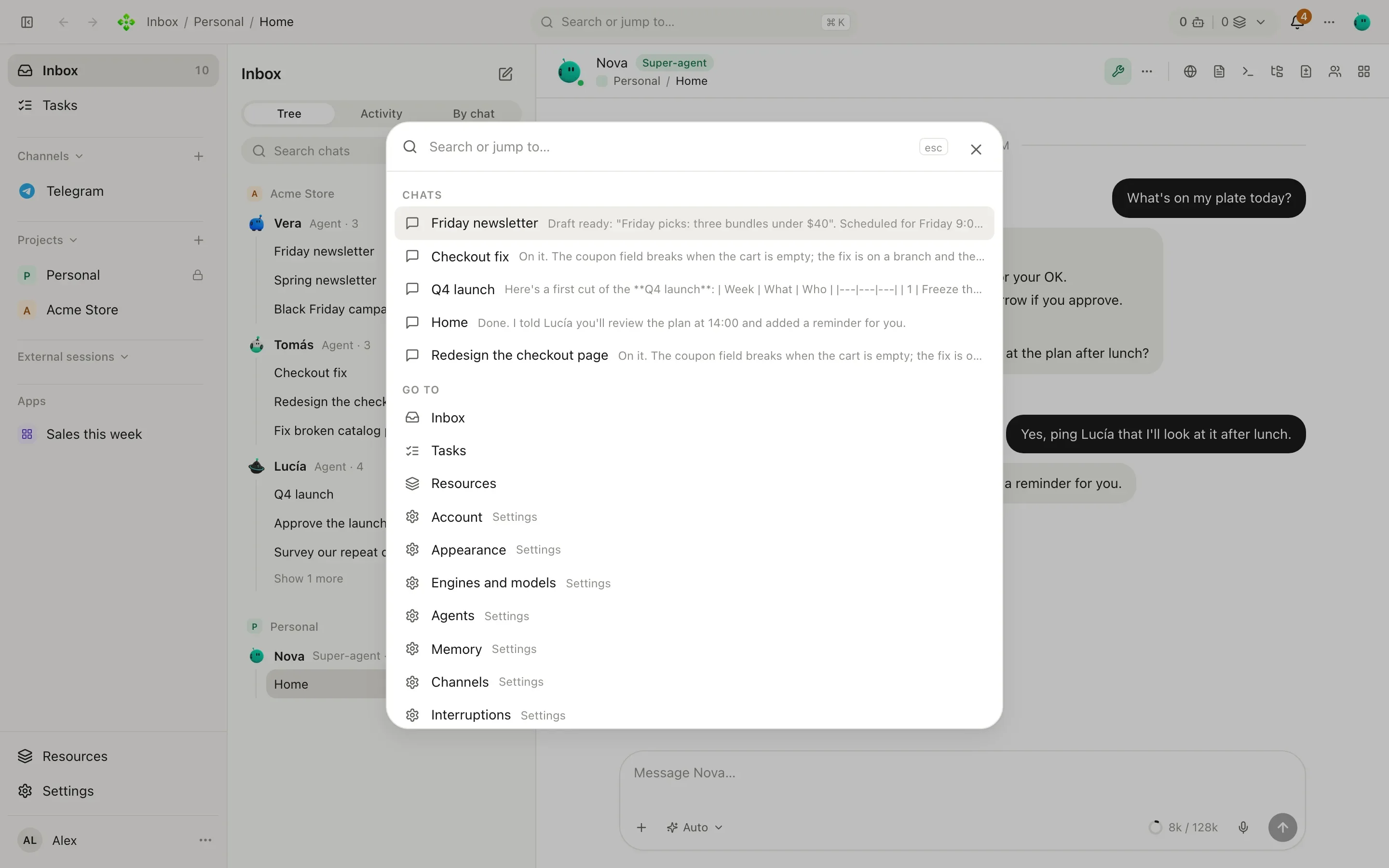
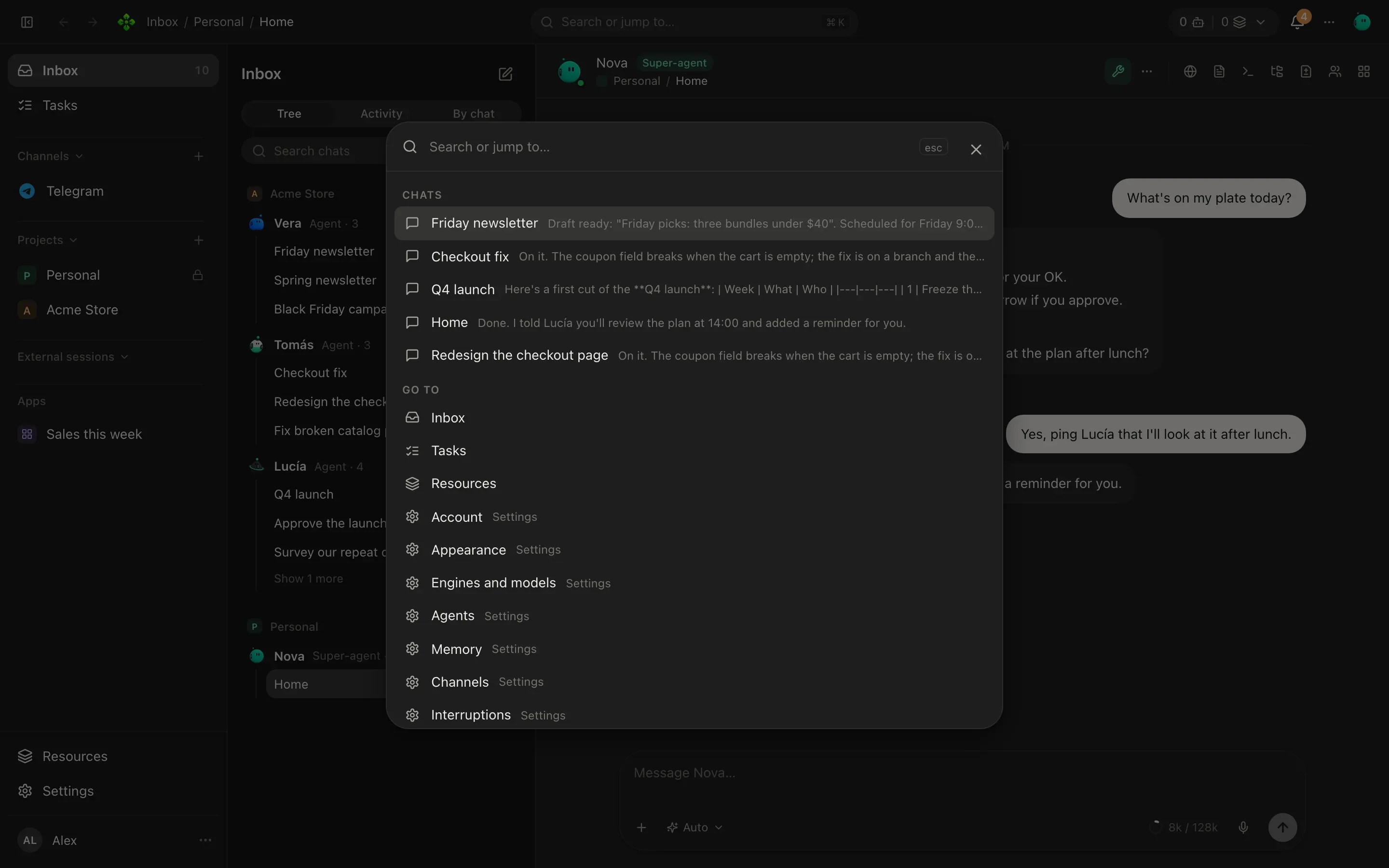
Section titled “Search everything with ⌘K”Search or jump to… in the top bar (⌘K, Ctrl+K on Windows and Linux) opens a palette that finds chats, projects, agents, open tasks and settings, and also searches in messages: type “shipping rates” and jump straight to the message where Tomás mentioned them. ⌘J opens a chat with Home from anywhere.
Quick chat from the tray
Section titled “Quick chat from the tray”In the desktop app, the APX icon in the menu bar (or system tray) opens Quick chat: a small window with Home’s chat, from any app. The global shortcut is set in Settings › Desktop (Alt+Space by default). Closing it only hides it; Open in the app takes the conversation to the main window. See Desktop app.