
Integrations and variables
Integrations
Section titled “Integrations”An integration is an account you connect once, such as GitHub or Notion. Connecting it stores its token as a variable and adds its MCP server as one of your global servers, so your agents can use its tools right away.
-
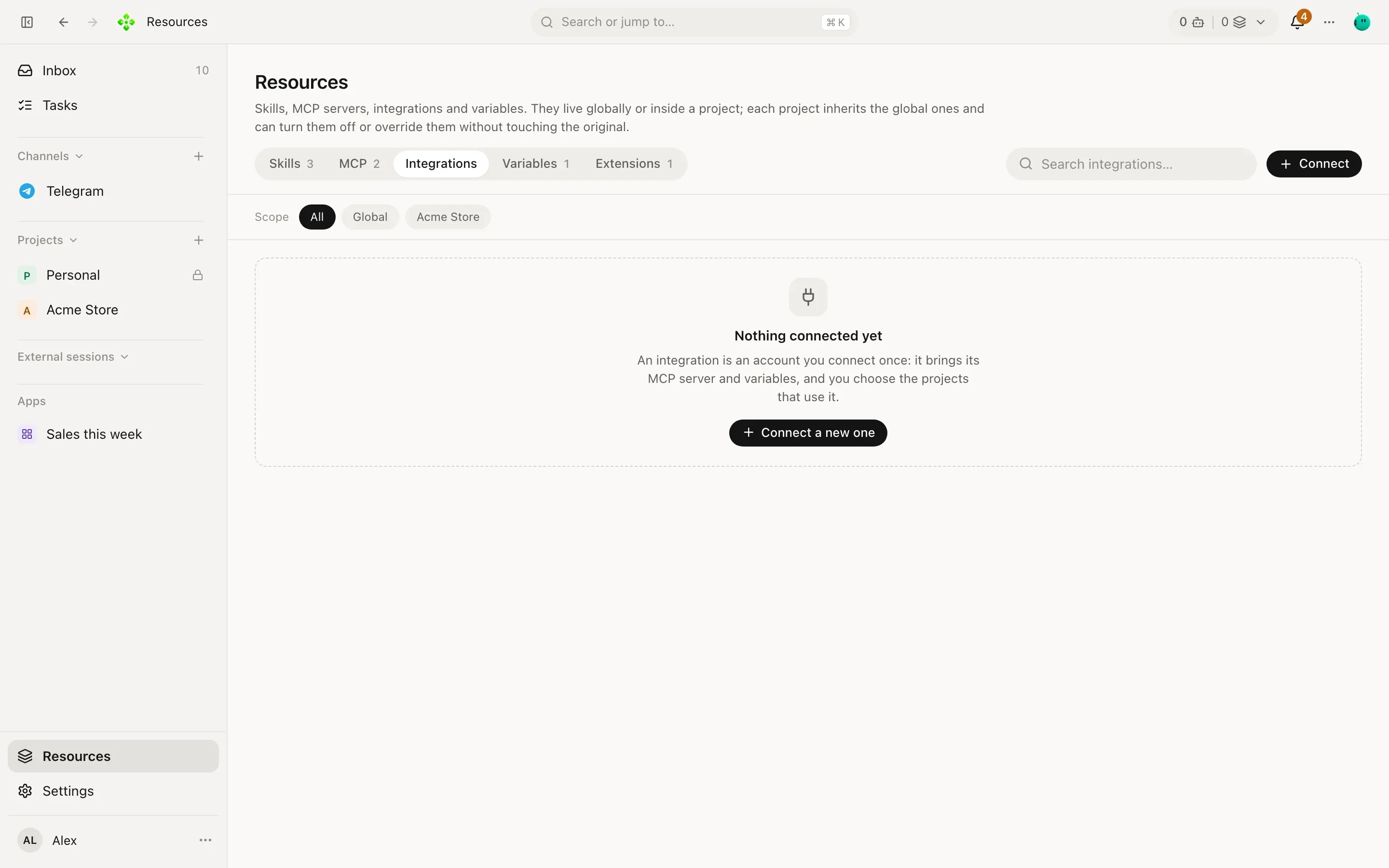
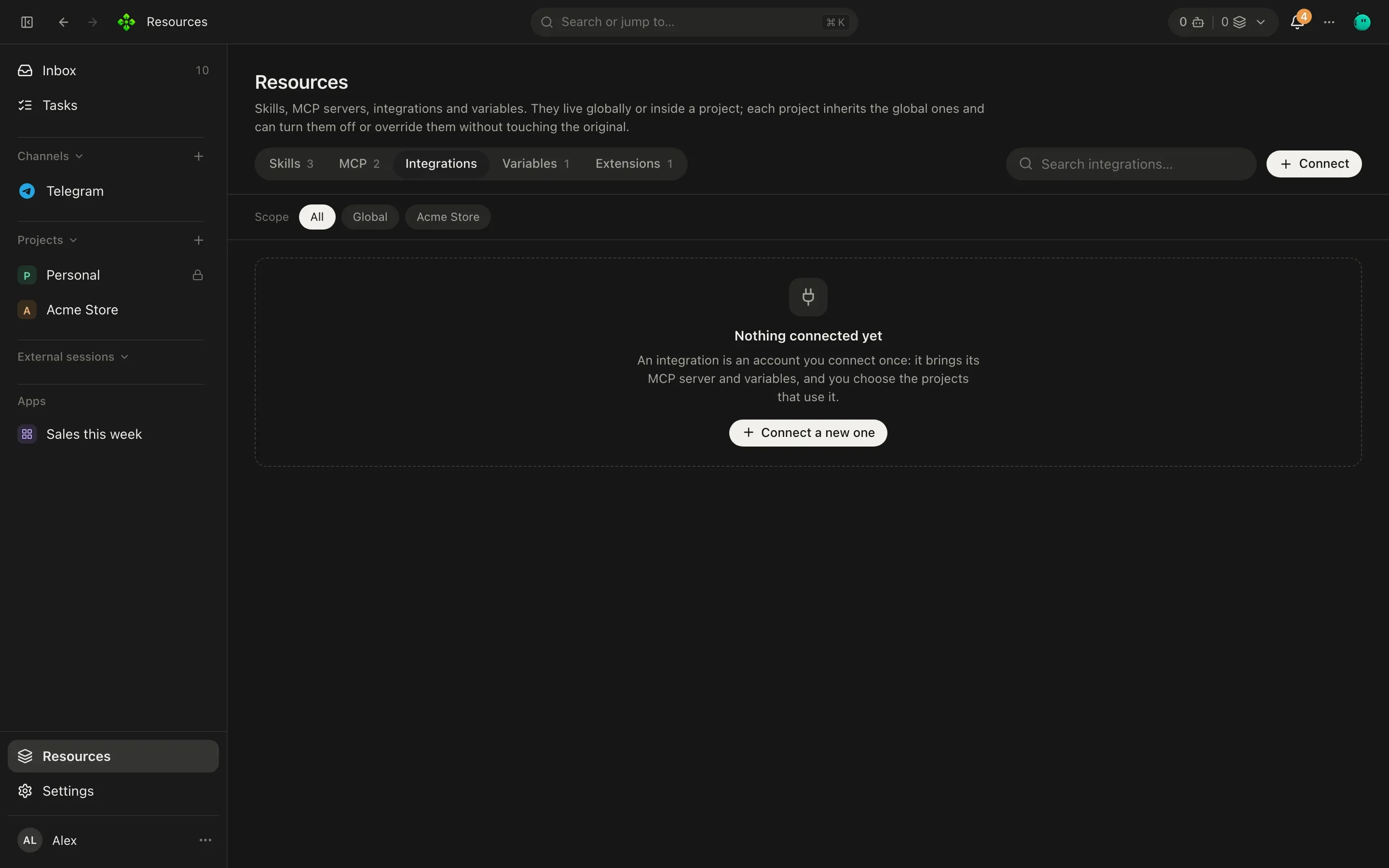
Open Resources › Integrations and press Connect.
-
Pick one from Connect an integration and fill in its fields. Each field links to Where to get it.
-
Press Connect. Tokens and keys go to your secret store; agents use them through the server and never see them.
-
Under Where it is used, choose Every project or only the projects you pick.
| Integration | Gives your agents | You provide |
|---|---|---|
| GitHub | Repositories, issues and pull requests | A personal access token |
| Notion | Pages and databases of your workspace | An integration token |
| Slack | Channels, messages and threads of your workspace | A bot token and the team id |
| Sentry | Errors and issues of your projects | An access token |
| Brave Search | Web search | An API key |
| Obsidian | Read and write the notes of your vault | The vault’s folder |
| Google Calendar, Gmail, Linear, Asana | Marked Soon: they need a sign-in flow APX doesn’t run yet |
These servers start with npx, so the machine running the core needs Node.js and internet access the first time
each one starts. Once connected, an integration behaves like any other MCP server: it has tool
permissions, and agents reach its tools through mcp_search and mcp_call.
To change a token, open the integration and edit it (an empty secret field keeps the stored one). Disconnect removes it.
Variables and secrets
Section titled “Variables and secrets”Variables are where APX keeps tokens, API keys and passwords for your MCP servers, model providers and channels.
Anything that needs one refers to it by name, as secret://NAME; the value is read only by the code that uses it,
right when it uses it. Agents can use a variable by name but never see its value, and it never goes into a prompt or a
log.
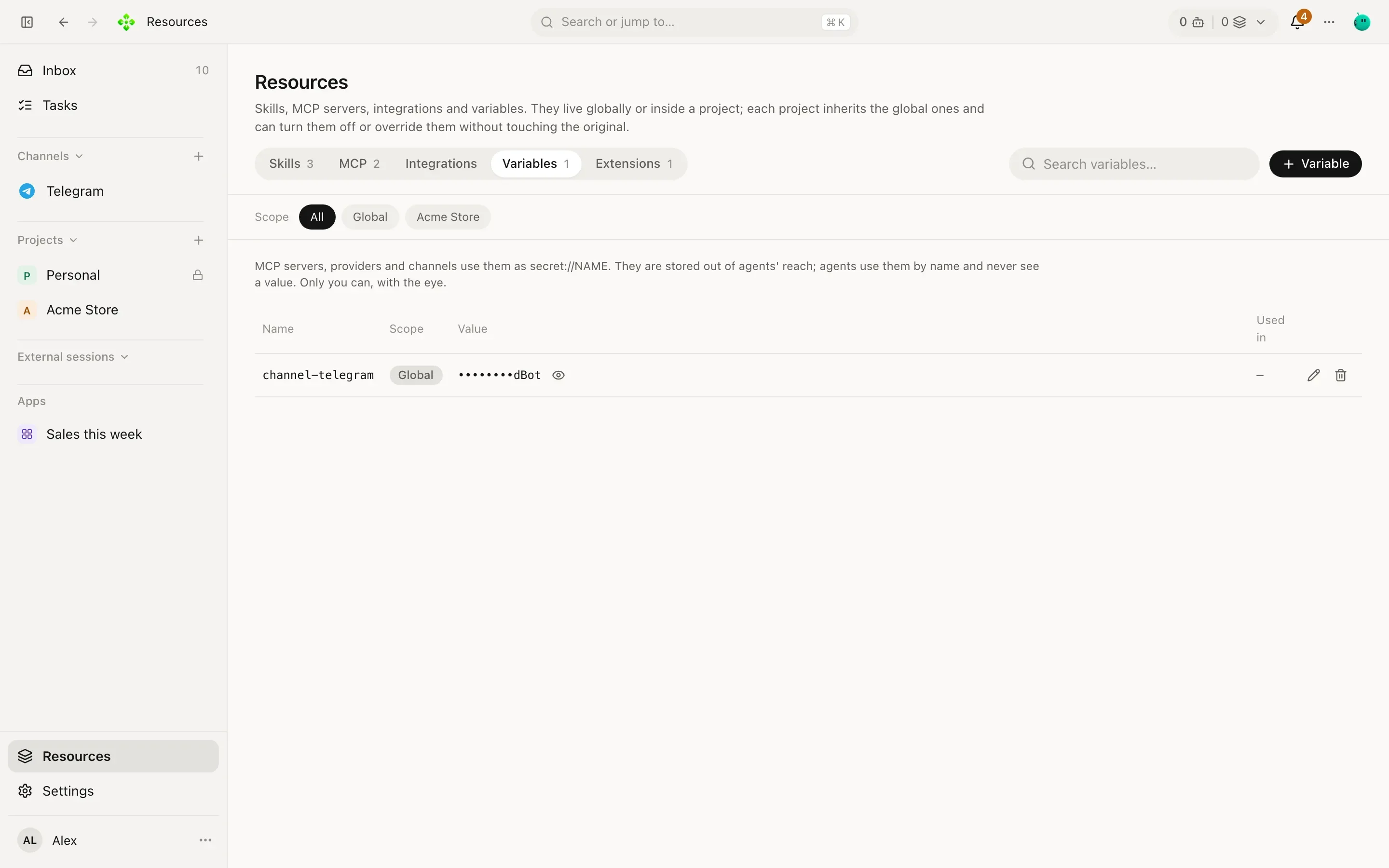
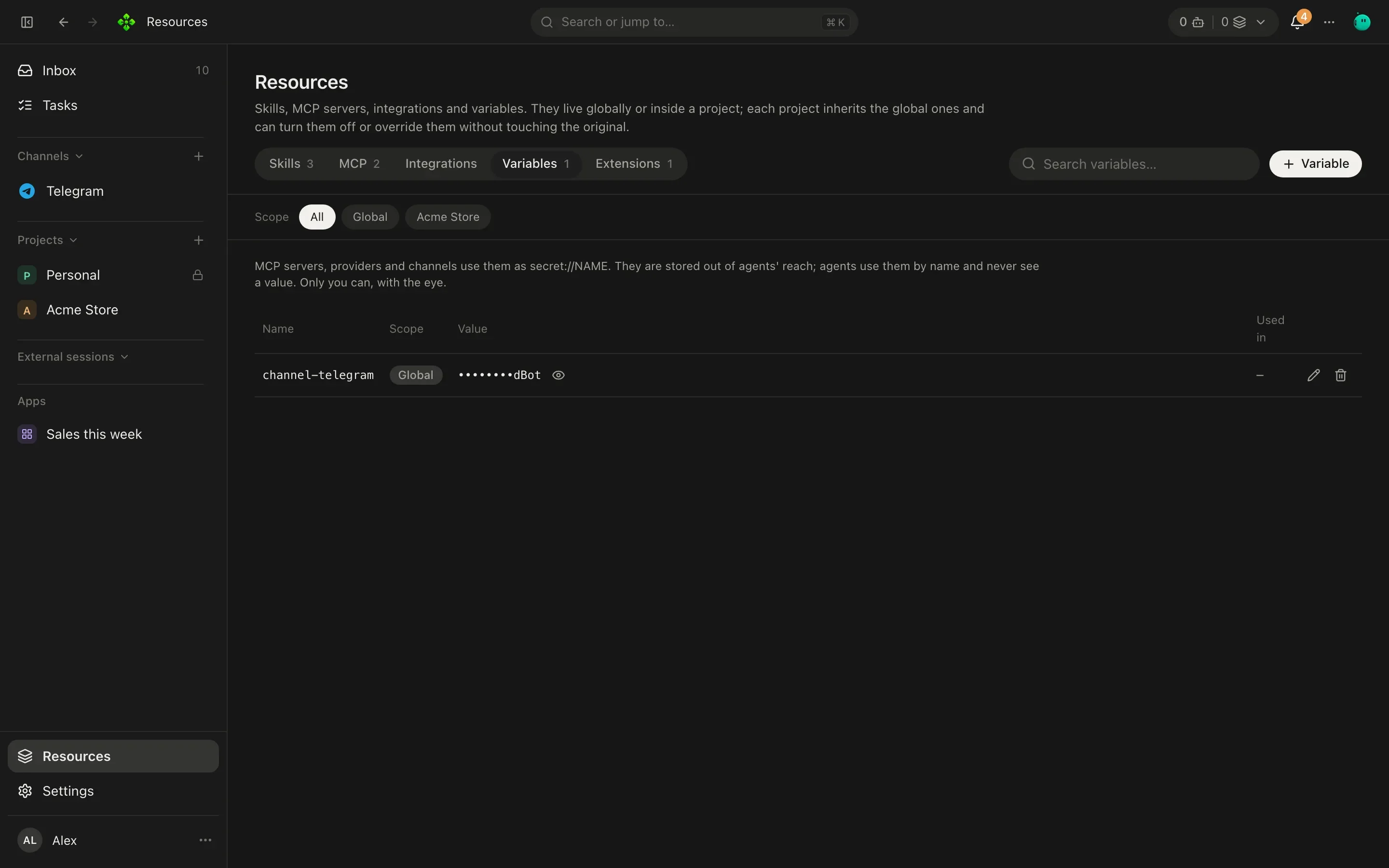
Manage them in Resources › Variables: + Variable adds one (the value goes straight to the core), the eye shows a value to you, and each row says where it’s used.
Where values are stored
Section titled “Where values are stored”- macOS: in your login Keychain.
- Linux, Windows, or any core started with
APX_SECRETS=file: insecrets.jsoninside APX’s home, readable only by your user (mode 600).
A project’s own value
Section titled “A project’s own value”A variable can have a value only for one project. In that project’s chats, your MCP servers use it instead of the global one (the row says Over the global). Use it when a project needs a different account, like a client’s GitHub token.
From the terminal
Section titled “From the terminal”The value is read from standard input, never from the command line, so it doesn’t end up in your shell history or the process list:
pbpaste | apx secrets set github-token # macOS: from the clipboardapx secrets set github-token < token.txt # or from a fileapx secrets # names and when they changed; never the valuesapx secrets rm github-token❯ apx secrets github-token 2026-10-08T09:12:44.120Z brave-search-key 2026-10-02T17:30:05.981Z