
Desktop app
The desktop app is the easiest way to live with APX. Its window is the panel, the same one the core serves to a browser. Around it, the app adds three things a web page can’t: an icon in the menu bar with a quick chat, a real browser your agents can drive, and (on a Mac) the option to let agents use your computer.
The window
Section titled “The window”The main window is the panel: Inbox, Tasks, Projects, Settings and everything else, as described in the rest of these docs. Closing it only hides it. Browser tabs and the link to the core stay alive, and the Dock, the menu-bar icon or opening APX again bring the window back. Quit is what ends it.
Only one APX runs at a time: opening it again brings the running one to the front.
The menu-bar icon and the quick chat
Section titled “The menu-bar icon and the quick chat”APX puts an icon in the menu bar (the system tray on Windows and Linux):
- One click opens the quick chat, a small 400×600 window under the icon with your Home chat (the secretary). It hides again when it loses focus.
- Double click opens the main window.
- Right click shows the menu: Open APX, Quick chat and Quit APX.
When something is waiting for you, the icon gets a badge with the count (on a Mac, also next to the icon and on the Dock).
The quick chat also has a global shortcut that opens and closes it from any app, centered near the top of the
screen. It is Alt+Space until you change it. You’ll also find Quick chat in the app’s Window menu.
Settings › Desktop
Section titled “Settings › Desktop”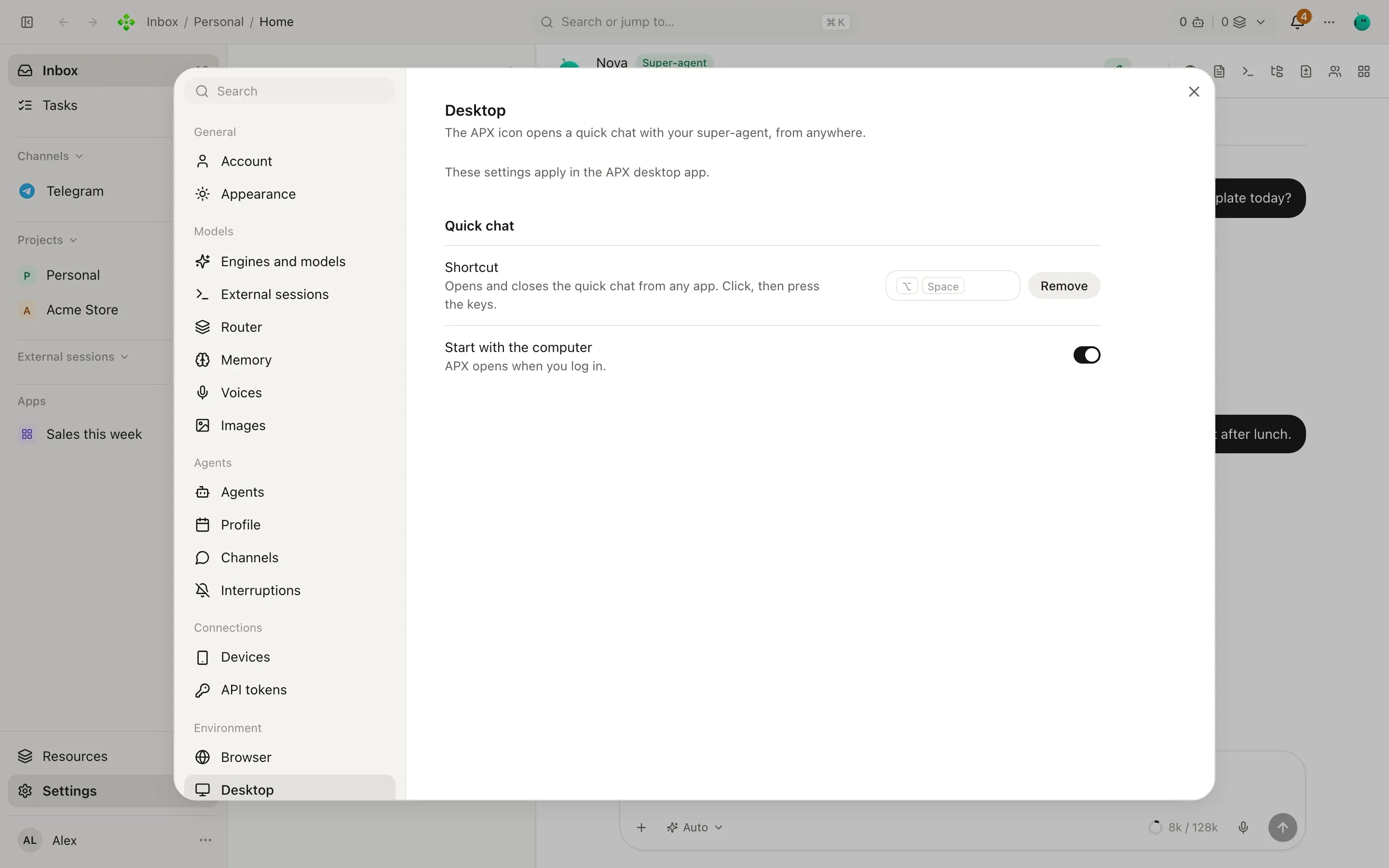
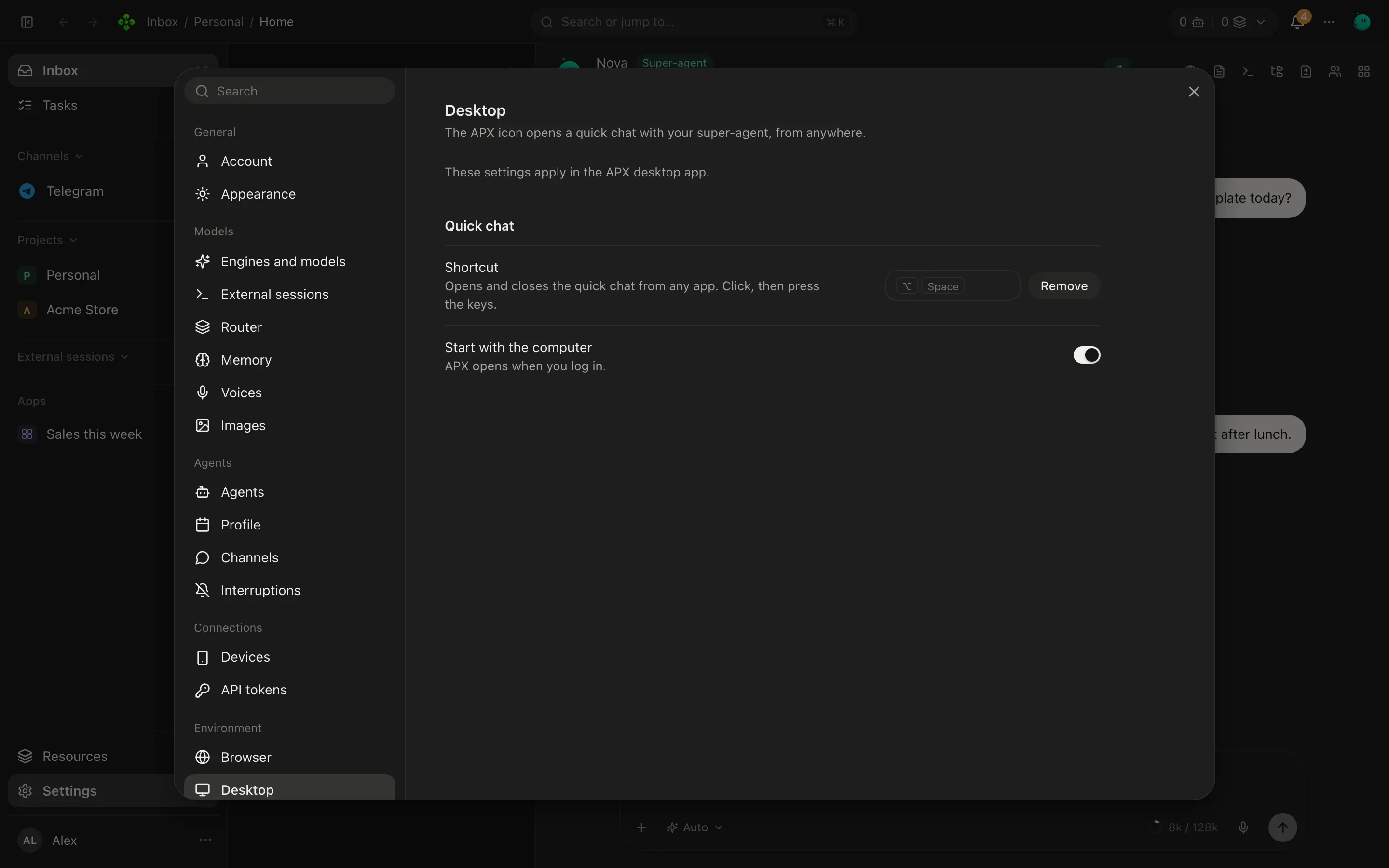
These settings live in the core but only apply inside the desktop app (in a plain browser the section says so).
| Setting | What it does |
|---|---|
| Shortcut | The global shortcut for the quick chat. Click, then press the keys. Remove leaves it without one. If another app already uses those keys, APX tells you. |
| Start with the computer | APX opens when you log in. On by default. |
| Let agents use this computer | Computer use, on macOS and Windows, off until you turn it on. See below. |
Computer use
Section titled “Computer use”With computer use on, agents can look at the window in front and, with your OK, click and type in it. On macOS it needs two permissions, shown right there with their state and an Open System Settings button: Screen Recording (to see the window) and Accessibility (to read its buttons and fields, click and type). Windows asks for none; there an agent opens only web addresses and apps by name, never a command prompt or a script host.
Some things hold in every autonomy level, even total:
⌘⇧Esc(Ctrl+Alt+Escon Windows) is the emergency stop, from any app. It ends every run using the computer.- Every 60 actions in one turn the agent asks you before going on.
- Password fields are refused.
Looking at the screen is an ask tool; clicking, typing and pressing keys are always tools, so they ask in every
autonomy except total (see Autonomy). Windows and Linux don’t lend this capability yet.
The browser your agents drive
Section titled “The browser your agents drive”The desktop app connects to the core as a node: it lends the core its browser (and computer, when you turn
computer use on). Agents open tabs there, read pages, click and type, and you can watch or take control at any
point. Tabs are separate from the panel, so reloading the panel never closes them.
Without the desktop app the core falls back to its own headless Chrome, which can’t hand control to you or use your logins. More in Browser.
Which APX it connects to
Section titled “Which APX it connects to”The first time an installed app opens, it asks Where does your APX run?
APX runs here: the app starts its own core. Then it asks Where will you use it from?
- Only from this computer: the safest. Nobody else reaches the core.
- Also from my local network: other devices at home or at the office, each with a pairing code.
- Tailscale: your devices from anywhere, over https. Needs Tailscale installed.
The first time, it then offers to start fresh or import from APX v1.
If a core is already running on this computer (port 7440), the app uses it instead of starting another.
APX already runs on another computer or a server, and this app only connects. Two ways:
- Address: the core’s URL, for example its Tailscale address. The core asks this app for a pairing code the first
time; get one on that APX in Settings › Connections › Devices or with
apx pair. - SSH:
user@server(optionally:port). The app uses your ownssh, keys, agent and~/.ssh/configto forward the server’s core to this computer, so the server opens no port. If it can’t log in, can’t find APX on the server, or the core there doesn’t answer, it tells you which.
To pick another APX later, use the app menu: APX › Change connection…
Setting up the server side is covered in Run APX on a server.
Updates
Section titled “Updates”The installed app updates itself. Every few hours it checks the release feed and, when a newer APX is out, the panel
shows it in the top bar. On your word it downloads the installer for your system and checks it against its .sha256:
- Linux (AppImage) and Windows finish on their own and open again.
- macOS opens the disk image for you to drag APX in. The app isn’t signed yet, so it can’t replace itself silently.
The app carries its own core, so updating the app updates that core too. When the app is connected to a core on a server, the update offered in the panel is the server’s.
Running it from a checkout
Section titled “Running it from a checkout”Working on APX itself? From the repository:
pnpm installpnpm app # builds the panel and the desktop app, starts the core, opens the app