
First steps
The first time APX opens, a short wizard sets up your crew. It takes a few minutes, everything in it can be changed later in Settings, and you can open it again from the account menu › First-run setup.
The setup wizard
Section titled “The setup wizard”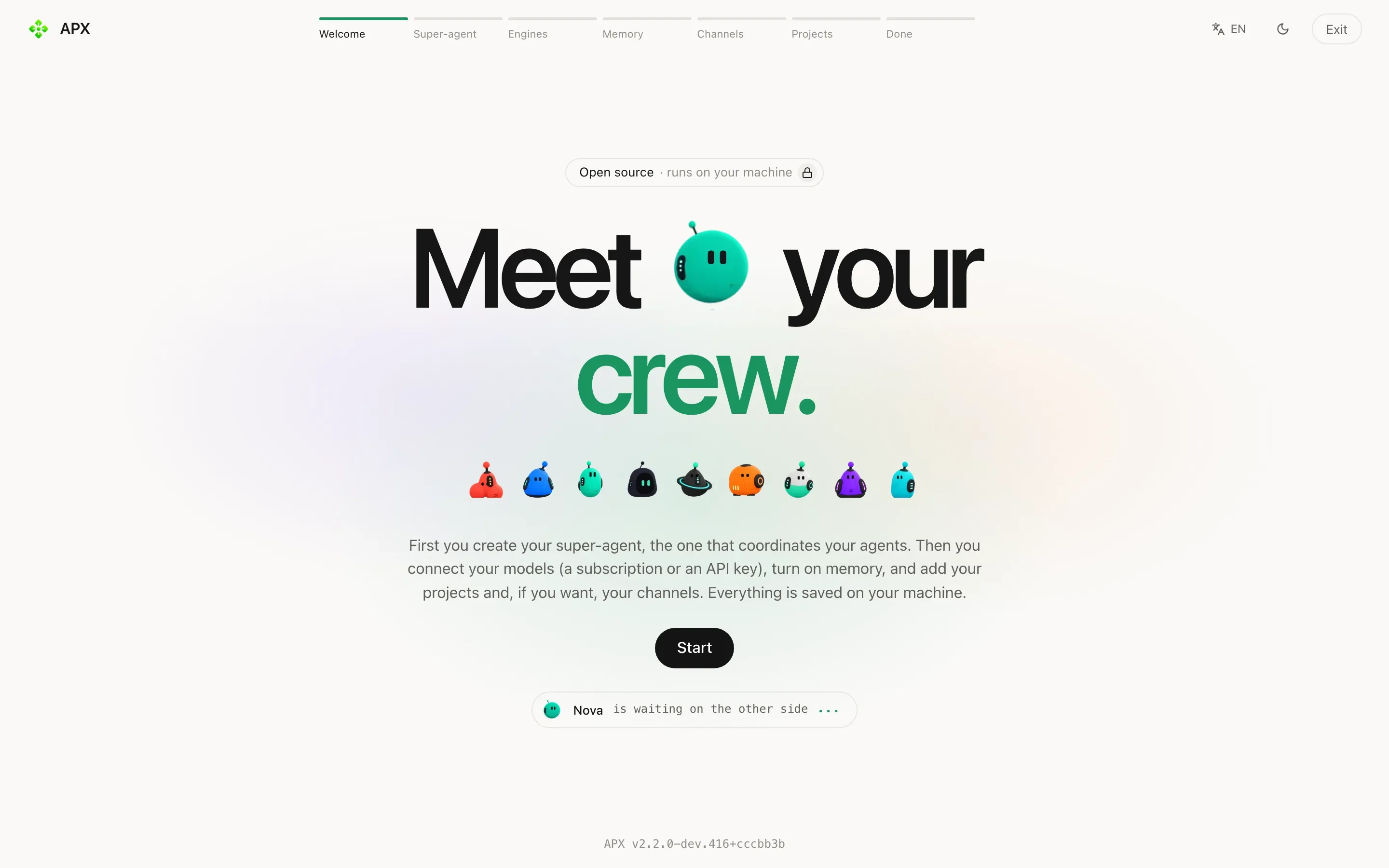
-
Welcome. Choose Start from scratch. If APX finds an APX v1 on this computer, it also offers Import from APX v1, with how many projects it found. Importing adds a step where you pick what to bring (see Coming from v1).
-
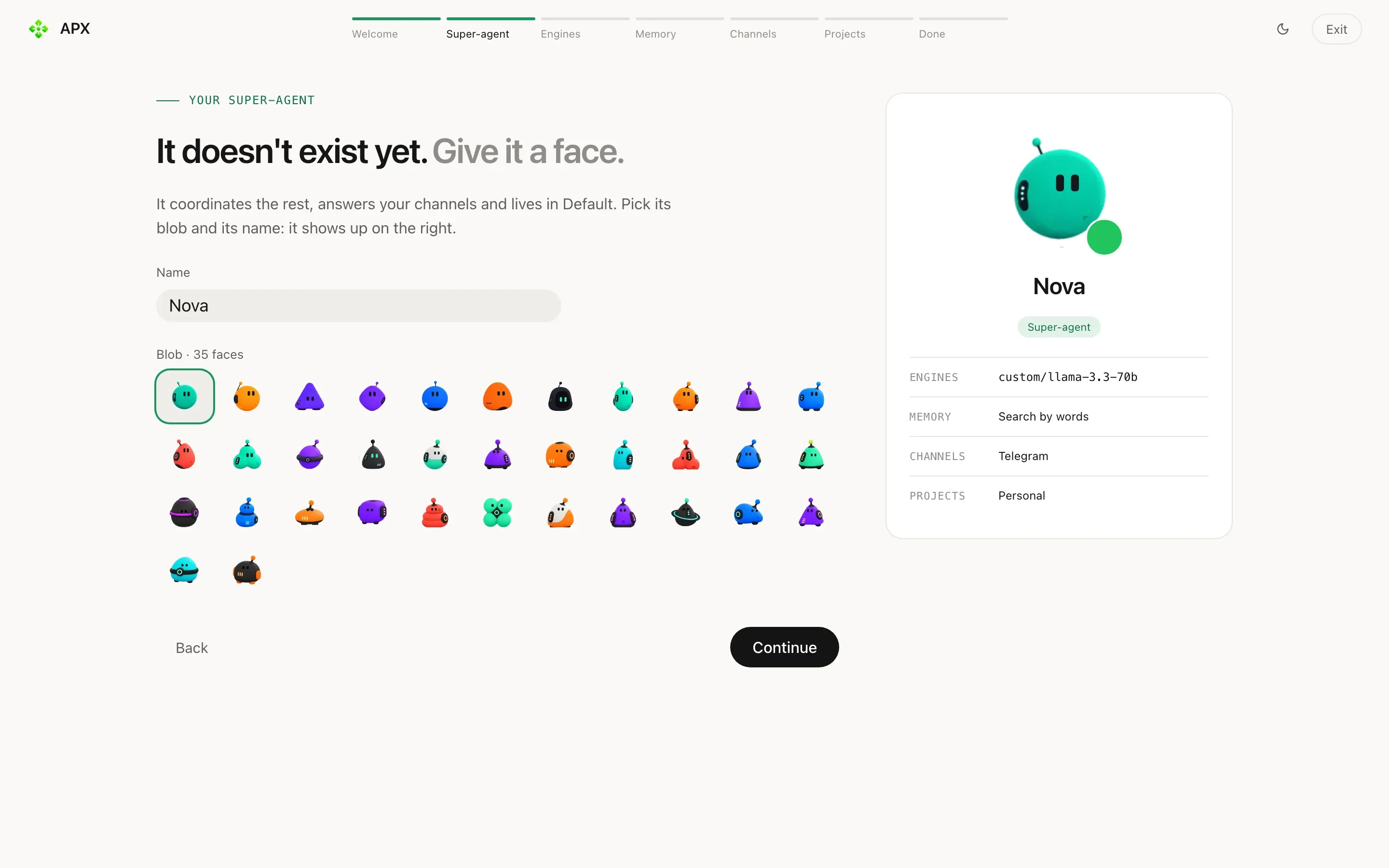
Super-agent. This is Home, your secretary: it coordinates the rest and answers your channels. Give it a Name and pick its blob, one of 35 faces. It shows up beside the form as you choose.
-
Engines. Connect your models: sign in with your ChatGPT plan, or Add API key for Gemini, Anthropic, OpenAI, OpenRouter and others. Local engines such as Ollama need no key. Then order the Model chain with the arrows: the first model is the default, and if it fails the next one takes over.
-
Memory. Choose Search by words (notes found by the words they share with your message), Search by meaning (the same, plus notes that say it differently; needs an embedding engine like Ollama, Gemini or OpenAI) or No memory. Two switches below: pick skills by meaning for each message, and keep long chats small with summaries.
-
Channels. Optional. Paste a Telegram bot token from @BotFather and press Connect, or link WhatsApp with a QR as you would WhatsApp Web. Discord and Slack are set up later in Settings › Channels.
-
Projects. Your base project is always there and has no folder of its own; Home and your global agents live in it. You can rename it, add a folder now with With a folder, or skip with Not now. Press Create crew.
-
Done. Your crew is ready. Press Open APX.
Pick a model
Section titled “Pick a model”You chose a default model chain in the wizard. You can change it at any time:
- Settings › Engines and models lists every engine with its models and lets you add keys or sign in.
- Settings › Router sets rules that pick a model per turn (images, long messages, a channel, keywords) and the fallback chain.
- In a chat, the model picker in the composer changes the model for that chat only, and
/modeldoes the same from the keyboard.
From the terminal, apx models lists every engine and its models, and apx models default sets the install’s
default. More in Models.
Say hi to Home
Section titled “Say hi to Home”Home’s chat is in the Inbox. Write in the composer (“Message …” with your secretary’s name) and press Enter.
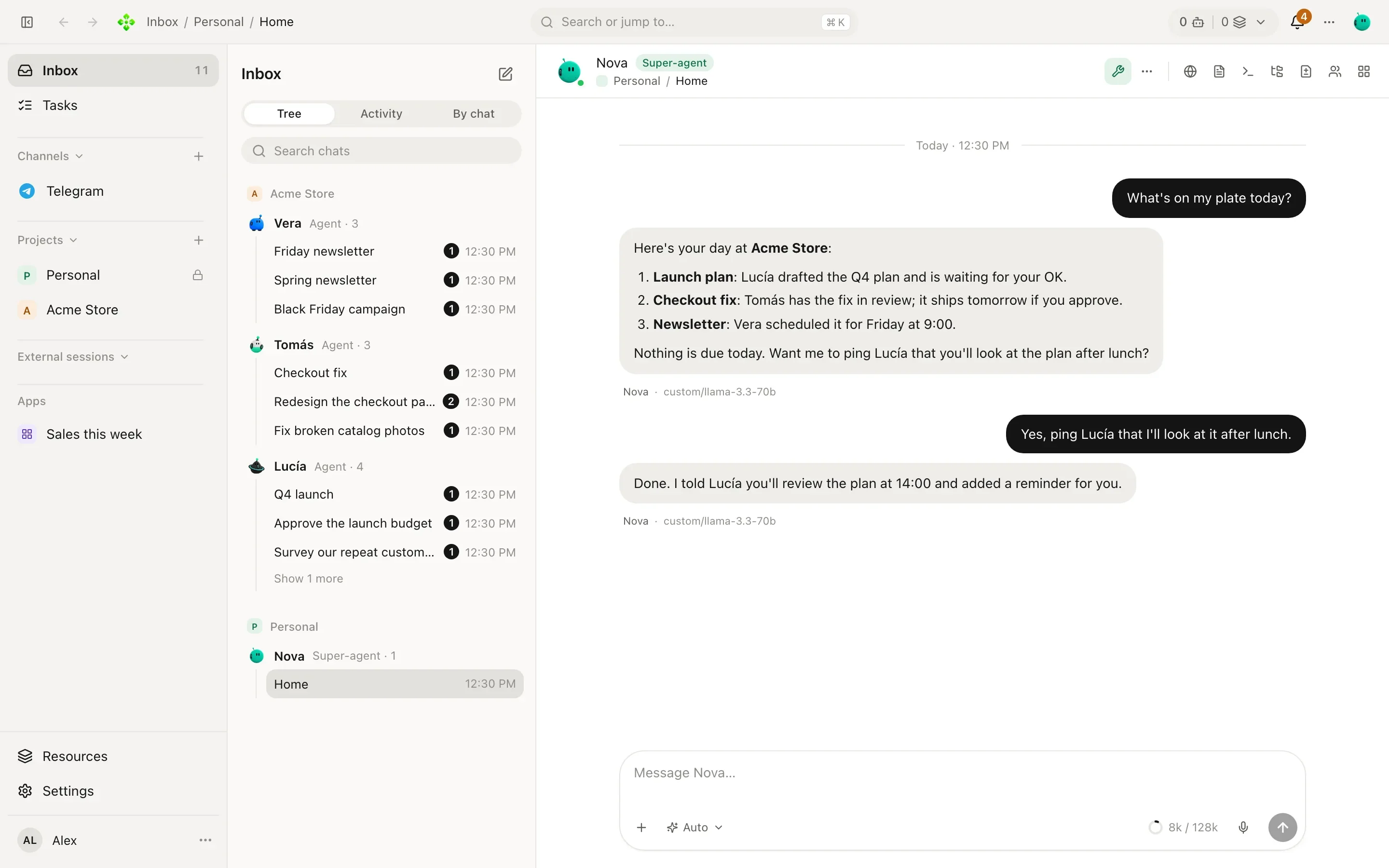
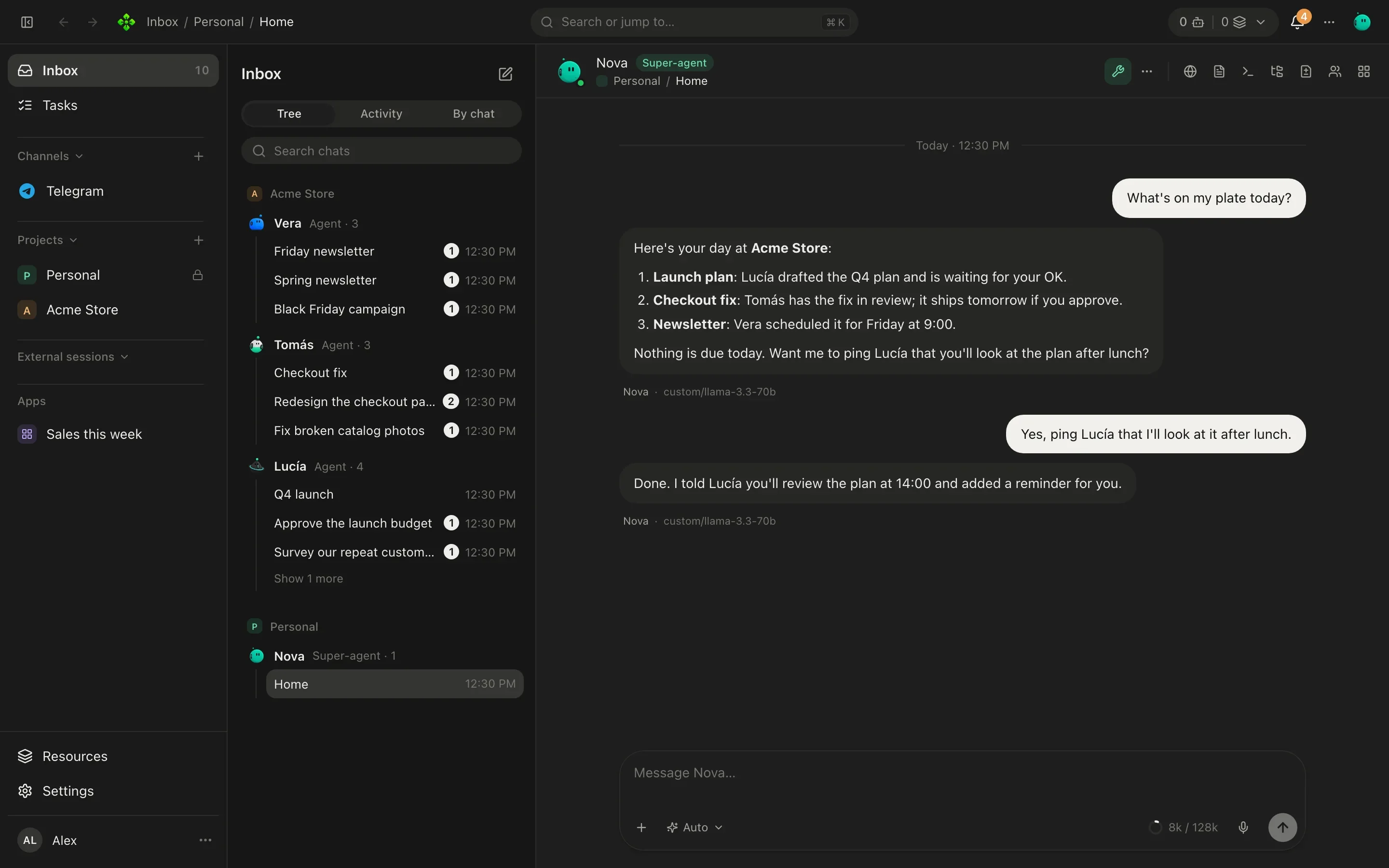
Try something real:
- “What can you do for me?”
- “Remind me to call Northwind about the invoice on Friday at 10.”
- “Open the Acme Store site and tell me what the home page says.”
Home’s chat is one conversation everywhere: when you connect Telegram or WhatsApp, the messages you send there land here too.
Add a project
Section titled “Add a project”A project is a folder your agents work in: a repo, a shop, a company folder. In the sidebar, press New project. The Add a project dialog asks Where it lives:
- In a folder: pick a folder like
~/work/acme. If it has noAGENTS.md, APX writes one naming the project. - No folder: the project is made inside APX’s own folder.
Or from the terminal:
❯ apx projects register ~/work/acme
The project shows up in the sidebar with its tabs: Overview, Chats, Agents, Tasks, Routines, Files, Memory and Resources. Add agents in the Agents tab with Agent, or bring one from a template with Import. More in Projects.
Ask from the terminal
Section titled “Ask from the terminal”apx chat is the one way to talk to an agent from the terminal. With no options it writes to Home:
❯ apx chat "What's still open in Acme Store?"
Two tasks are open in Acme Store: Tomás is fixing the checkout bug,
and Vera's newsletter is waiting for your review.
— completed · thread home
Talk to a specific agent with --agent, start a fresh chat with --new, or open a code thread in the folder you’re
in with --code:
apx chat "Draft the release notes" --agent "Lucía"apx chat "Why does the cart test fail?" --code --cwd ~/work/acmeEverything you write from the terminal shows up in the app, and the other way around.