
Board and widgets
Ask an agent for a chart, a dashboard, a checklist or a small tool, and it builds a widget: a self-contained piece of HTML that shows right in the chat. Widgets are live: when the agent changes one, every place it is open updates at once. Pin the useful ones to a project’s Board and you have a dashboard your agents keep up to date.
Agents build them in chat
Section titled “Agents build them in chat”Ask in plain words:
You: Vera, make me a widget with this week’s orders by day and the top 5 products.
Vera: Here it is. It reads the numbers from the store’s export; ask me to change anything.
The widget appears inline in the answer. To change it, just ask (“make the bars green, add last week for comparison”): the agent edits the same widget instead of making a new one, and you see the new version in place.
Widgets are themed to match the panel (light and dark) and reach no network unless they declare where they get live data from: then the widget’s header says Live data from and the hosts. A widget that connects out asks your OK while outside content is in the turn.
The Widget side panel
Section titled “The Widget side panel”Open the side panel on Widget to see every widget the agent built in this chat, larger. Each widget’s header has the same actions wherever it shows (chat, panel, Board, Apps):
| Action | What it does |
|---|---|
| Ask its agent for changes | Opens the widget’s chat with the agent that keeps it. |
| Pin to the board / Unpin from the board | Puts it on (or takes it off) the project’s Board. |
| Install as app / Open as app | Lists it under Apps in the sidebar and opens it fullscreen. |
| Share | Private by default; Anyone with the link can view it without editing. Copy link to send it. |
Pin to the project Board
Section titled “Pin to the project Board”A project’s Overview tab opens with its Board: the widgets pinned to that project, live.
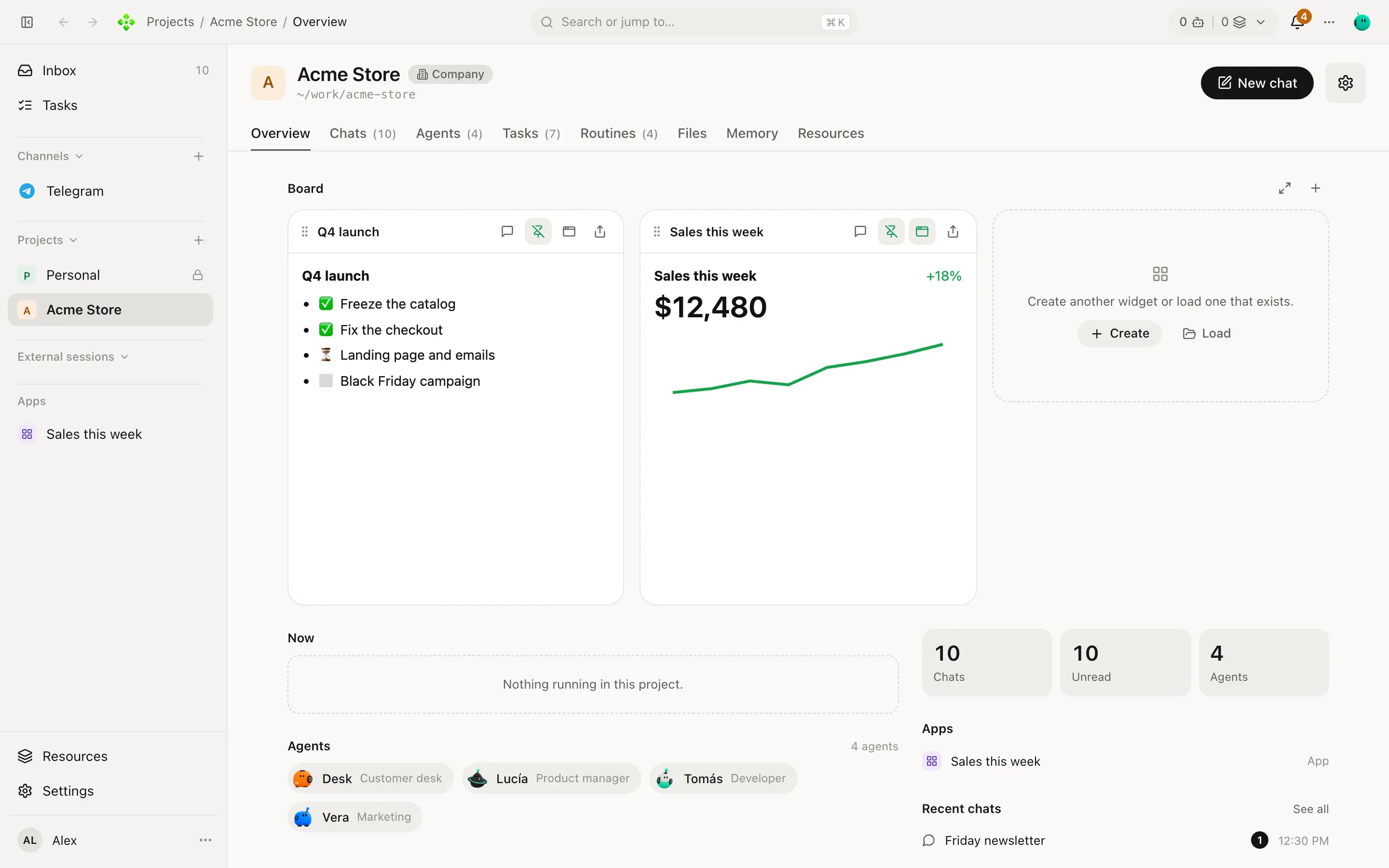
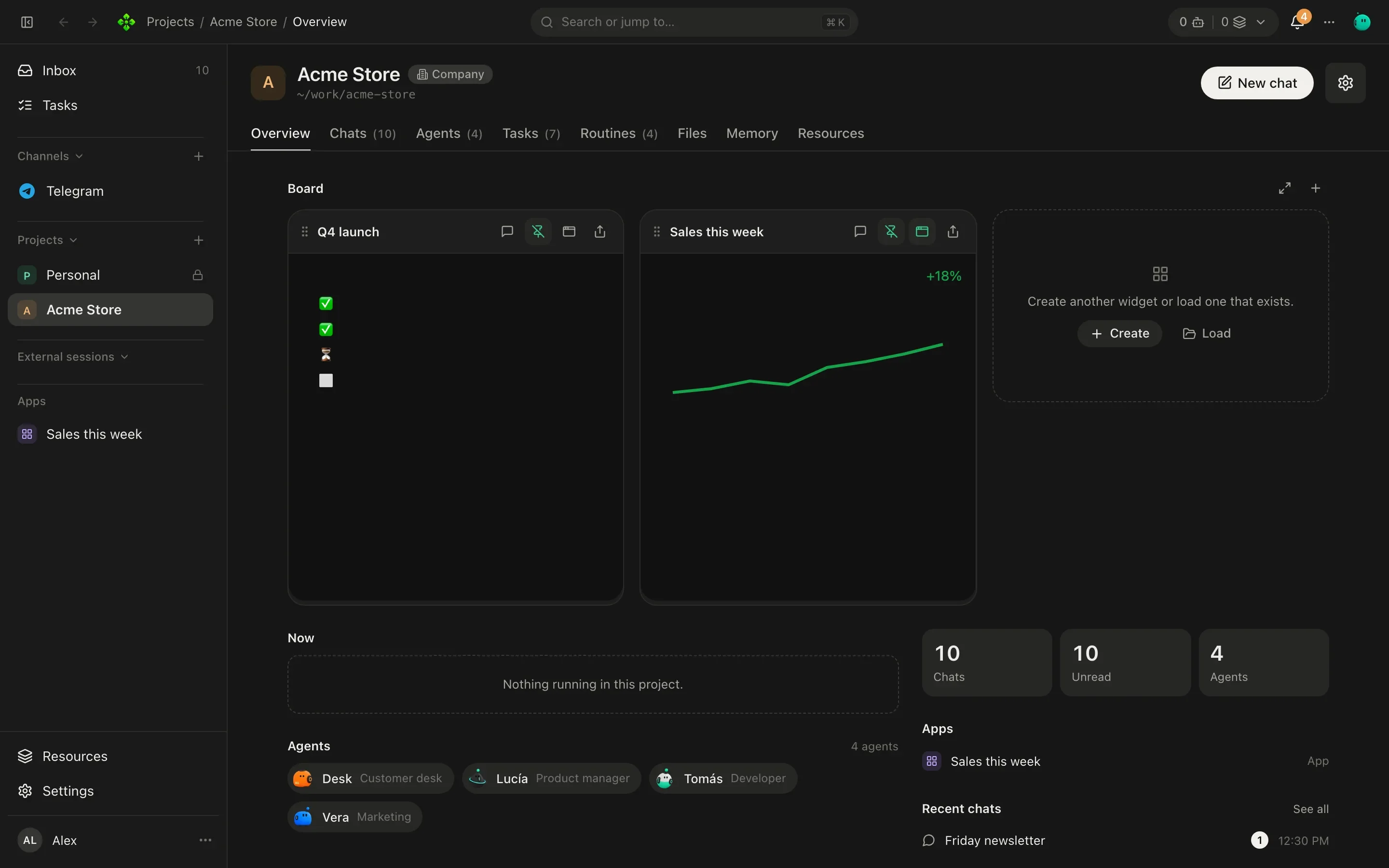
- In a chat, pin a widget with Pin to the board, or on the Board press Add a widget.
- Ask for a new widget… and pick an agent (or Home): it appears on the Board as soon as the agent makes it.
- Or pick one that exists: From this project, or Copy from another project. An empty Board offers the same as Create and Load.
- Drag a widget’s bar to reorder; set its height and width with the handles (or the arrow keys). Board at full width uses the whole window.
Apps: a widget fullscreen
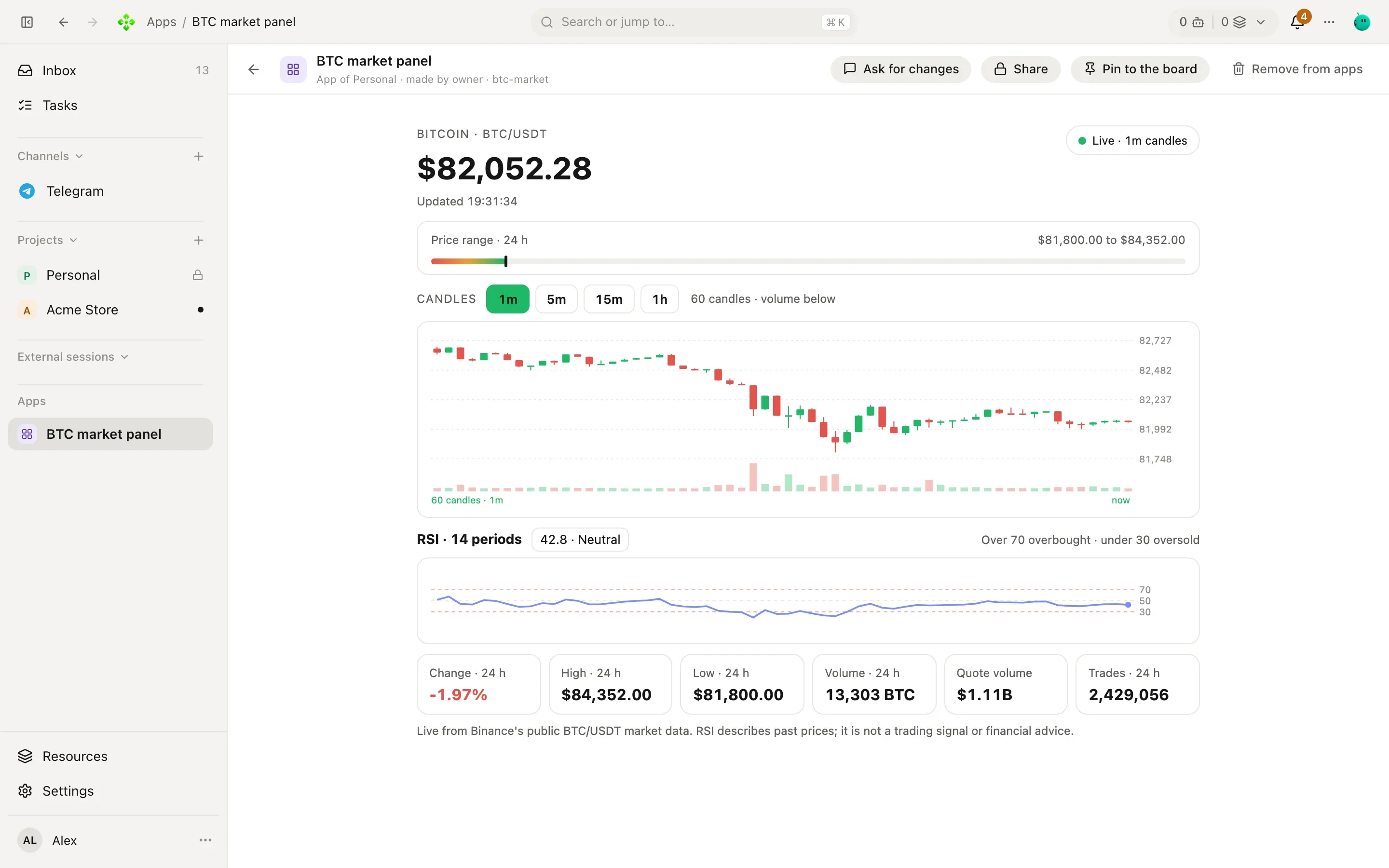
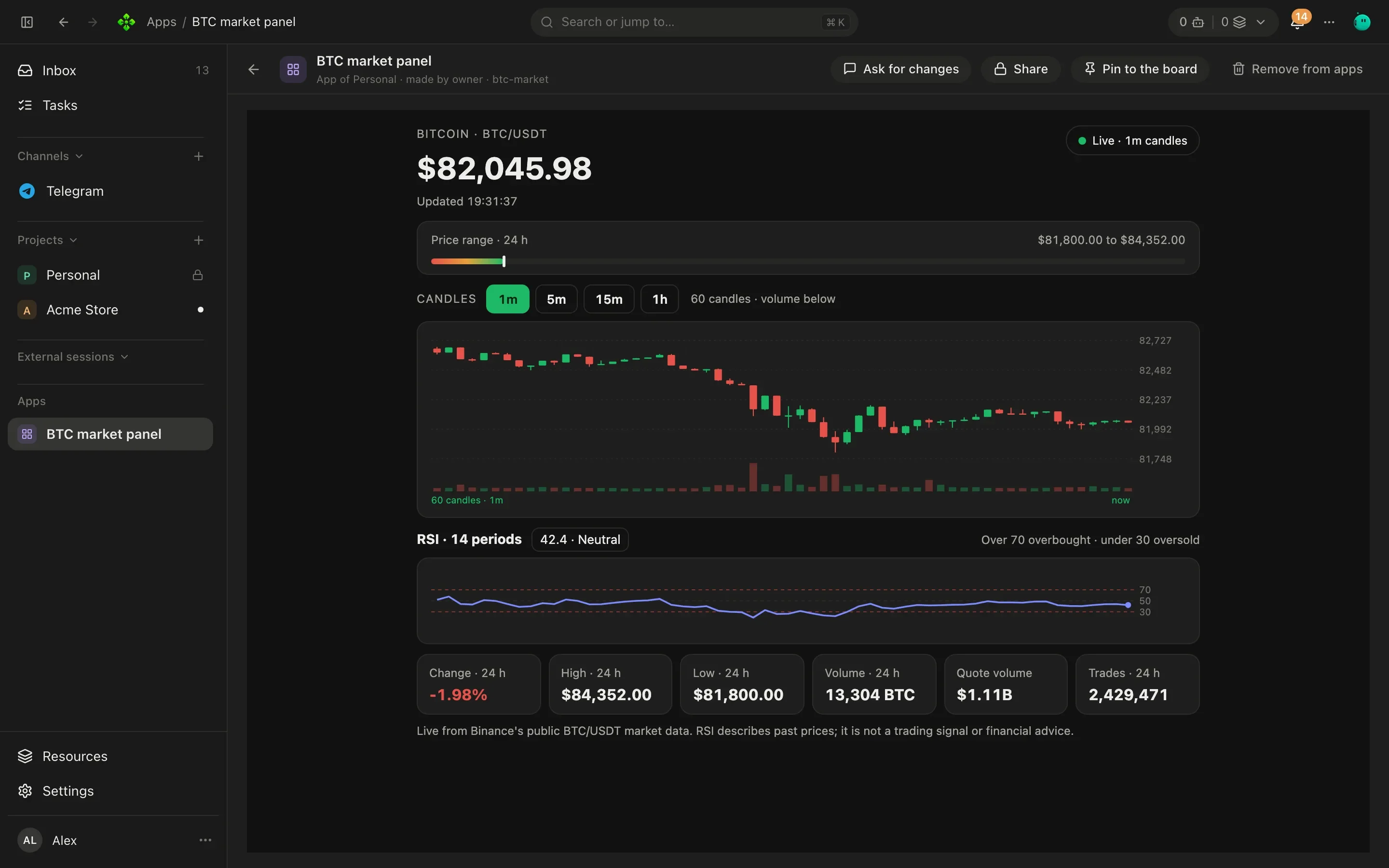
Section titled “Apps: a widget fullscreen”Apps in the sidebar lists the widgets you installed as apps. Each opens fullscreen, from any project, with who made it and where it lives. Remove from apps takes it off the list (the widget itself stays).
Where widgets belong
Section titled “Where widgets belong”A widget belongs to one project, or is global when it was made in a chat outside any project. A project’s chats see only that project’s widgets; chats outside a project see only the global ones. To use a widget somewhere else:
- Copy it into another project (from that project’s Board: Add a widget › Copy from another project).
- Open it as an app, from any project.
- Share its link.
An agent never reaches into another project’s widgets.